
Everyone tells you that you need a CRM.
But what you might not know is that you already have one.
If you’re paying for Google Workspace, the pieces are already there. Google Sheets holds the data. Gemini builds it, formats it, and keeps it smart. And when you need to know something about a client, you don’t open a new tab — you just ask, right where you’re already working.
No new software. No new subscription. No new login to forget.
For many freelancers, consultants, and small teams, it’s all you need to manage client relationships without adding another platform to the stack.
In this post, I’ll show you exactly how to build a simple AI-powered CRM using tools you already pay for.
The Reality of Managing Client Follow-Ups
Here’s a scenario you’ve probably lived:
- Monday: A client reaches out asking for a quote. You respond and make a mental note to follow up later.
- Thursday: You get deep into project work, and the follow-up doesn’t happen.
- The Result: By the time you circle back, the moment has passed and the lead is cold.
The issue is that the next step existed only in your memory. Once your attention moved elsewhere, there was nothing to bring it back.
Why a Simple CRM Solves This
A CRM is just a centralized place where the whole thread lives. It organizes everything you need in one glance:
- Contact details and full conversation history
- Sent quotes and promised follow-up dates
- The current status of where things stand
Nothing gets lost between messages, and it completely removes the burden of remembering. For a solopreneur wearing every hat, that matters more than it does for a large sales team. There is no one else to catch what you drop.
What Most Solopreneurs Actually Need From a CRM
Most CRM platforms are built for teams, which means they come loaded with features many solopreneurs will never use. At its core, though, a CRM only needs to do a few things well:
Keep client information in one place. Contact details, notes, conversation history, and current status should be easy to find without hunting through emails, documents, and sticky notes.
Show you what needs attention. You need a clear view of active opportunities, upcoming follow-ups, and overdue tasks. Nothing more complicated than that.
Remember things for you. Follow-up reminders, status updates, and routine admin should happen automatically whenever possible.
Connect with your email. Client conversations shouldn’t live in a separate universe. Your CRM should work alongside the inbox you already use.
Work wherever you are. Whether you’re at your desk or on your phone between meetings, the information you need should be accessible.
Every one of those requirements can be handled with the system you’re about to build, using tools you already pay for.
Data Ownership Matters More Than Features
When people compare CRM platforms, they usually focus on features: automations, integrations, reporting, AI assistants, and dashboards.
A more important question rarely comes up: where does your data live?
Most CRM platforms store your client information inside their own system. That’s fine until you decide to leave. Maybe the pricing changes. Maybe your needs change. Maybe the company gets acquired, shuts down a feature you rely on, or you simply find a better alternative.
At that point, moving your data becomes a project.
Your client database is one of the most valuable assets in your business. It should move with you, regardless of which software you use next year.
A Google Sheet lives in your Google Drive. You control it. You can export it, copy it, automate it, or connect it to other tools whenever you choose.
The system you’re building here isn’t just simpler. It’s built on data you already own.
What This Looks Like in Practice
A spreadsheet is usually where you store information.
But in this setup, it becomes something more useful than that. It keeps your client data organized, flags what needs attention, and connects directly to the documents and conversations you already have. Most importantly, it can answer questions about your clients without forcing you to dig through rows or switch between tools.
Here’s what that looks like in practice.
Your inbox is full of noise. Most of it can wait. But buried in there is a message from someone you’ve been speaking with for the past two weeks, and you need to quickly check where things stand before you reply.
Normally, you’d open your spreadsheet, scan for the right row, piece together the context, then jump back to your email. It’s not hard, but it breaks your flow.
In this setup, you just ask.
Inside Google Chat, Gmail, or Docs, you type something like:
“What’s the status with [client name], and when did we last speak?”
Gemini pulls the information from your sheet and gives you a clear answer. You stay where you are. The thread stays intact.
That difference adds up. Anyone who has fallen into the trap of switching between tabs just to answer a simple question knows how quickly time disappears.
If you’ve already been using Google Chat as part of your day-to-day workflow, this is where it becomes more than just messaging. It turns into the layer that connects your CRM to the rest of your work.
And if focus is something you’re intentionally designing your work around, this kind of system starts to matter more than most people realize.
A Quick Look at What’s Already Built for You
If you’ve never used Gemini inside Google Sheets before, there’s an easier starting point worth knowing about.
Google Sheets now includes Gemini-powered templates for things like CRMs, project trackers, and content calendars. Most people scroll past them, but they’re useful for understanding what’s possible before you start building your own system from scratch.
This post walks through how they work and what they’re useful for. If you’re new to this, it’s worth a quick look before continuing here.
What This Actually Looks Like in Sheets
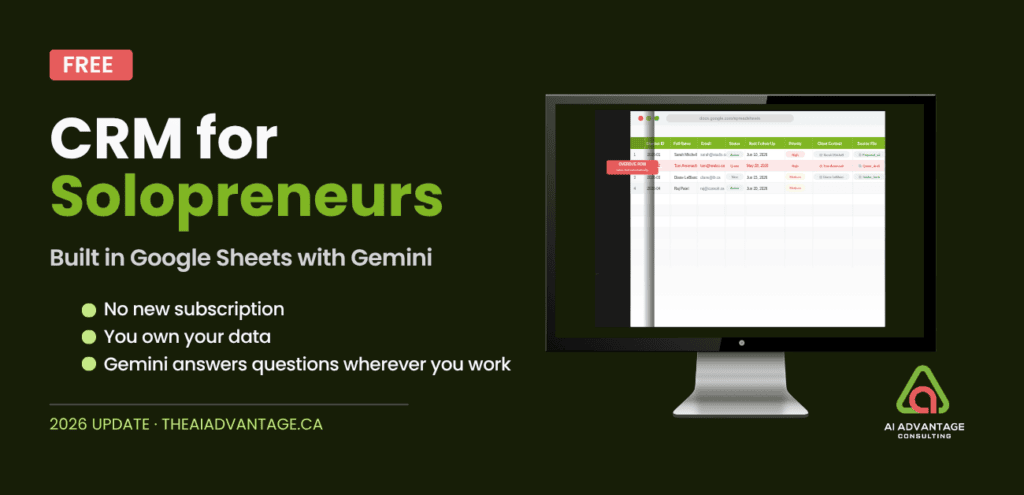
You end up with a structured CRM built directly in Google Sheets.
Each client lives in its own row, with clean formatting for things like status, follow-up dates, contact details, and deal value. Dropdowns keep entries consistent. Date fields make follow-ups trackable. Currency and text fields stay organized without effort.
The header row is styled and frozen so it always stays visible as you scroll. Your system stays readable, even as it grows.
Overdue follow-ups are automatically flagged in red using conditional formatting. You don’t have to check anything manually. The sheet tells you when something needs attention.
Each row can also connect to the rest of your workspace. Smart Chips link a client directly to their Google Contact, relevant Drive files, and any related Calendar events. One click gets you context without searching.
If you don’t want to build it from scratch, there’s also a ready-made template you can start from and adjust as needed.
All of this is created using a handful of prompts inside the Ask Gemini panel in Google Sheets. No manual formatting. No complex formulas. Just setup once, then let it run.
What You’ll Need
- A Google Workspace Business Standard subscription — this is where Gemini lives inside Sheets
- A blank Google Sheet — start fresh, not on top of existing data
- About 20 minutes
No third-party tools. No add-ons. Everything stays inside Google Workspace.
Part 1: Build the CRM with Gemini
Open the Ask Gemini Panel
Open a brand new Google Sheet. Click the Gemini icon in the top right corner to open the Ask Gemini side panel. This is where all five prompts will be entered, one at a time.
Prompt 1 — Structuring the Columns
Copy this prompt into the Ask Gemini panel and hit enter.
Create a Google Sheet structured as a CRM with the following columns in this exact order,
starting in cell A1 with no empty columns before it and no title rows above the header:
Contact ID, Full Name, Email Address, Phone Number, Company Name, Industry, Lead Source,
Status, Notes, Last Contacted, Next Follow-Up, Assigned To, Priority, Revenue Potential,
Tags, Client Contact, Source File, Calendar Event
Apply dropdown validation to: Industry, Lead Source, Status, Assigned To, Priority
Format Last Contacted and Next Follow-Up as date columns.
Format Revenue Potential as currency.
For the Client Contact column — format cells to accept a People Smart Chip using the @ mention.
For the Source File column — format cells to accept a File Smart Chip using the @ mention.
For the Calendar Event column — format cells to accept a Calendar Smart Chip using the @ mention.
Add one sample row with placeholder data so I can see the formatting.
Before anything happens, Gemini shows you a three-step plan and asks you to approve it. Read it. Confirm it matches what you asked for. Then click Approve.
Once approved, Gemini runs each step and narrates exactly what it’s doing — including the precise cell ranges it applies each rule to. Dropdown validation applies to 1,000 rows from the start. Your CRM is built to grow without you going back to fix anything.
Why the prompt specifies “starting in cell A1 with no title rows above the header”
Gemini has a habit of adding a decorative title above the column headers — sometimes in row 1, sometimes row 2. It looks tidy. It will silently break the Workspace Studio automation we connect in Week 4, which expects data starting at row 1 with no exceptions. That one line in the prompt prevents it. Don’t remove it.
Prompt 2 — Adding Your Aesthetics
Change the background colour of row 1 to #80b623 and the text colour to white, bold.
Freeze row 1 so it stays visible when scrolling.
Swap #80b623 for your own brand colour if you have one.
Prompt 3 — Managing Long Text
Set column I (Notes) and column O (Tags) to wrap text. Set all other columns to clip.
Prompt 4 — Setting Up the Visual Alerts
This is the automation that replaces your mental follow-up list.
Add conditional formatting so that if the date in column K (Next Follow-Up) is earlier than today and the cell is not empty, the entire row background turns light red (#fde8e8).
You can test this right away by typing a fake client into a row and setting their follow-up date to yesterday. The row will change to a soft, distinct red – a reminder from your system showing you exactly who needs your care today.
Prompt 5 — Clearing the Canvas
Delete the sample data row so the CRM is empty and ready to use.
Keep all formatting, validation, and conditional formatting intact.
Gemini verifies its own work here — checks that everything is preserved before confirming done. Your CRM is clean and ready.
Part 2: Working with Smart Chips
The final three columns of your spreadsheet—Client Contact, Source File, and Calendar Event—do not hold basic text. They hold live, interactive portals to the rest of your Google Workspace ecosystem.
Client Contact Type @ and start typing the person’s name. Links to their Google Contact — name, email, phone number, recent emails. One click and you’re in their card.
Source File Type @ and start typing the file name. Links to any file in your Google Drive — a proposal, a contract, an invoice. Always the most recent version. No more “which version did I send them?”
Calendar Event Type @ and start typing the event name or date. Links to a Google Calendar event — including appointments booked through your Booking Page. Your next meeting with this client, linked directly to their row.
How to Apply a Chip
- Click into the cell in the Client Contact, Source File, or Calendar Event column
- Type @
- Start typing the name of the person, file, or event — select from the dropdown
Three columns. Same three steps.
Want to Skip the Build? Grab the Free Template
→ Grab the free CRM Tracker 2026 Template here
Go to File → Make a copy and it’s yours. All 18 columns, formatting, and validation already in place. Add your own Smart Chips after copying — those links are personal to your Google account.
When the System Starts Working for You
Right now, this CRM is a structured place to track your relationships. It keeps your data clean, your follow-ups visible, and your client history in one place.
But once that foundation is in place, the system doesn’t have to stop there.
In week 4 of my Workspace Elite program, we start connecting it to the rest of your workflow so it does more than store information. It begins to respond to what’s happening in your business.
For example, when someone fills out an intake form, their details can automatically flow into your CRM. That new entry can then trigger a simple sequence: a welcome email is sent, a follow-up task is created, and you get a notification in Google Chat so you know a new client has arrived.
No manual data entry. No remembering what needs to happen next. The system handles the routine steps in the background.
At that point, the spreadsheet is no longer just something you maintain. Your spreadsheet shifts from a static record you have to maintain into an active assistant that works on your behalf.