
Updated September 2026.
I published a post in July telling you to stop repeating yourself to Gemini. Set your custom instructions once, I said. It remembers. Go live your life.
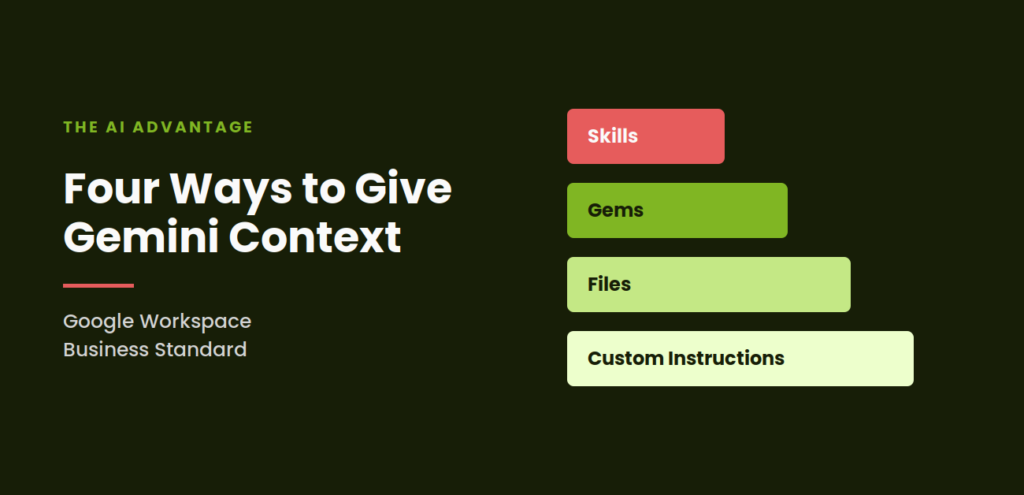
That advice was right. It was also the smallest version of the truth. Custom instructions are one of four ways to give Gemini context inside Business Standard, and three of them are new since I hit publish.
TLDR
There are four ways to give Gemini context on Google Workspace Business Standard: custom instructions for standing rules, the @ command for files and notebooks, Gems for a trained persona, and skills for a saved procedure. They stack. Separately, Match doc format copies the layout and design of an existing document, and Match writing style copies the voice. Those two share a limit of five uses per month on Business Standard, so save them for the documents that matter.
Why It Matters
Every time you re-explain yourself to Gemini, you are paying twice. Once for the work. Once for the setup before the work.
Repeating yourself once costs you nothing. Thirty seconds. But you aren’t just doing it once. You are doing it in every new doc, every new email, every new deck, all year. And that adds up.
The fix isn’t one setting. It is knowing which layer you need for the job in front of you. Automating Google Workspace with AI works the same way any system does. You build the foundation first, then you stop rebuilding it.
The Four Layers of Context
Think of these as widening circles. Layer 1 applies to everything. Layer 4 applies to one specific job you do over and over.
Layer 1: Gemini Custom Instructions
These are your standing rules. Your tone, your role, your formatting preferences, the thing you always forget to include. You write them once and they apply to every conversation in every eligible app.
A word of warning before you go looking. Do not open the standalone Gemini app at gemini.google.com. On Business Standard that menu is thin. Activity, Connected Apps, Scheduled Actions, Gems, Theme, Gemini Notebook. No personalization option in sight. I check regularly.
The setting lives inside Gmail and Docs themselves.
- Open Gmail or Google Docs.
- Click Ask Gemini to open the side panel.
- At the top left of the panel, click the Menu icon.
- Click Settings.
- Click Personalization.
- Click Add.
- Type your instruction.
- Click Save.
No admin approval needed. It is on by default, and once you set it in one app it carries to the others.
The Google Workspace blog shares four useful categories:
- Role: “When helping me write client proposals, remember I run a one-person consulting business.”
- Tone: “Keep responses conversational, not corporate. No fluff.”
- Content: “Always include a cost estimate when I ask for a proposal.”
- Format: “Summarize long documents in bullet points, not paragraphs.”
You can save up to 1,000. You will not need 1,000. Start with three or four that solve the annoyances you can name off the top of your head. Custom instructions are one piece of a bigger system. I mapped out the whole picture here: activity settings, connected apps, instructions, and building Gemini a real memory across your business.
Layer 2: The @ Command for Files and Notebooks
Custom instructions tell Gemini how to behave. The @ command tells it what to look at.
Type @ in the Gemini side panel and start typing a file name. Gemini pulls that Drive file into the conversation as source material. Not a vague memory of it. The actual file.
This is how you stop pasting. Instead of copying your service descriptions into a prompt, you type @ and the name of the doc that holds them.
In the Docs side panel you can reach further than Drive files. You can call a notebook from Gemini Notebook, which is where your real reference library should live. If you have not built one yet, that is what Gemini Notebook is for, and it holds far more than a single doc ever will.
Small naming note, because it trips people up. NotebookLM became Gemini Notebook in July 2026. Same tool. New name on the menu.
Layer 3: Gems
A Gem is a version of Gemini you have already trained. Instructions baked in, reference files attached, ready to go.
The difference between a Gem and a custom instruction is scope. Custom instructions apply to everything you do. A Gem applies only when you open it.
That distinction matters more than it sounds. My voice guide lives in a Gem, not in my custom instructions, because I do not want every email I write to sound like a blog post. I want one specific Gem to sound like a blog post.
Gems show up in the side panel of Docs, Slides, Sheets, Drive, and Gmail. You build them at gemini.google.com/gems/create, and you can call them everywhere you work.
Two limits worth knowing before you build one. A Gem holds up to 10 knowledge files. A Gemini Notebook holds up to 300 sources. When your reference material outgrows the Gem, point the Gem at the notebook.
Layer 4: Skills and Flows
A Gem is a trained assistant. A skill is a saved procedure.
You build Skills inside Google Workspace Studio. Then you call one by typing @ plus the Skill name in the Gemini side panel in Gmail, Chat, Docs, Slides, or Drive. It runs the steps you wrote, the way you wrote them, every time.
Good candidates are the jobs you do the same way every month. Filling out a proposal template. Formatting a client report. Turning a set of notes into an onboarding email.
Before you go hunting for this one, read the next section. There is a switch.
The Skills Switch Nobody Warns You About
Skills are part of the Gemini Beta program, and Gemini Beta is off by default for every organization on Business Standard.
If you are your own admin, you can turn it on. Go to the Admin console, then Generative AI, then the Gemini Beta features panel. Then switch on “Create and use skills” separately under Workspace Studio.
If someone else manages your Workspace, you will need to ask them. And if you have looked for Skills in Workspace Studio and found nothing, this is why. The feature is not missing. The switch is off.
Gemini Setup Workbook
Every Gemini setting on Business Standard, in one printable guide.
Nine steps with fillable checkboxes and every screenshot. Work from paper while you're in the Admin console.
You'll also get my weekly email on Google Workspace and AI for solopreneurs. Unsubscribe anytime.
Match Doc Format: The One With a Real Limit
Match doc format mirrors a source document so Gemini produces new content using the original’s formatting and structure. Fonts. Colors. Headings. Table columns. Point it at the proposal you already spent an hour perfecting and it builds the next one to match.
Match writing style is the sibling feature. It handles the voice rather than the layout.
Here is the part that changes how you use them. On Business Standard, those two features share a limit of five uses per month. Not five each. Five in total. Google’s published usage limits confirm it, and the AI Expanded Access add-on raises it to 25.
It gets tighter. If the prompt generates a response, it counts. A follow-up asking Gemini to try again counts as another use. Two bad attempts and a good one, and you have spent three of your five on a single document.
So treat this like a good bottle of wine instead of the house red. Use it on the client proposal, the pricing sheet, the onboarding packet. Not on the Tuesday draft you are going to rewrite anyway.
Wait. Isn’t That Just Making a Copy?
Fair question, and most of the time the answer is yes.
Make a copy duplicates the whole file. Every word, every margin, every header and footer, exactly as it was. You delete the old content, type the new content in its place, and the formatting survives because you never left the document.
Match doc format does not duplicate anything. It reads a source document, learns its formatting and structure, and applies that look to new content Gemini generates.
The difference shows up when the new content has a different shape than the old one.
Say your proposal template has three service sections and the next client needs six. With a copy, you duplicate section three, paste it twice, then fix the numbering, the spacing that broke, and the table that decided to right-align itself. With Match doc format, you describe the six services and Gemini builds them inside the template’s styling.
So the honest answer is this. If your document is a fill-in-the-blanks form, make a copy. It is free, it is exact, and it is faster. That covers most of what lands on a solopreneur’s desk in a given week.
Match doc format earns its place when the content is genuinely new and you want it to arrive already looking like it belongs.
Two more things to weigh. A copy preserves everything, including page setup, headers, and footers. Match doc format handles fonts, colors, headings, and table columns, which is a shorter list. And a copy costs you nothing. A match costs one of your five.
Common Mistakes
Looking in the wrong app. The Gemini app and the Gemini side panel are two different settings menus. Business Standard personalization lives in the side panel, inside Gmail or Docs.
Confusing this with Saved info. If you have read about Gemini remembering your name and job automatically, that is Saved info, a consumer-plan feature on Google AI Plus, Pro, and Ultra. It is not on Business Standard. If the tiers are still fuzzy, I broke down what is in each Google AI plan here.
Hunting for skills before the switch is on. You can search Workspace Studio all afternoon. If Gemini Beta is off in your Admin console, skills are not there to find.
Spending a match where a copy would do. If you are swapping a name, a date, and three line items, duplicate the file. Save the match for the document whose content is actually different.
Burning your five matches on drafts. Five a month goes faster than you expect, especially once you count the retries. Get the content close to right first, then match the format.
Using one layer for a four-layer job. A custom instruction cannot reproduce a table layout. A Gem cannot run a procedure. Match the layer to the task and each one does less work.
Setting it once and forgetting it exists. Treat your instructions like a living document. When Gemini does something that annoys you twice, that is your cue to add a rule.
FAQ
What is the difference between Gemini custom instructions and a Gem? Custom instructions apply to every conversation you have with Gemini. A Gem applies only when you open that specific Gem. Use instructions for the rules that are always true, and Gems for a job with its own personality.
How many times can I use Match doc format on Business Standard? Five per month, shared with Match writing style. Every successful prompt counts, including a request to try again. The AI Expanded Access add-on raises it to 25 per month.
Why use Match doc format instead of just making a copy of the document? Making a copy is better when you are filling in the same template with new details. It is free and it preserves everything. Match doc format is for when the new content has a different structure than the original and you want Gemini to build it in the existing look.
Why can’t I find skills in Workspace Studio? Skills are part of Gemini Beta, which is off by default. An admin has to turn on Gemini Beta features and then enable “Create and use skills” in the Admin console.
Can I use the @ command to pull in a Gemini Notebook? Yes, from the Gemini side panel in Docs. Type @ and start typing the notebook name. This is the fastest way to give Gemini a large reference library instead of a single file.
Do custom instructions carry over between Gmail and Docs? Yes. Instructions are shared across eligible Workspace products, so setting one in Gmail applies in Docs and Slides.
Is this the same as Gemini’s memory? No. The consumer Saved info feature is not available on Business Standard. Custom instructions are the Workspace version, and they are what you have access to.
Quick Win Summary
You are not choosing between four features. You are building a stack.
Set your custom instructions this afternoon. Three or four rules, no more. Then the next time you open the side panel and catch yourself pasting something in, type @ instead. That is the whole upgrade for week one. Before any of it, make sure everything’s switched on. Grab the free Gemini Setup Workbook.
Gems and skills come later, once you know which jobs you are repeating.