The Story That Made Me Stop Everything And Write About It
Updated September 2026. Google has changed how Gemini works for nonprofits since I first wrote this. The story below happened in 2025. The how-to sections are rewritten for how things work now.
This is for you – nonprofit administrators and IT consultants (and entrepreneurs) who know what it’s like to wear multiple hats, make technology decisions with limited time and resources, and sometimes feel like you’re figuring things out as you go. If you’ve ever found yourself in that familiar position of being the ‘tech person’ by default (even when you don’t feel qualified), or if you’ve ever made a well-intentioned change that didn’t go as planned, this story is going to hit close to home.
If you’re anything like me and have felt that stomach-drop moment of ‘Oh no, what did I just do?’ – you’re apt to get a lump in your throat reading this.
Last week, a nonprofit administrator shared a story in our community that made my heart sink – and race at the same time. Picture this: You’re passionate about your mission, you’re anxious to try the new Gemini AI tools that could help your team work more efficiently, and you’re excited to be the one who figures it out for your organization. You’re doing exactly what good leaders do – being proactive, exploring new tools, trying to make things better.
But sometimes, that same drive to innovate and problem-solve can lead us into territory we didn’t realize was risky. In trying to test Google’s new Gemini AI features for her charity, this dedicated administrator accidentally::
- Lost her organization’s nonprofit Google Workspace benefits
- Disrupted email and Google Drive access for her entire team
- Spent days in support circles trying to recover data and nonprofit status
- Had to pay for temporary upgrades just to keep operations running
The worst part? This could have been completely avoided with the right information.
As someone who’s helped dozens of organizations navigate Google Workspace automation, and as an entrepreneur since 1997, I’ve seen and made my fair share of mistakes. That’s why I’m sharing this story—and more importantly, how to prevent it from happening to you. Because some lessons you shouldn’t have to learn the hard way.
What Went Wrong: A Step-by-Step Breakdown
The Fatal Mistake
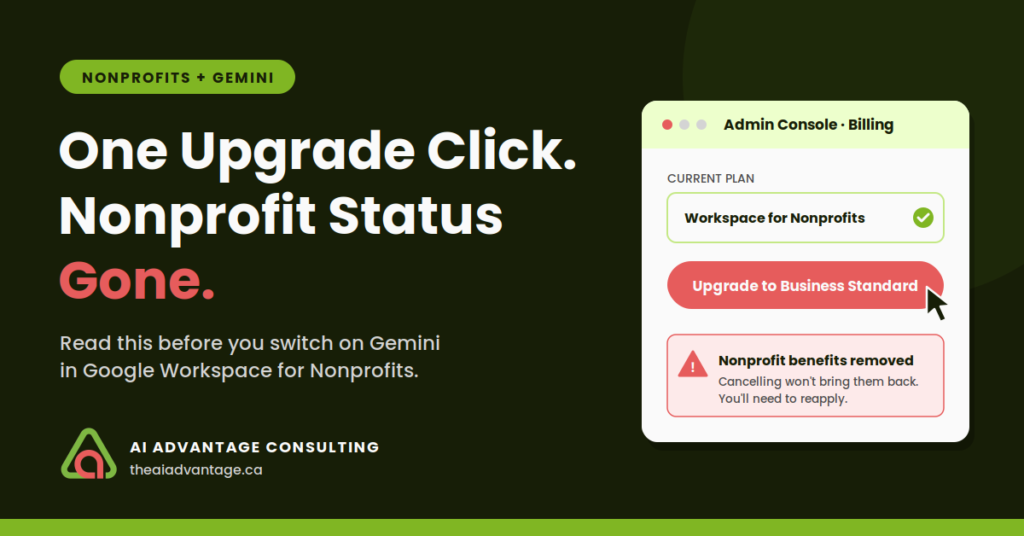
She upgraded her Google Workspace plan thinking it was the only way to access Gemini features.
Here’s exactly what happened:
- The Search: She logged into Google Admin Console looking for free Gemini features that had been demonstrated in training sessions
- The Assumption: When she couldn’t immediately find them, she assumed upgrading to a paid plan was necessary
- The Upgrade: She upgraded to Google Workspace Business Standard to “test out” Gemini
- The Shock: Within hours, she realized this voided her nonprofit status
- The Panic: Canceling the upgrade didn’t restore nonprofit benefits—it dropped her to a basic free tier
- The Scramble: Email disruption, storage limits, and days of trying to recover through AI support
What’s Different Now
When this happened, the path to Gemini on a nonprofit account was confusing. It’s clearer now.
- The free Google Workspace for Nonprofits plan includes the Gemini app and Gemini Notebook.
- Paid Business and Enterprise plans are 70 to 75% off for nonprofits.
- You upgrade inside your own Admin console, at the nonprofit price.
The trouble starts when you buy the wrong way.
How to Get Gemini on a Nonprofit Plan Now
Step 1: Start with what’s free
Before you upgrade anything, use what’s included. The Gemini app and Gemini Notebook come with the free plan. For grant drafts, donor emails and research, that may be all you need.
To check they’re on: Admin console → Generative AI → Gemini app → Service status → On for everyone. Do the same for Gemini Notebook.
Step 2: Know what an upgrade adds
Google keeps a side-by-side comparison of the nonprofit plan and the paid editions. Read it before you pay. Upgrade for a feature you need, not to “test out Gemini.”
Step 3: If you upgrade, use the nonprofit path
Admin console → Billing → Buy or upgrade. Next to the edition you want, click Upgrade. Then read the impact screen before you click Next. That screen tells you what changes.
Know these first:
- The discount only comes from Google directly. Buy through a reseller and you pay full price.
- The discount starts after your free trial ends.
- Everyone in your account moves to the new plan. You can’t upgrade one person.
- If you use Google Vault, follow Google’s steps before you upgrade.
Step 4: Ask before you click
Google runs a free 1:1 support program for eligible nonprofits, with video sessions from Google Product Specialists. Use it.
Not sure which plan fits? Book a free discovery call and we’ll sort it out together.
Prevention Checklist: Before Making ANY Plan Changes
For Nonprofit Administrators
- Backup everything first using Google Takeout
- Verify your current nonprofit status in Google for Nonprofits portal
- Test changes in a sandbox environment if possible
- Document current storage usage and user permissions
- Have a rollback plan before making changes
For IT Consultants Working with Nonprofits
- Confirm nonprofit plan details before recommending changes
- Explain licensing implications clearly to decision-makers
- Create detailed change management documentation
- Establish direct support channels (Google Partner status helps)
- Plan for potential downtime during transitions
Red Flag: Don’t Go It Alone
- Never let untrained staff make Admin Console changes
- Establish clear approval processes for any plan modifications
- Document who has admin access and their qualifications
- Have emergency contacts for qualified Google Workspace support
Recovery Guide: If It’s Already Too Late
Immediate Actions (First 24 Hours)
- Don’t panic—data isn’t lost, just inaccessible
- Document everything: Screenshot error messages, note timestamps
- Contact Google for Nonprofits support (not regular Workspace support)
- Begin reapplication process immediately
- Consider temporary paid tier only if business-critical access is needed
Data Protection Steps
- Download critical files using any available access
- Export email data if possible through Google Takeout
- Communicate with team about temporary limitations
- Maintain external backups of essential documents
Working with Support
- Use Google for Nonprofits support portal (different from commercial support)
- Reference your TechSoup validation or nonprofit credentials
- Be patient but persistent—human support may take time
- Keep detailed logs of all support interactions
Key Takeaways for IT Professionals
Red Flags to Watch For
- Clients asking to “quickly test” new features without research
- Assumptions that all Google Workspace features work the same across plan types
- Pressure to implement AI features without understanding licensing implications
Best Practices
- Always research first: Google’s nonprofit documentation isn’t always intuitive
- Test in non-production environments when possible
- Maintain relationships with Google Partners or certified consultants
- Document everything: Plan changes, feature requests, and outcomes
The Bottom Line
This nonprofit administrator’s story got me right in the feels. Her heart was absolutely in the right place—she was being proactive, trying to leverage new technology for her organization’s benefit. As natural problem-solvers, we’ve all been there, eager to take the lead on something that could help our cause.
For Nonprofit Leaders: Your enthusiasm for AI and new features is exactly what drives innovation in the nonprofit sector. Channel that energy wisely by building relationships with people who’ve navigated these waters before. Whether that’s investing in proper training for a team member, working with a trusted consultant, or utilizing Google’s own nonprofit support resources—you don’t have to figure this out alone.
For IT Consultants: This story is a perfect example of why your expertise matters so much to the nonprofit community. These organizations are doing incredible work with often limited resources. Your guidance helps them avoid setbacks that could impact their mission.
Remember: Google offers dedicated support for nonprofits precisely because they understand these unique challenges. When in doubt, that’s always a safe place to start.
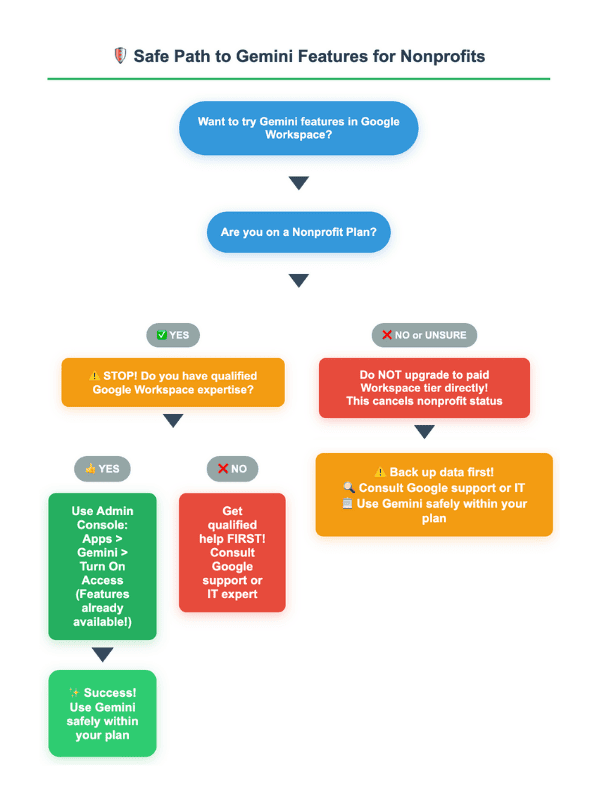
Visual Decision Guide
Resources and Next Steps
- Google for Nonprofits Support: support.google.com/nonprofits
Google for Nonprofits Website: google.com/nonprofits/
Activate Google Workspace for Nonprofits: If your organization does not have a Google for Nonprofits account. - Google Workspace Quick Start Guide: For eligible nonprofit organizations
- Google Takeout: takeout.google.com for data backup
Remember: When in doubt, research first, backup everything, and don’t hesitate to ask for help from someone who’s navigated these waters before.
Not sure which plan your nonprofit needs? Book a free discovery call and we’ll sort it out before anyone clicks Upgrade.