
Gemini already knows your business.
It pulls from your past emails, your Drive, your calendar. And if you’ve set your custom instructions, it already knows your role, your tone, and your formatting rules. But those settings are general. They apply to everything you write, everywhere in Workspace.
Some work isn’t general.
Client follow-ups that need the Week 2 template, not the Week 1 one. Answers pulled from your actual course material and quoted, not paraphrased from whatever Gemini found in your inbox. A job with its own rules, its own source material, and a hard line at “if it’s not in there, say so.”
You can’t set that globally. It would follow you into every grocery list and every proposal.
Gemini Gems are how you scope it.
A Custom Gem is one assistant with one job description and one filing cabinet. You give it a name, instructions, and a knowledge base. Then it lives in your Gmail side panel waiting to be called. It’s also the only way to hand Gemini your Gemini Notebook while you’re standing in your inbox.
If you read my Gemini AI in Gmail post, you already know you can call a Gem from the side panel. This post is about building the one worth calling.
I’ll use my own setup as context. I built mine to support a 4-week Google Workspace coaching program, but the approach works for any solopreneur who answers the same kinds of emails over and over. Hopefully it gets your wheels turning on what yours could do.
You can have it built in about 20 minutes. If your Drive is organized. (Wink.)
Before you open Gem Manager: put your thinking cap on
20 minutes spent now = hundreds of hours saved over time.
Start here: where is your time actually going?
If you do something more than once — answering the same client question, drafting the same kind of email, writing the same type of content — that’s a Custom Gem waiting to happen.
A few questions worth sitting with before you build:
- What emails do I write from scratch that I’ve written a dozen times before?
- What questions do clients, prospects, or followers ask me repeatedly?
- Where do I stare at a blank page the longest?
- What tasks require my voice but not necessarily my brain?
Your answers tell you what your Gem’s job is. Define the job first. Build second.
One more thing: don’t skimp the instructions. That’s the most important field in the whole builder. If you’re not sure what to write, brainstorm with Gemini. Tell it your role, your audience, and what you need the Gem to do. Let it draft the instructions, then edit them until they feel right.
All good tools start with strategy. This one’s no different.
What a Custom Gem actually does
A Custom Gem is a specialized AI assistant you configure once. You give it a name, instructions, and a knowledge base. From that point on, every conversation with that Gem starts from that foundation — your voice, your context, your material.
When you call it from Gmail, it has access to the email thread you’re looking at. You don’t copy-paste anything. You just ask.
For my Workspace Elite coaching program, mine does three things:
- Answers client questions by pulling from my actual course content
- Drafts week-specific follow-up emails using my templates
- Writes in my voice — about 80% of the way there. The last 20% is still me. That’s fine.
Your version might look completely different. A Gem trained on your service packages to handle inbound inquiries. One that drafts proposals from a template. One that follows up with leads using language that sounds like you wrote it at your best, not your most exhausted. The job is yours to define. And you don’t have to limit yourself to one.
Step 1: Build the Gem
Go to gemini.google.com. In the left sidebar, click Gems. Then click Create a Gem.
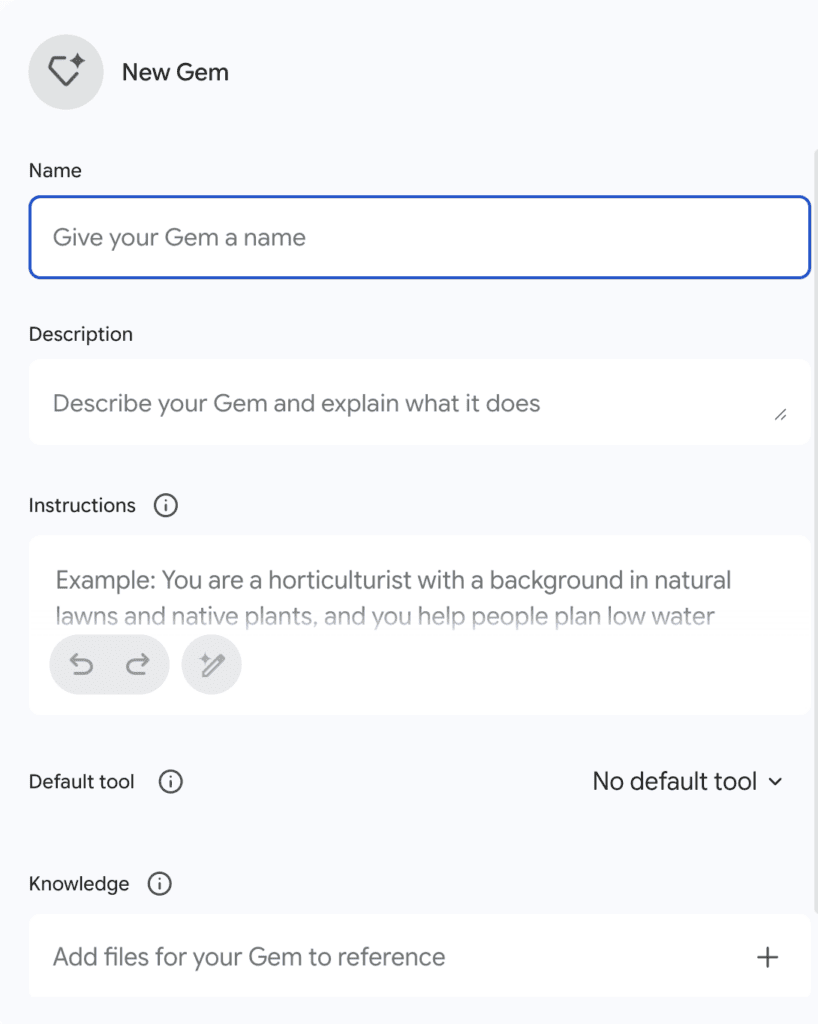
You’ll see four fields: Name, Description, Instructions, and Knowledge. That’s the entire builder. Very simple.
Name it clearly
Mine is Workspace Elite Correspondence. You’ll see it listed in your Gmail side panel (we’ll get to that) and you want to know immediately which Gem you’re launching. Clever names are confusing six weeks later. Clear names aren’t.
Description
One sentence. For your eyes only. What does this Gem do?
Instructions — this is where your Gem gets its personality
Here’s a version of what I used:
You are Nancy Bain’s email assistant for her Workspace Elite coaching program. When answering client questions, pull answers directly from the course material in the linked Gemini Notebook. Quote the source where possible. If the answer isn’t in the material, say so. Do not guess. When drafting follow-up emails, use the week-specific template from the knowledge doc. Ask me for the client’s name and one detail from our last session before drafting. Keep emails warm, direct, and under 150 words.
Voice rules I added:
Short sentences. No filler. Warm but not gushing. Never say “leverage,” “empower,” or “game-changer.” Sound like a consultant who’s been in the trenches — not a marketer.
If you’re staring at that field not knowing where to start — just talk to Gemini. Tell it your business, your role, and what you want the Gem to do. Ask it to draft your instructions. Then edit until it feels right for you.
Default tool
Leave it set to No default tool. This Gem is for drafting and answering. It doesn’t need to reach for image generation or deep research unprompted.
Step 2: Add your knowledge — strategically
Click the + beside the Knowledge field. You’ll see four options:
- Upload files
- Add from Drive
- Import code
- Gemini Notebook
This is where most people make a mistake: they upload everything.
Don’t.
Your Gem only needs to know what’s relevant to its job. Dumping in your full business SOP library doesn’t make it smarter — it makes it slower and less focused. Feed it what it needs. Nothing more.
Tag your Gemini Notebook
Use the Gemini Notebook option to link your notebook directly. If you’ve built a Second Brain — seeded with your course content, proposals, templates, and processes — this is where you point the Gem at it. (If you haven’t – I highly recommend).
The real advantage: when you update the notebook, the Gem gets smarter automatically. No re-uploading.
Hint: You can upload up to 300 files. Pdfs, docs, links, audio files, slides, sheets – all the file formats you’ll need. I seeded mine with with links from my site with each week’s content. I uploaded the tutorials, transcripts from the videos. All relevant files for coaching program.
Haven’t built your Second Brain yet? I’ve covered Gemini Notebook extensively here. A here’s a dedicated guide on building your business Second Brain. Want to build one together? We have fun with this in Week 2 of Workspace Elite. Think: never having to answer the same question twice, again.
Add your knowledge base files
Via Add from Drive: I uploaded my client follow-up email templates. The Gem knows which template maps to which week and uses it as the starting point when I ask it to draft a follow-up.
Click Save. Your Gem is live.
Step 3: Call it from Gmail
Open Gmail. Click Ask Gemini in the top navigation bar to launch the side panel.

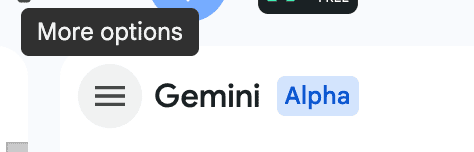
At the top left of the side panel, click the hamburger menu — the three horizontal lines. That’s your More Options menu.
You’ll immediately see two of your Gems listed. If the one you need isn’t there, click View All.
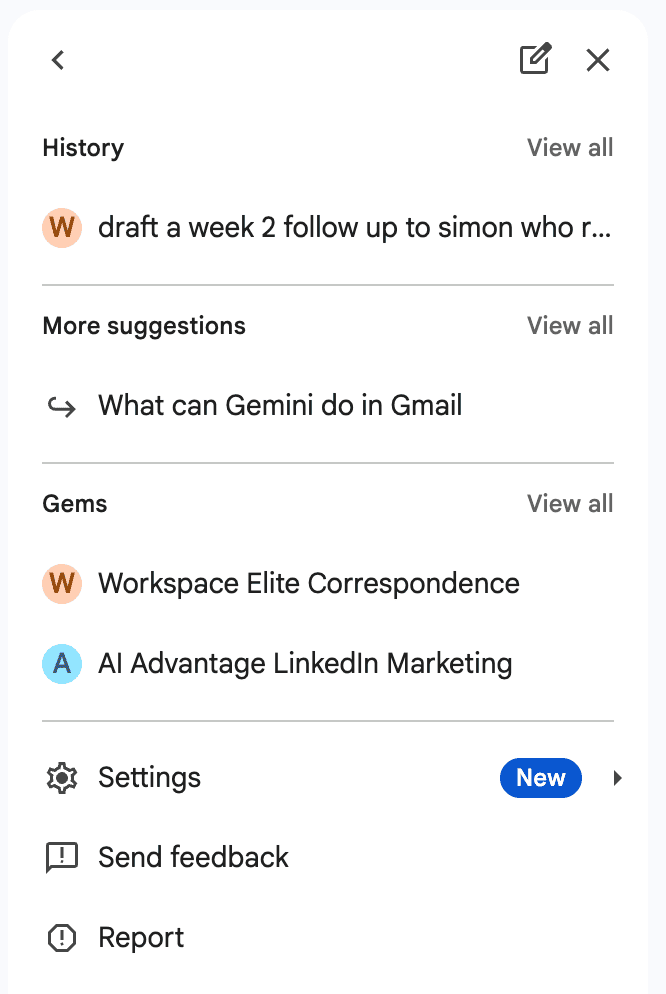
Select your Gem. It launches right there in the panel — no new tab, no copy-pasting, no context switching.
Now open a client email thread. Type your prompt:
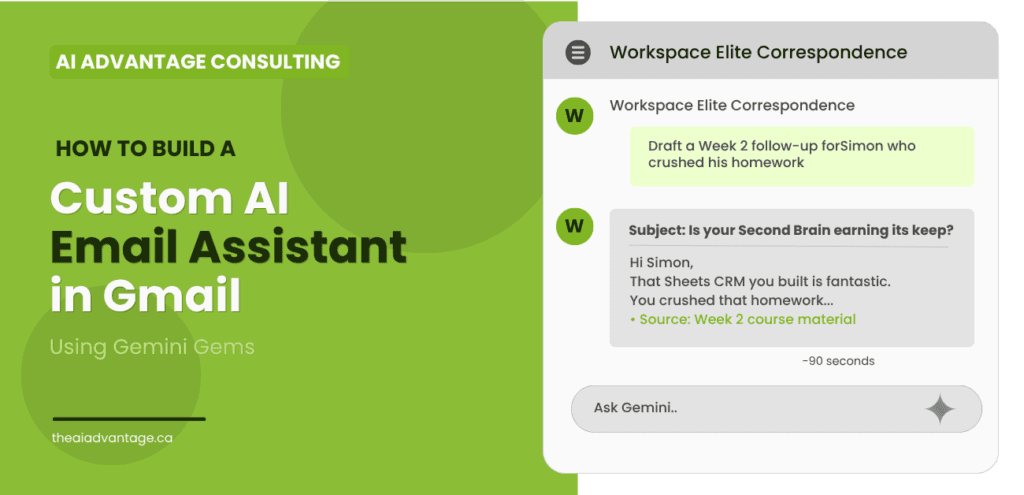
“Draft a Week 2 follow-up for Simon who completed all his homework.”
That’s it. The Gem pulls the Week 2 template, personalizes it for Simon, and drafts it — in minute and a half.
What this actually looks like
Here’s a real example from my own inbox.
I typed: “Draft a Week 2 follow-up to Simon who rocked Week 1 and completed all his homework.”
The Gem returned a personalized email with the right subject line, acknowledged Simon’s specific win, and transitioned cleanly into the Week 2 homework check-in. Cited the source material. Sounded like me.
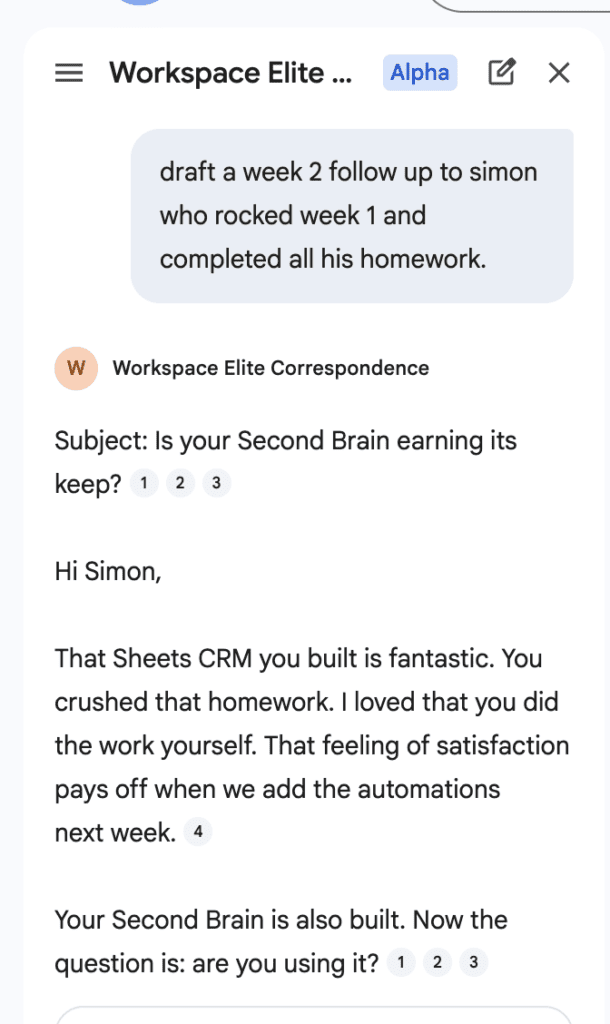
The whole process— from opening Gmail to having the draft ready — took less than a minute. And I can’t wait for the new Voice feature coming to Gmail. No typing required!
Why this works
Every week of my program, clients ask the same kinds of questions. What’s the difference between a filter and a label? How do I seed my Gemini Notebok? Where does the Agentic CRM Sync live?
Before the Gem, I was answering questions from memory. Now the Gem answers from the source material — and quotes it directly. Clients get a more accurate answer. I get my time back.
The follow-up emails are the other half. Consistent check-ins, two days after each session, personalized to what that client actually did that week. It sounds like me because I wrote the templates and the voice rules. It’s better than using a template.
The setup takes about 20 minutes
If your Gemini Notebook is seeded and your Drive is organized, this is a fast build. The interface is simple — name, description, instructions, knowledge. Nothing technical.
The part that takes time is the instructions. Don’t rush those. Be specific about what the Gem should do, what it should never do, and what your voice actually sounds like. That’s where the 80% comes from.
The other 20% is still you. That’s not a flaw. That’s the point.
Want to build a Custom Gem together?
We build a Custom Gem in Week 3 of Workspace Elite — trained on your Gemini Notebook Second Brain from Week 2, loaded with your brand voice, and ready to draft from inside Gmail by the time we’re done.