
Workspace Subscribers: Gemini AI is already inside your Gmail. You don’t need a separate subscription. You don’t need to set anything up. It’s just… there. Waiting.
Most solopreneurs I know are using about 10% of it. The rest is sitting there, while they’re still manually re-reading 20-message threads, typing the same kinds of emails from scratch, and mentally tracking what needs a response by end of day.
To access most of what I discuss below, look for the Ask Gemini sparkle icon in the navigation of your Gmail. It opens your side panel. And it’s where most of the magic lives.

Before we get started: Set custom instructions
Custom instructions govern how Gemini behaves across your entire inbox. Every draft, every response, every interaction, start from the rules you set here.
At the top left of the Gemini side panel you’ll see a light grey circle with 3 horizontal lines in it. This is your “More options” menu.
Click More Options > Settings > Personalization.
- Click Add.
- Enter your instructions.
- Click Save.
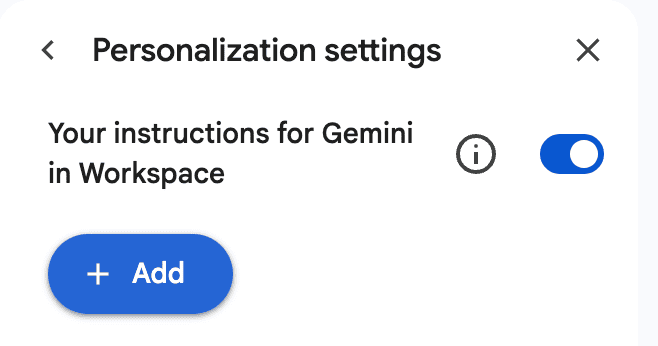
You can set up to 1,000 persistent custom instructions that Gemini will automatically refer and adapt to. You can use these for your preferred formatting, tone, and writing style. Whatever makes your communication feel like you, write it down here and Gemini will follow it every time.
You can toggle your instructions on or off with a single click. So if you need to send something more formal than your usual style, you turn it off, send the email, turn it back on.
Ask your inbox anything: AI Overviews
This one will change how you work forever.
Instead of scrolling, searching, or mentally reconstructing a timeline of events, you can just… ask. Type a question directly into the Gemini side panel and it reads across your entire inbox to answer it.
“What did Sarah send me about the project scope?”
“Has anyone followed up on the proposal I sent last Tuesday?”
“What’s the status of the invoice from February?”
Smart search pulls from your emails, your Drive, your Calendar, without having to switch tabs or losing your place.
For solopreneurs carrying the context of dozens of client conversations in their head at any given time, this is the feature I’d start with.
If you don’t see the AI overview box directly under their search bar yet, it’s coming on the Business, Enterprise and Education plan. Google is still pushing out the visual interface update for my Business Standard plan.
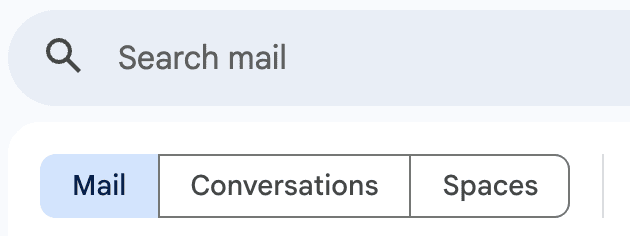
Pro tip: If you use the traditional navigation sub-filters (like clicking the Mail, Conversations, or Spaces pills under the search bar), Gmail will suppress the AI Overview and default back to old-school keyword searching.
If you are waiting on Google’s visual update to drop the AI Overview box into your search bar, you don’t need to stall your business. Use the Gemini Side-Panel. It’s the exact same brain, it gives you the exact same answers, and it lets you take action on those answers instantly.
Catch up in seconds: Email Summarization
I love this for summarzing long threads and unread emails. You can summarize an email by clicking “Summarize this email” at the top of any conversation window.

Or summarize your inbox by prompting Gemini in the side bar.
Before I set up a daily recap in Workspace Studio my first prompt of the day was, “Summarize unread emails and list action items.” Now that it’s automated I receive a briefing each morning at 7:00 am. It arrives in Chat while I’m relaxing with my morning coffee. ps – a Chat notification doesn’t hit the same way as an inbox notification. I know my entire day before I ever launch Gmail.
Open any email thread in Gmail and launch Gemini in the side bar.
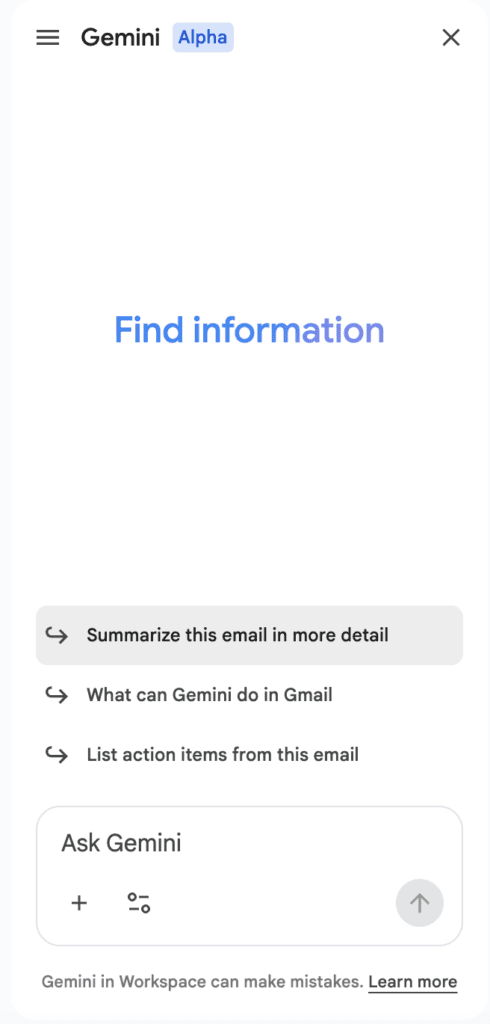
Click “Summarize this email in more detail” (or request a brief summary using a prompt). It reads the entire conversation and gives you a clean summary: key decisions, action items, outstanding questions.
It pulls dates, numbers, deliverables. It doesn’t paraphrase in a way that loses meaning. And it takes about two seconds.
If you’re the kind of person who keeps email threads open in tabs as a reminder to come back to them, those days are over.
Get things done faster: Help Me Write, Suggested Replies, and Proofread
Help Me Write drafts an email from a prompt. You type something like “decline this project politely but firmly, keep it short” and Gemini writes a draft you can edit. You’re not starting from a blank page. You’re editing something that’s already 80% of the way there.
Click compose. Then click the magic wand in the bottom of the compose window. Then describe your message.
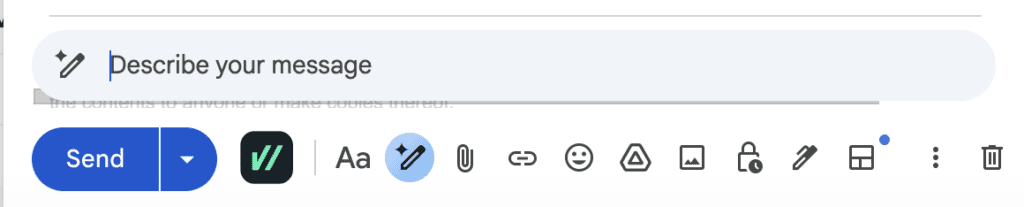
Or Click / for Help me write in the body of your email ie: the slash command.

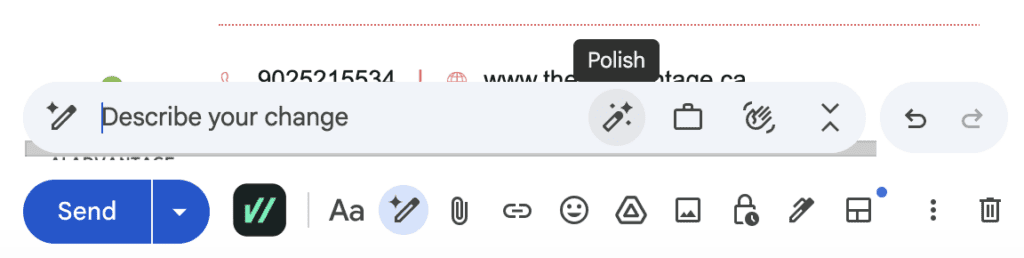
Once you have a draft, you can refine it with one click using the icons to the right of “Describe your change”: Polish, Formalize, or Friendly. Gemini rewrites the content with a different tone. Decide which version feels most like you, or type a unique request and describe your change.
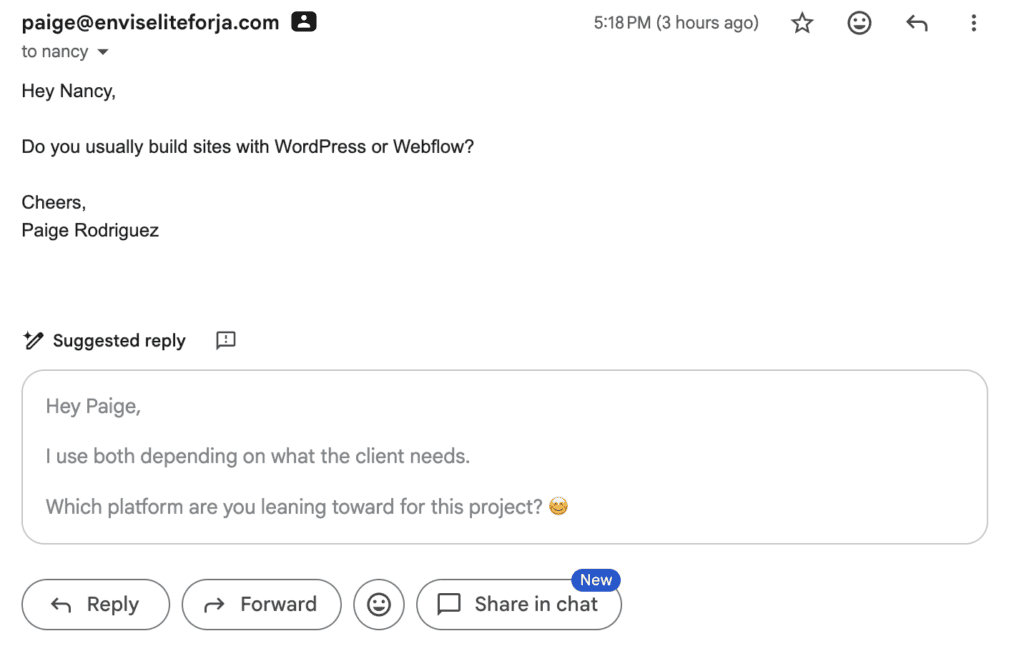
Suggested Replies are the quick-response option. Gemini reads the incoming email and generates a full draft reply. One reply, ready to go: a greeting, a response, and usually a follow-up question to keep the conversation moving.
You’ll also notice an emoji. Gemini defaults to a friendly tone until it learns yours. The more you write, edit, and send — the more it calibrates. Give it time.
Use it as-is, or treat it as a starting point and make it yours.
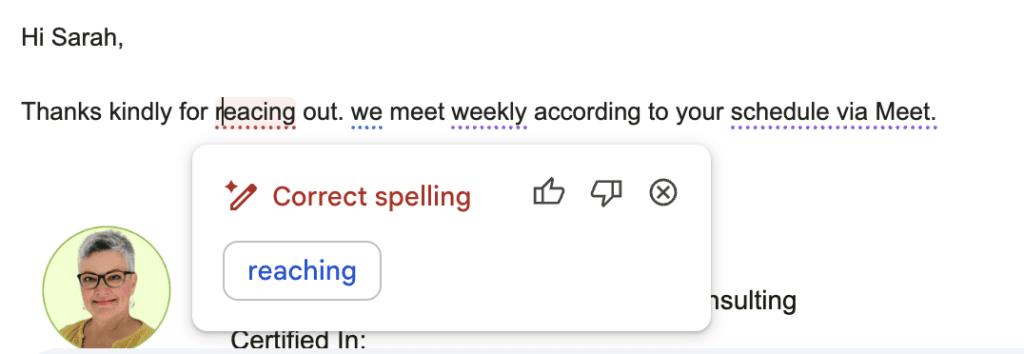
Proofread. Compose a new message, address it, and enter a subject. When we enter our body text, after a few seconds, proofreading suggestions will show with dotted underlines. Press tab to improve, or Esc to dismiss.
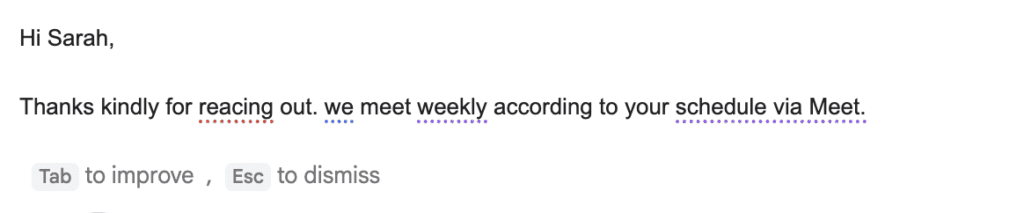
Position your mouse over the first suggestion, then click on it to accept it. Gemini catches the kinds of things you stop noticing after you’ve been staring at a draft for too long.
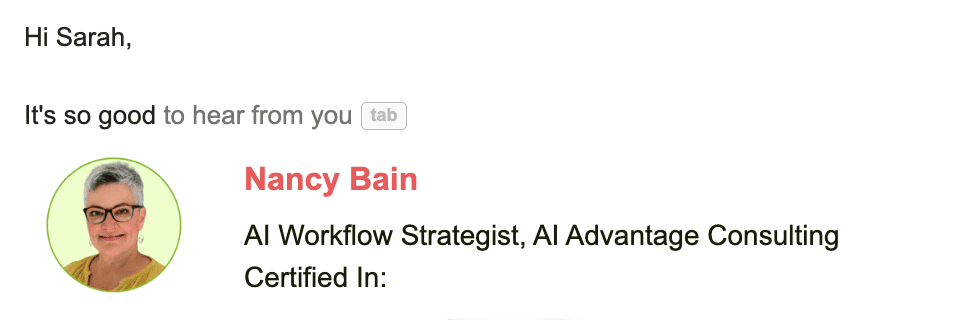
Underneath this, Smart Compose is running in the background, auto-completing sentences as you type, surfacing contextual one-click replies. Simply press tab to complete the sentence.
Find anything, instantly: Cross-Ecosystem Search
This is the feature I appreciate the most – all your apps talk to each other.
First, ensure you’ve connected your apps. Open the Gemini app > click Settings > Connected Apps > toggle it on.
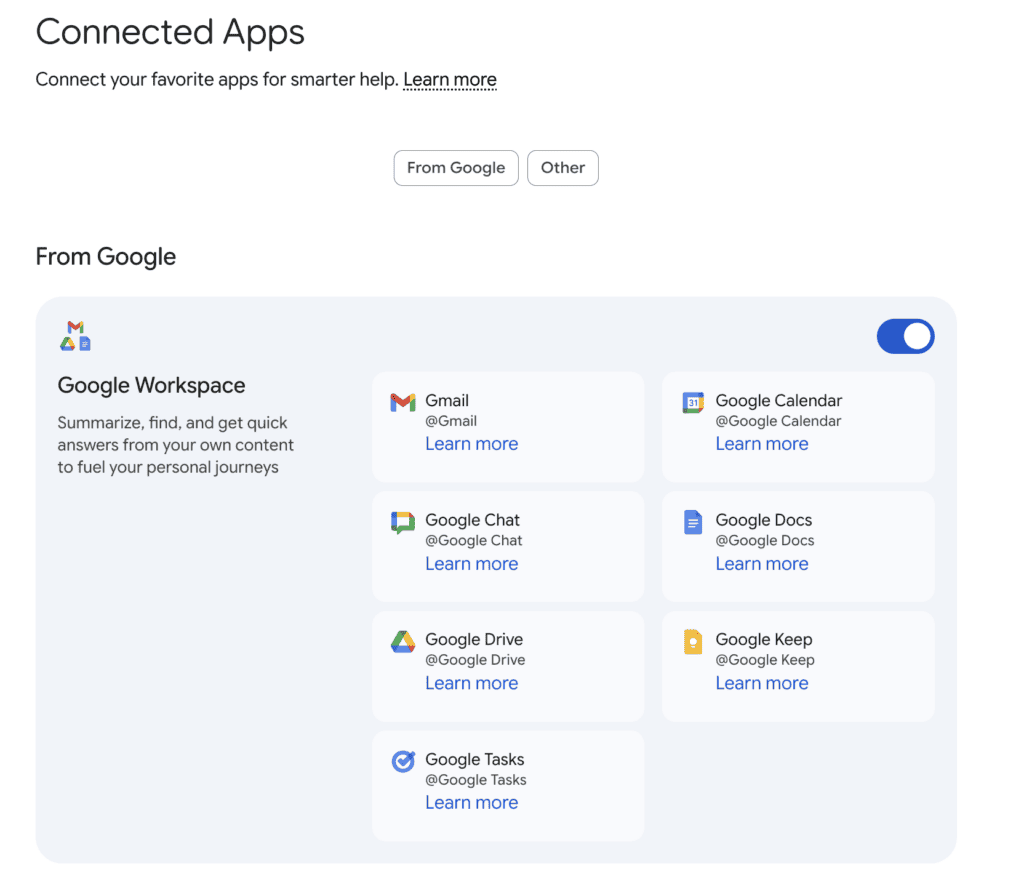
Now, Gemini in the Gmail side panel can search across your entire Google ecosystem — Drive, Calendar, and your inbox — without you ever leaving Gmail or opening a new tab.
In the Gemini side panel, hit the + button and you’ll see a “Where Gemini can search” menu. You can select any combination of Drive, Gmail, Chat, and the live web. Check the sources you want, ask your question, and Gemini searches across all of them without you leaving Gmail or opening a new tab.
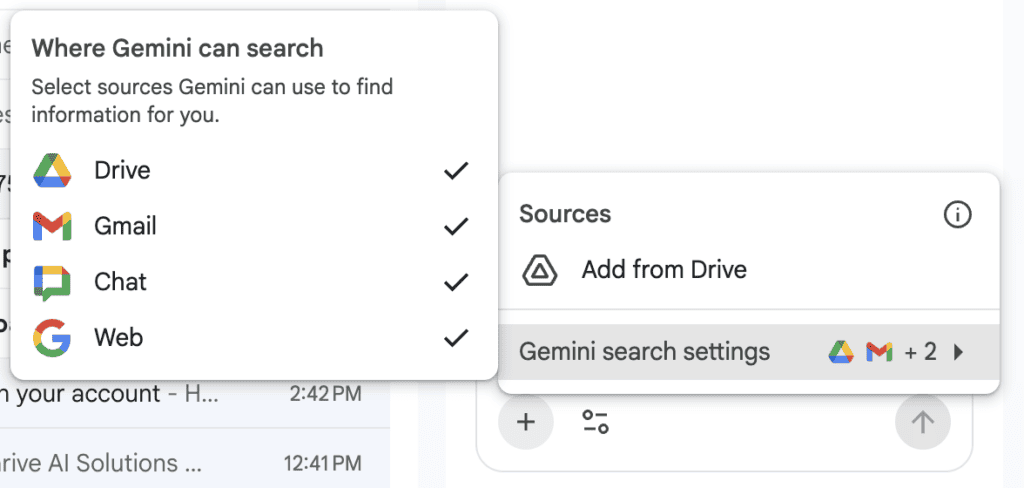
You can also get more specific using the @ tag. Type @ in the side panel prompt and you can call up a specific file from Drive, your Calendar, or a Workspace Studio flow. So instead of searching broadly, you point Gemini directly at the exact thing you need.
You’re in the middle of drafting a proposal and you need to pull pricing from a specific contract? @ the file. Need to check your calendar availability without leaving the thread? @ your calendar. Need to trigger a Studio flow from the sidebar? @ the flow. It’s a small thing that makes the whole experience feel a lot more intentional.
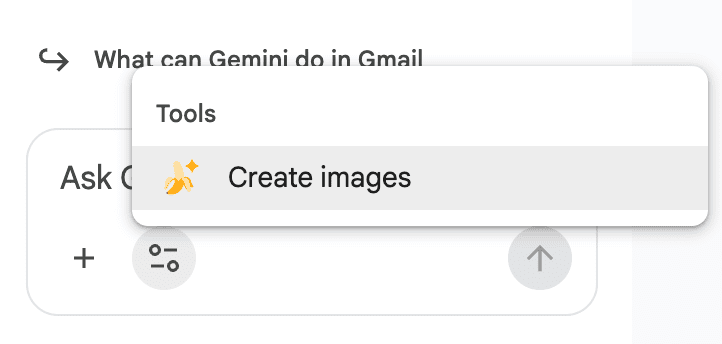
Want to create images right in Gmail?
In the side–panel Click tools > create images.
Skip the scheduling back-and-forth: Help Me Schedule
A warm lead emails you. “When are you free for a call this week?”
When Gemini detects booking language in an email, it offers to check your calendar and suggest available times. It inserts a clean scheduling proposal directly into your reply draft. You review it. You send it. No need to open Calendar.
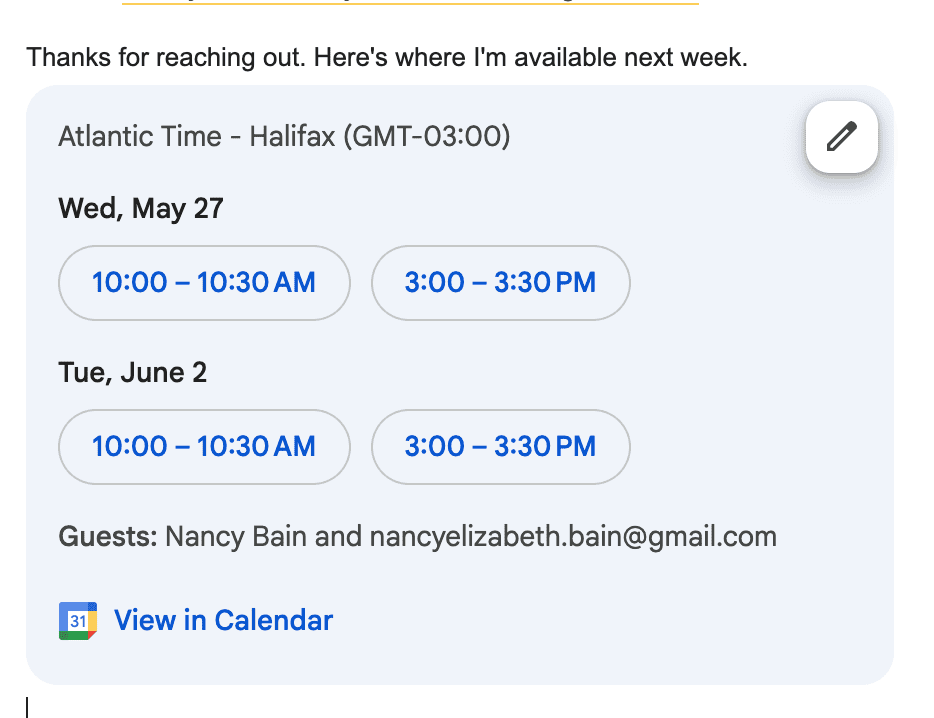
For busy solopreneurs, this removes dozens of tiny decisions weekly.
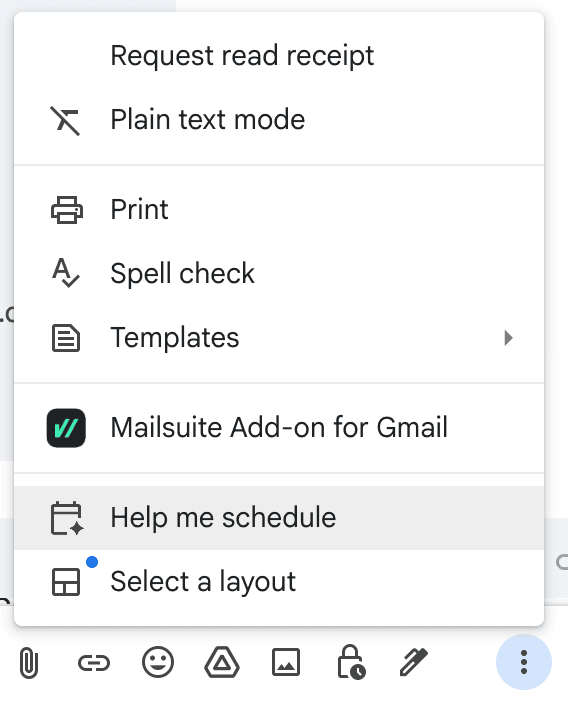
If you don’t see “Help me schedule” click More Options (the 3 dots)
Invite your Custom Gem into Gmail
If you’ve built a Custom Gem — a specialized AI assistant trained on your business, your voice, your services — you can connect it directly to your Gmail side panel. Here’s how I built mine.
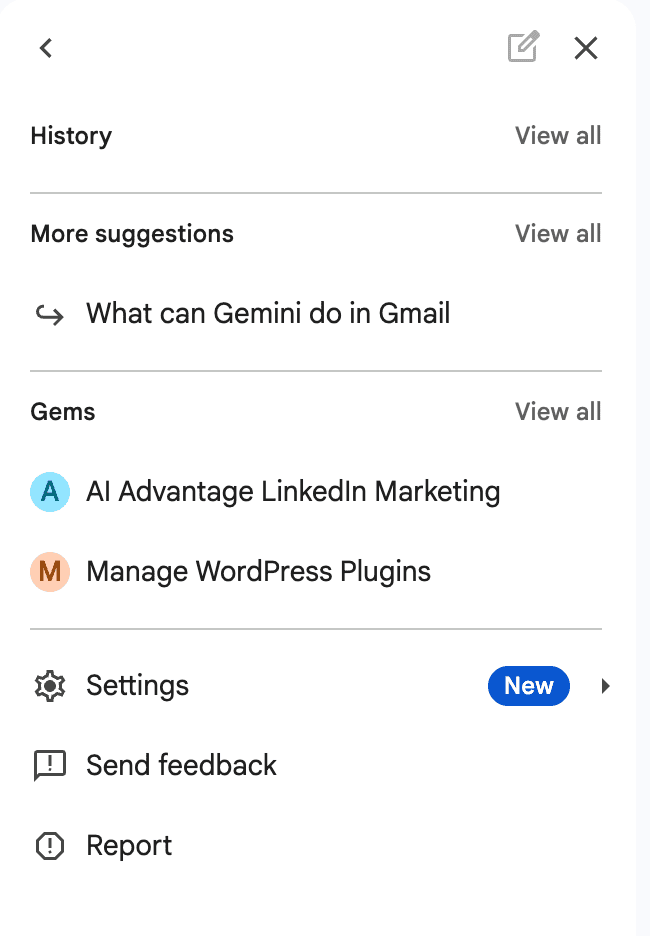
In the Gemini side-panel click the More Options menu in the top left hand corner and choose your Gem.
What that looks like in practice: instead of opening a separate tab and pasting in email context, you work with your Gem right there inside your inbox. It already knows your brand voice, your offers, your pricing, your onboarding language. It drafts from that foundation.
We build this in Week 3 of Workspace Elite — a Custom Gem trained on a NotebookLM knowledge base that contains your proposals, your templates, your SOPs, and your brand voice document. Once it’s built, it lives in your Gmail sidebar and drafts from a place of business context, not generic AI output.
What’s coming: Gemini Spark
This is the one I’m most excited about, and it hasn’t landed yet for most people (me).
At Google I/O in May 2026, Google announced Gemini Spark — a 24/7 personal AI agent that works in the background across your entire Workspace, even when your laptop is closed.
The Gmail integration is what caught my attention.
One of the example prompts from Google’s announcement: “Read through the last 50 emails that I wrote and turn it into a style guide for how I write emails. Turn that into a skill called ghostwriter that gets called every time I ask you to draft emails for me.”
That’s a whole new category of automation and I want you to know it’s coming. Because it changes the ceiling of what’s possible inside the tool you’re already using.
Also coming: Let your voice do the work
I’ve been waiting for this one. No typing required!
Ask Gmail to find a project due date. Iterate on a draft of your weekly report out loud. Turn a messy brain dump into a structured list by talking.
For solopreneurs who are constantly context-switching: on a walk, between calls, driving between client meetings – this is huge. Your inbox and your documents become something you can work in-between things. Not just when you’re sitting at your desk with two hands free and a clear head.
I’ll test it the moment it’s available (coming this summer) and report back. But I wanted you to know it’s coming, because it’s the kind of thing that changes how you think about what “checking email” even means.