
TLDR
- What it is: Gemini is Google’s AI assistant built directly into Google Workspace apps (Gmail, Docs, Drive, Sheets, Slides). If you have a paid business plan, it’s already included.
- The Golden Rule: Ask a generic question, get a generic answer. Use Google’s 4-part framework (Persona + Task + Context + Format) to get spot-on results every time.
- Solopreneur Hacks: Tag Drive files using
@to pull client data instantly, use custom Gems for repetitive daily writing, and upload images/spreadsheets for quick analysis. - Bottom Line: Stop treating Gemini like a basic text generator and start using it as an AI executive assistant to reclaim hours on admin every week.
You know exactly what you want to say to your clients. Getting it on paper? That’s where time disappears.
Now imagine having a brilliant executive assistant who could draft that perfect response, summarize a massive report, or organize your messy spreadsheets in seconds. That’s why mastering gemini prompts for solopreneurs using Google Workspace can be a total game-changer—IF you know how to ask.
Good news for your budget: If you use Google Workspace (Business Standard, Business Plus, or Enterprise), Gemini is already built directly into your apps like Gmail, Docs, Drive, and Sheets at no additional cost! Not sure if Workspace is right for your business? Check out my guide: Is Google Workspace Right for Your Solo Business? A Solopreneur’s Guide
What Makes Gemini Your Perfect Business Partner?
Think of Gemini as your AI-powered executive assistant living right in your Google Workspace side panel. It can:
- Read and understand documents, images, and spreadsheets across your Drive.
- Write and refine everything from quick email replies to detailed client proposals.
- Help during video calls by taking meeting notes and pulling action items.
- Analyze your business data and surface key insights automatically.
The secret to making this partnership work? Learning to communicate with it like a real team member.
How Gemini “Thinks”
Imagine explaining a task to a brand-new assistant. They’re brilliant, but literal. They need clear context and specific instructions. Gemini works the exact same way:
- It analyzes your prompt for context clues.
- It looks for specific boundaries and instructions.
- It draws on documents or images you attach or reference.
- It learns from your feedback and grows more helpful as you iterate.
Speaking Gemini’s Language: The 4-Part Framework
When you ask Gemini for something vague, it has to guess what you want. To get incredible results on the first try, use Google’s official 4-Part Framework:
| Element | What It Means | Example |
| 1. Persona | Who is Gemini acting as? | “Act as an expert conversion copywriter…” |
| 2. Task | What exact action should it take? | “Draft a 3-sentence email follow-up…” |
| 3. Context | What background or file details does it need? | “for a prospect who attended my discovery call.” |
| 4. Format | How should the final output look? | “Keep it warm, professional, and end with a direct call to action.” |
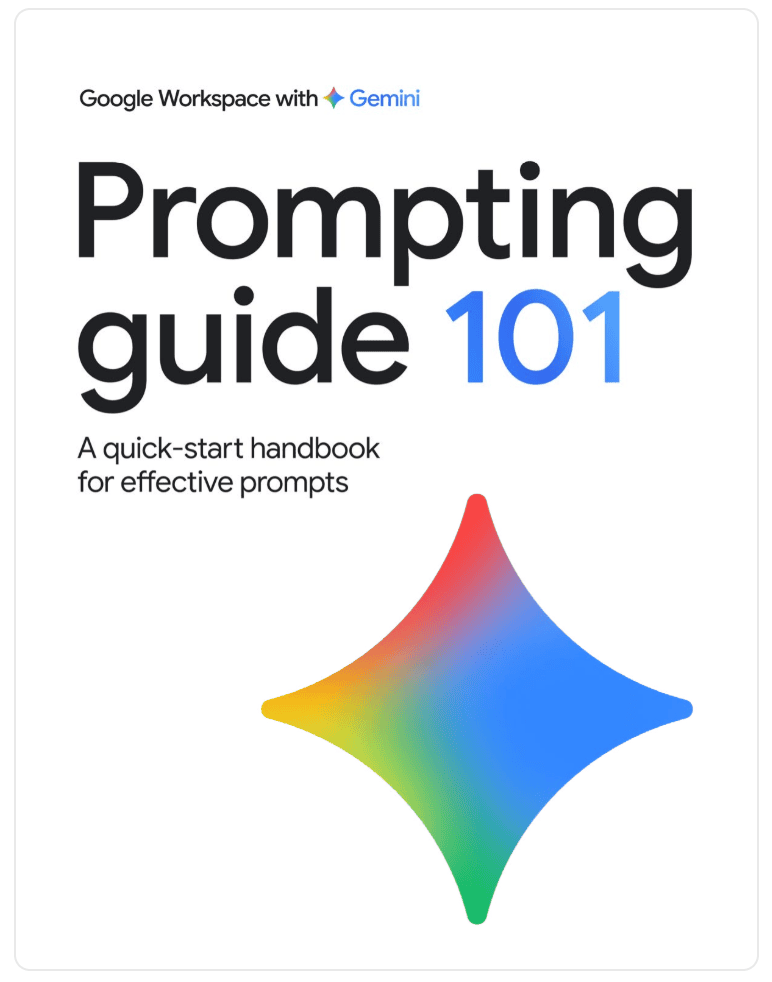
If you want to see how Google breaks this down, check out Google’s Workspace Gemini Prompt Guide for their official handbook.
Finding Your Brand Voice: The AI Tone Cheat Sheet
The biggest reason AI content sounds robotic or generic isn’t the AI itself—it’s that we forget to tell it how to speak.
Gemini can adapt to almost any brand voice, but “write an email” leaves too much to chance. Stacking two complementary tones together (like Friendly + Professional or Authoritative + Empathetic) gives Gemini clear guardrails while keeping your copy natural and engaging.
Use the reference guide below to find the right tone combination for whatever you’re working on today: Click to make your copy.
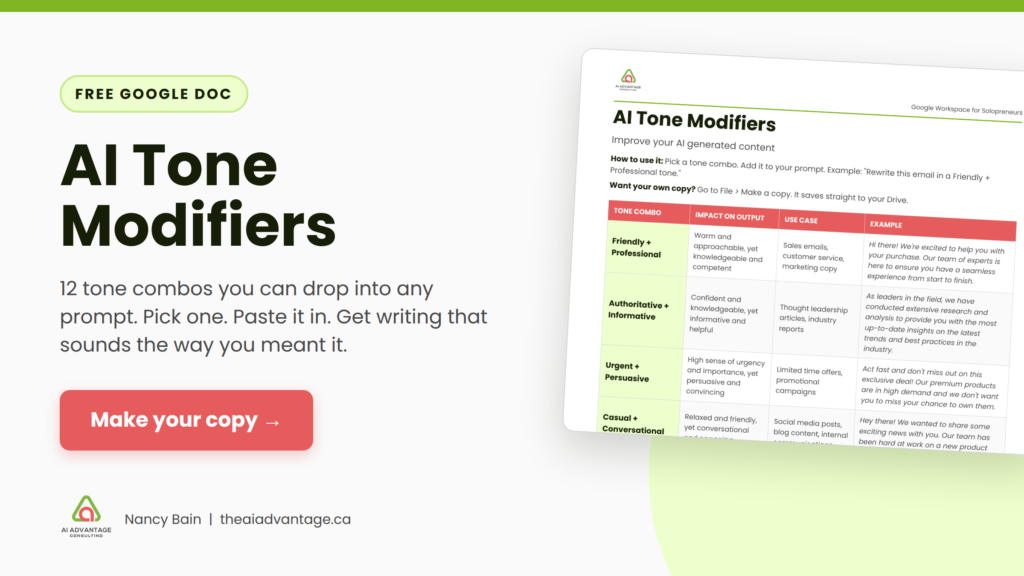
Pro Tip: Once you find a tone combination that sounds like you, copy those exact modifier keywords into the [Format] section of your prompts or save them directly inside your custom Gems!
Pro Tips for Next-Level Gemini Prompting
1. Tag Your Google Drive Files with @
You don’t need to copy and paste text back and forth. When prompting Gemini in your Workspace side panel, type @ followed by a document or spreadsheet name (e.g., @Client Proposals or @Q2 Expenses). Gemini will pull details straight from that file to answer your prompt!
2. Build Custom “Gems” for Recurring Tasks
Got a task you do every week, like outlining blog posts or drafting newsletter introductions? You can create custom Gems (Gemini’s custom AI personas). Give your Gem instructions once—like your brand voice and target audience—and re-use it anytime you need standard content written.
3. Use Multimodal Inputs
Gemini loves visuals. Upload a product image, sales flyer, or chart screenshot and ask:
- “Look at this product photo and write an Instagram caption highlighting its eco-friendly features.”
- “Analyze this expense chart screenshot and list my top 3 spending categories.”
Common Gemini Prompts for Solopreneurs (And How to Use Them)
Here are a few ready-to-use prompts you can test today:
Client Communication & Sales
- Discovery Call Follow-Up:“Act as an expert sales consultant [Persona]. Draft a warm, clear follow-up email [Task] to a prospective client based on my meeting notes in
@Client Notes[Context]. Highlight the main pain points we discussed, outline the proposed solution, and ask them to confirm if Tuesday at 10 AM works for our kick-off call [Format].” - Polite Scope Creep Boundary:“Act as an empathetic yet firm business operations manager [Persona]. Draft an email reply to a client who requested extra revisions outside our original contract [Task] based on our agreed deliverables in
@Project Agreement[Context]. Politely acknowledge their request, explain that this falls outside our initial scope, and offer an add-on quote for the extra work in a helpful, non-defensive tone [Format].”
Content Creation & Marketing
- Repurposing Blog Posts for Social:“Act as a social media strategist [Persona]. Read
@Latest Blog Postand extract 3 key insights [Context] to create 3 distinct, engaging LinkedIn posts tailored for solopreneurs [Task]. Include strong hook lines and end each post with a question to drive comments [Format].” - Newsletter Intro & Hook:“Act as a warm, conversational copywriter [Persona]. Write a 3-paragraph introduction for my weekly newsletter [Task] on the topic of avoiding solopreneur burnout [Context]. Start with a relatable hook about juggling client work, keep the tone encouraging, and transition smoothly into introducing three quick tips [Format].”
Operations & Admin
- Messy Document Summarizer:“Act as an executive assistant [Persona]. Review
@Q2 Project Brief[Context] and summarize the entire document into 4 key takeaways [Task]. Create a bulleted table of all actionable tasks mentioned, assigning a priority level (High/Medium/Low) to each [Format].” - Financial & Expense Insights:“Act as a small business financial advisor [Persona]. Look at the attached expense spreadsheet screenshot [Context] and identify my top three spending areas [Task]. Present the findings in a brief bulleted list, followed by two practical ways a solo consultant could streamline these expenses [Format].”
When the Output Isn’t Quite Right: Your Refinement Guide
Didn’t get what you wanted on the first try? Don’t start over—just refine! You can stack requests to get exact results:
- Adjusting Quality: “Make this more persuasive by adding a real-world benefit,” or “Make this more concise by cutting it down to two paragraphs.”
- Fine-Tuning Tone: “Adjust the tone to sound more empathetic toward busy solopreneurs,” or “Make it sound warm yet authoritative.”
- Format Tweaks: “Turn those paragraph points into a bulleted list for easy scanning.”
From Writing Prompts to Writing Time Off!
Mastering Gemini prompts is your very first step toward true business automation. Now that you know how to communicate effectively with your AI assistant, why stop at just drafting emails? It’s time to upgrade from doing everything manually to running an efficient, automated business that gives you back hours every week.
Start with your voice. Grab the free Brand Voice Guide and give Gemini something real to work from.
Want your whole voice in one place?
The free Brand Voice Guide walks you through building a voice document Gemini can follow every time. Tag it from Drive into a Gem and stop re-explaining yourself.
Frequently Asked Questions
Is Gemini actually safe for client stuff, or is Google reading my docs?
If you’re using Gemini inside a paid Google Workspace account (like Business Standard or Plus), your data is private. Google explicitly states they don’t use your business emails, files, or client notes to train their public AI models. (If you’re using the free web version of Gemini on a personal account, that’s a different story—stick to Workspace for confidential business work!)
Why is Gemini giving me generic or incorrect answers?
Usually, it’s a context problem. If you ask a broad question, Gemini has to fill in the blanks, which leads to bland advice (or made-up facts). The easiest fix? Give it real source material to work with. Tag a specific document using @ or paste in exact notes so it has real boundaries.
How do I get Gemini to stop sounding like a corporate robot?
Gemini defaults to “polite office worker” unless you tell it otherwise. The trick is to give it tone rules in your prompt. Just add a quick constraint at the end like: “Write at an 8th-grade reading level, drop the buzzwords, and make it sound like a friendly email to a peer.”
Is Gemini really worth using over ChatGPT?
If you live in Google Workspace every day, absolutely—simply for the convenience. Having an AI that lives right inside your Gmail side panel or Docs ribbon means you aren’t constantly switching tabs, copying and pasting text, or downloading files just to get a draft written.