
It’s already included in your Business Standard plan — and might make Zapier optional.
You know how it feels. Holding your breath when you open your inbox. Mentally bracing for the fires, the follow-ups, the invoices you haven’t filed, and the emails that turned into the to-dos you never got to.
For many of the solopreneurs I know, email isn’t a communication tool. It’s a never-ending to-do task that resets itself Every. Single. Day. I have clients with thousands of unread emails sitting in their inbox right now. And it’s not because they’re lazy.
What if your inbox could run itself — at least partially?
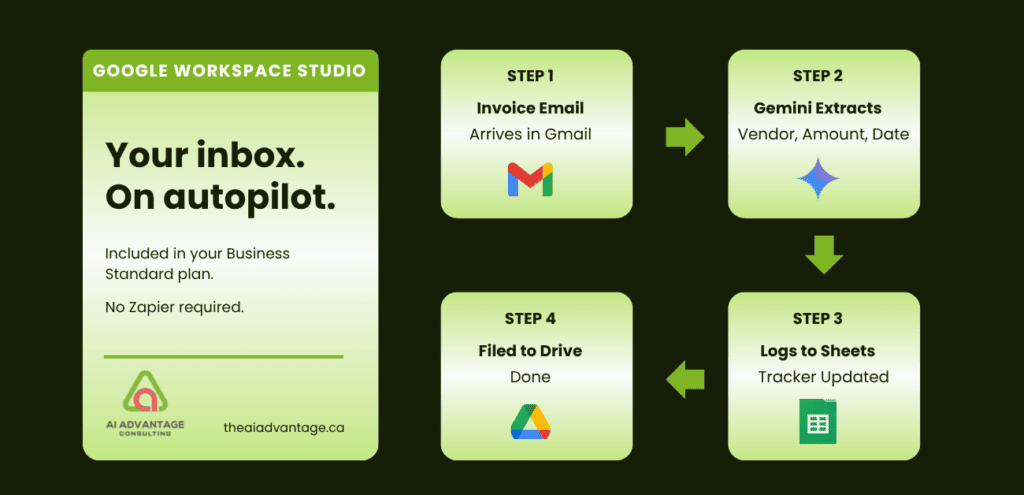
Today I sat down with Google Workspace Studio and built something I’ve had running in Zapier for years. An automation that watches my inbox, reads every invoice and receipt that comes in, logs the details to my expense tracker, and files the PDF to the right folder in Drive – automatically.
Hint: The quickest way to access Studio is by clicking on the Studio icon in Gmail. Studio will then open up in the side panel.
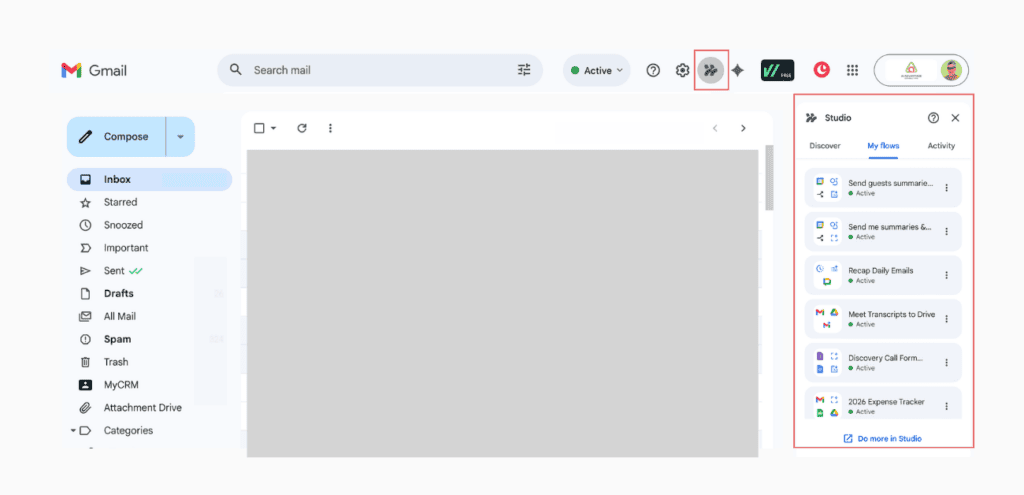
It’s integrated into your Google Workspace, included in your subscription – and it’s even better than my Zapier flow. Time spent = less than 20 minutes if you’ve got a trusty guide. 😉
Let me show you what I built — and (the best part) how you can do it too.
First — what IS Google Workspace Studio?
In December 2025 Google launched Workspace Studio. It’s a no-code automation builder (like Zapier) that connects directly to your Google Workspace apps. It comes included in your Business Standard plan or above.
It lives at studio.workspace.google.com and integrates with:
- Google Tasks
- Gemini
- Gmail
- Google Calendar
- Google Chat
- Google Drive
- Google Docs
- Google Forms
- Google Sheets
- Plus some third party apps
This kind of workflow (above) used to require third-party tools to pull off. And if you’ve ever set up a Zapier automation, you know it’s not exactly plug and play. With Studio, there are no account connections to manage, no API keys – and no separate subscription. Plus it’s genuinely intuitive in a way that many automation programs – well, just aren’t.
If you’re like many Google Workspace users, you’re just scratching the surface of its full potential. Workspace Studio is one of the biggest untapped tools you never knew you needed – and soon won’t be able to live without.
Before you build anything — do this first
Plan. Jumping straight into building without knowing what problem you’re solving will waste time. Spending five minutes thinking now will save you an hour of tinkering later.
Ask yourself: what repetitive task drives you over the edge. Or what task do you absolutely detest – or worse – procrastinate.
For many of the solopreneurs I’ve worked with the answer is (almost always) email. Specifically:
- Invoices and receipts sitting in the inbox untracked and unfiled
- Important emails getting buried under promotional noise
- Action items disappearing into threads you meant to come back to
- The mental overhead of knowing something needs doing but not knowing what
Pick your most painful one. That’s your first flow. Not the most complex thing – but the most annoying thing. That’s the automation you’ll appreciate the most.
What Studio can do for your inbox
I tested each of these in less than an hour:
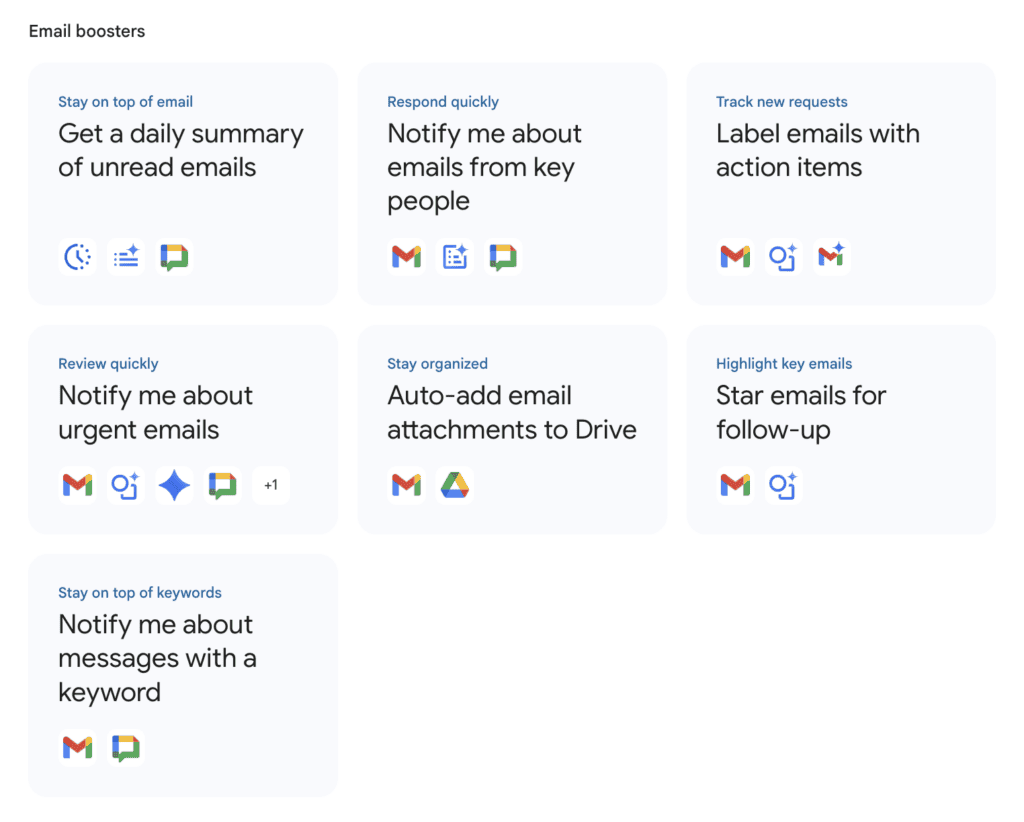
Email Boosters — these are pre-built templates ready to activate
- Get a daily summary of unread emails — delivered to Google Chat at a time you choose
- Notify me about emails from key people — so VIP clients never get buried
- Label emails with action items — automatically flagged before you open them
- Notify me about urgent emails — Gemini reads the email and decides if it’s urgent
- Auto-add email attachments to Drive — one less thing to do manually
- Star emails for follow-up — never lose a thread again
- Notify me about messages with a keyword — custom triggers for anything that matters
Important: Workspace Studio communicates with you via ping notifications to Google Chat.
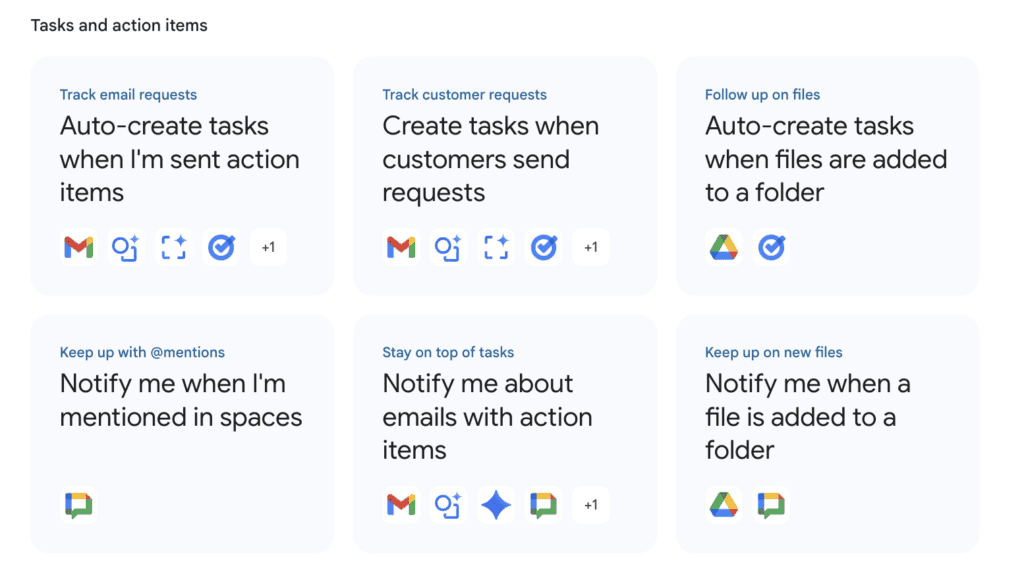
Tasks and Action Items
- Auto-create tasks when you’re sent action items — Gemini reads the email and creates the task
- Notify me about emails with action items — a ping before the email gets buried
- Notify me when a file is added to a folder — useful for tracking client deliverables
The flow I built in Workspace Studio — and why it’s better than Zapier
I’ve had a receipts and invoices automation running in Zapier for years. Here’s how it works: When an invoice arrives in my inbox, Zapier files the attachment to my (Expenses 2026) Drive folder then logs the expense to a spreadsheet with Date, Vendor, Amount, Invoice Number and Amount all filled in. This makes it FAR easier at tax time with everything tracked and in one place. It works great. But it costs money every month.
I rebuilt it inside Workspace Studio – for free (included in my Workspace subscription)
Here’s the exact flow — step by step
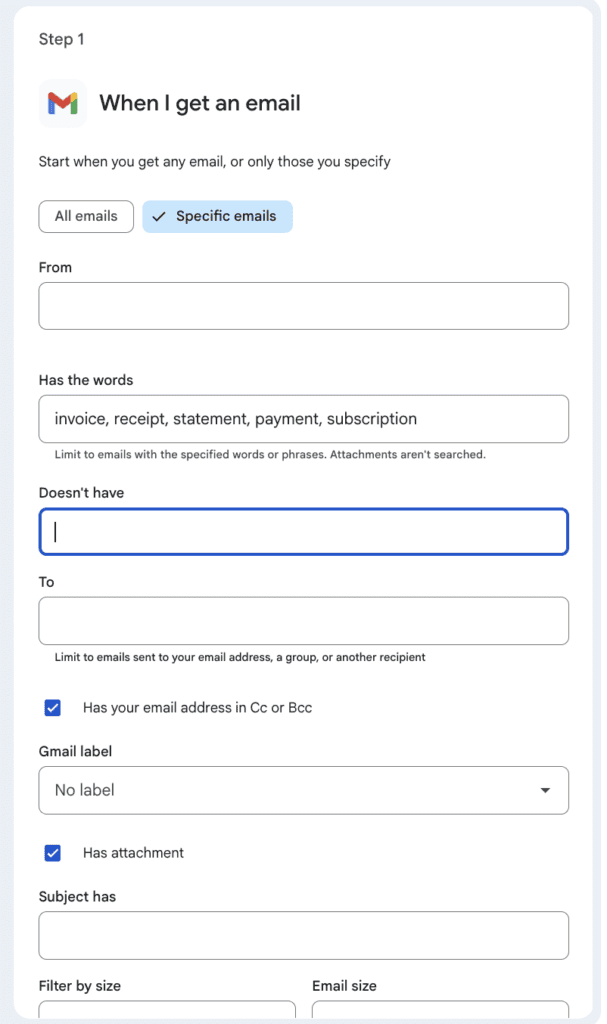
Step 1: The Starter — When I get an email
This is the trigger. I chose ‘Specific emails’ and configured:
- Has the words: invoice, receipt, statement, payment, subscription
- Has attachment: checked ✓
That means the flow only fires when an email arrives that contains one of those words AND has a file attached. Everything else is ignored.
Pro tip: the ‘Doesn’t have’ field is just as useful. Use it to exclude newsletters or promotional emails that happen to mention the word ‘receipt’ but aren’t actual invoices.
Step 2: Extract — Gemini reads the email
Variables let you use info from previous steps in your flow. I added an Extract step and told Gemini exactly what to pull from each email:
- Vendor name
- Amount
- Invoice number
- Date
These become variables — blue chips — that carry the extracted data into the next steps. You name them yourself in plain English and describe what Gemini should look for.
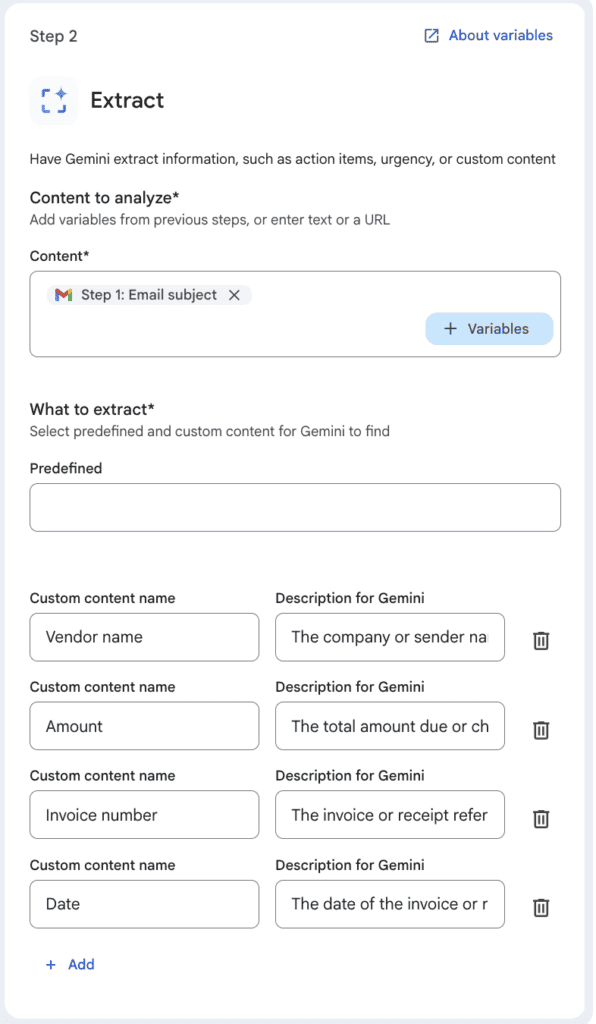
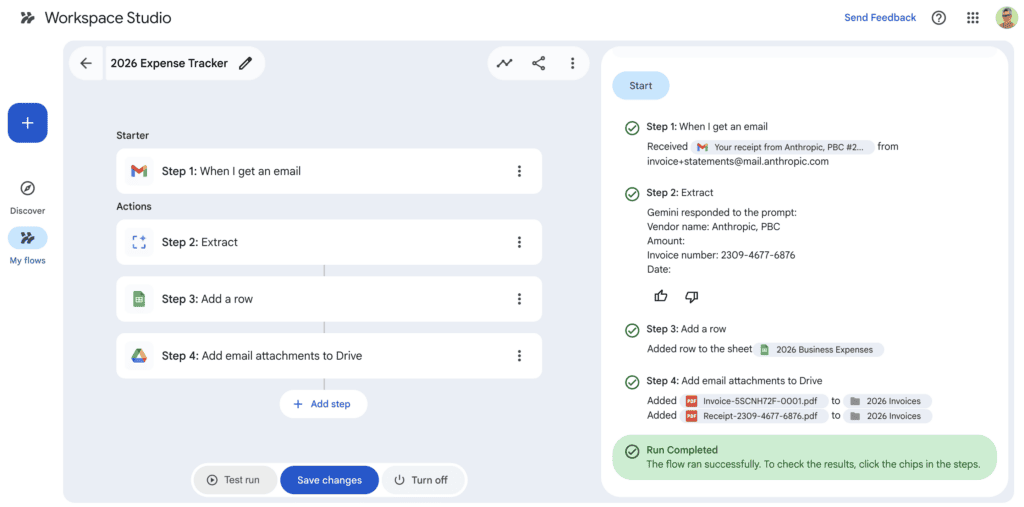
Limitation note: Amount and Date came back blank on my test run (see step 2 in the very first screenshot above) Anthropic buries those details inside the PDF attachment rather than the email body — and Gemini reads the email text, not the attachment contents.
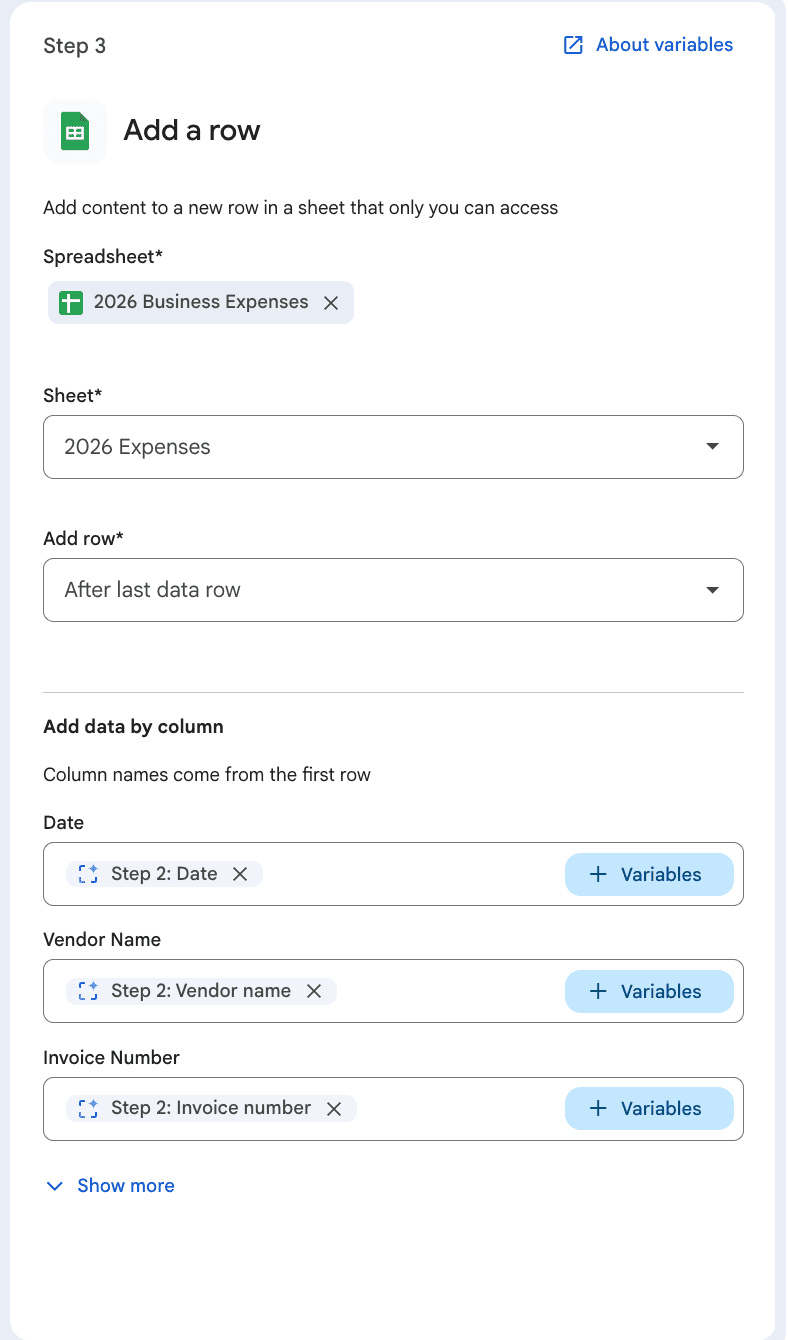
Step 3: Add a row — your expense tracker fills itself in
I connected my 2026 Business Expenses spreadsheet. Studio read my column headers automatically and mapped the extracted variables straight in:
- Date → Step 2: Date
- Vendor Name → Step 2: Vendor name
- Invoice Number → Step 2: Invoice number
- Amount → Step 2: Amount
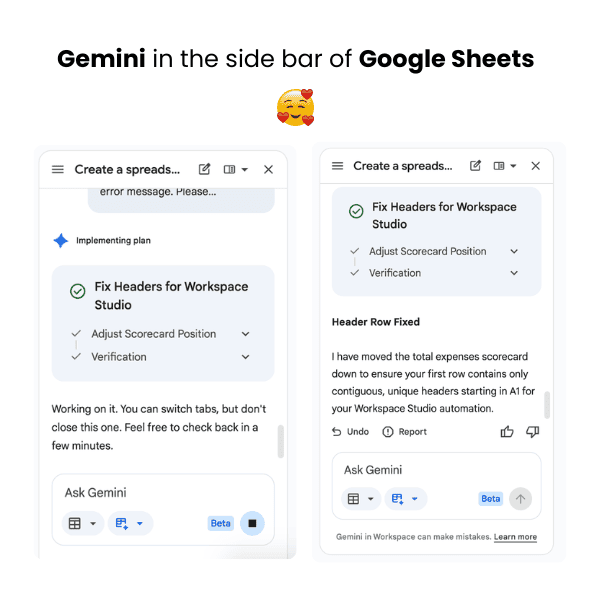
I hit a small error here — my spreadsheet had a summary scorecard in the first row which confused Studio. Here’s the part I love: I asked Gemini in the Sheets sidebar to fix it. It moved the scorecard, reorganized the headers, and told me exactly what it had done. Problem solved in 30 seconds.
Psst – If you’re spreadsheet phobic, Google Sheets has a gift for you.
FYI: Troubleshoot issues with flows here.
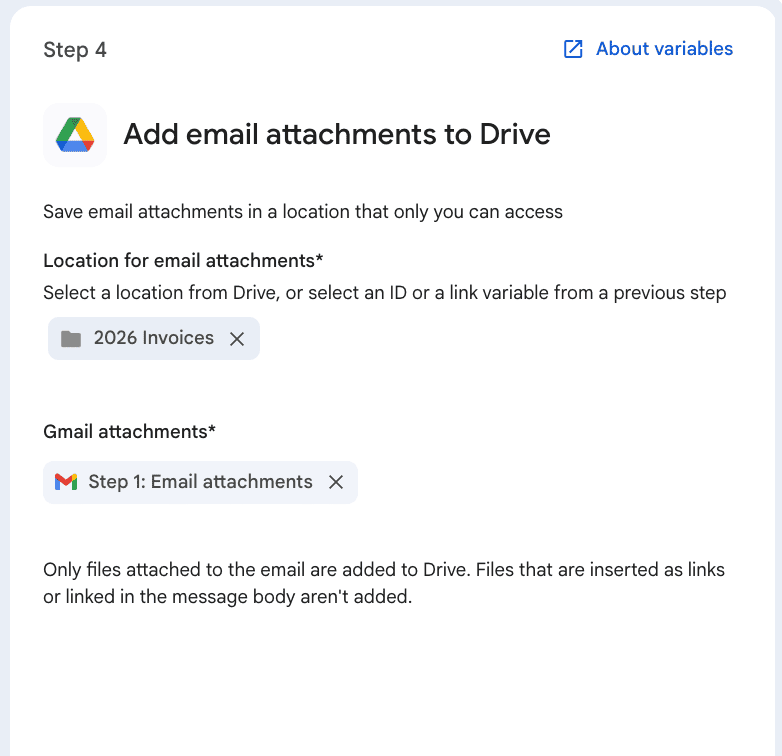
Step 4: Add email attachments to Drive
The final step saves every attachment directly to my 2026 Invoices folder in Drive. I selected the folder — Studio handles the rest.
Worth noting: only files physically attached to the email are saved. If a vendor sends a link to download the invoice rather than attaching the PDF directly, this step won’t capture it. But most vendors attach the file.
The test run
I ran the test against a real email in my inbox: a receipt from Anthropic.
Here’s what happened in seconds:
- Step 1 ✓ — triggered on the Anthropic receipt email
- Step 2 ✓ — Gemini extracted: Vendor name: Anthropic PBC, Invoice number: 2309-4677-6876
- Step 3 ✓ — added a row to 2026 Business Expenses
- Step 4 ✓ — filed two PDFs to 2026 Invoices: Invoice-5SCNH72F-0001.pdf and Receipt-2309-4677-6876.pdf
Run Completed. Green checkmarks across the board. 🥳
About Zapier — and what this means for your subscriptions
I’ve recommended Zapier to my clients for years. It’s a great tool and I’m not here to tell you to cancel it – yet. 😉
But I am here to tell you to take a hard look at what you’re actually using it for.
My receipts flow ran in Zapier for years. As of this morning it runs in Studio. That’s one less automation on my monthly bill.
If you’re a client I’ve set up with Zapier — let’s talk. We might be able to simplify your stack.
For the DIYers — here’s how to get started
If you want to build this yourself, here’s the path:
Before you open Studio — two checks
- ✔️ Confirm you’re on Business Standard, Business Plus, or Enterprise. Studio is not available on Business Starter.
- ✔️ As your own admin, go to admin.google.com → Apps → Google Workspace → Workspace Studio and confirm it’s turned on.
Then go to studio.workspace.google.com
You’ll see three tools on the left:
- + New flow — starts a fresh build
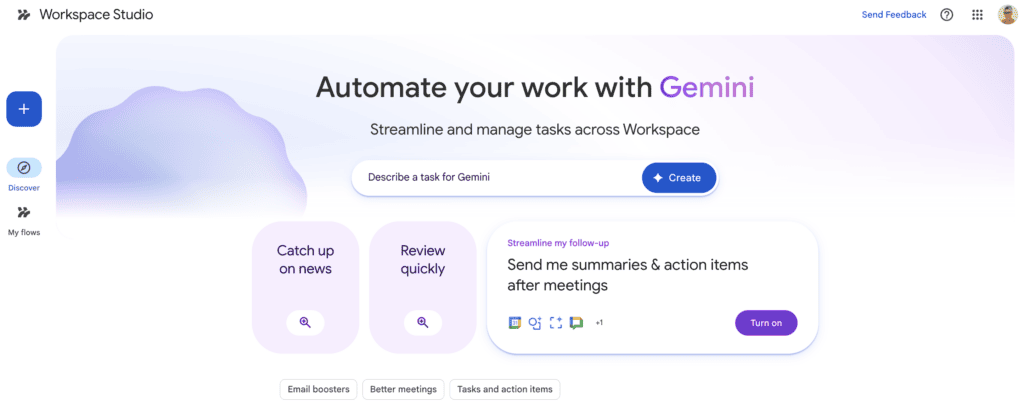
- Discover — home page with Gemini text box and pre-built templates
- My Flows — your saved flows and activity log

Start with a template
On the Discover page, scroll down to Email Boosters. Pick one template — I’d suggest ‘Get a daily summary of unread emails’ as your very first flow. It takes five minutes, requires no configuration beyond setting a time, and you’ll have something useful running before lunch.
Once you understand how a flow is structured — starter, steps, variables — everything else becomes intuitive.
Build the expense tracker flow
When you’re ready for the receipts flow, here’s the sequence (screenshots above):
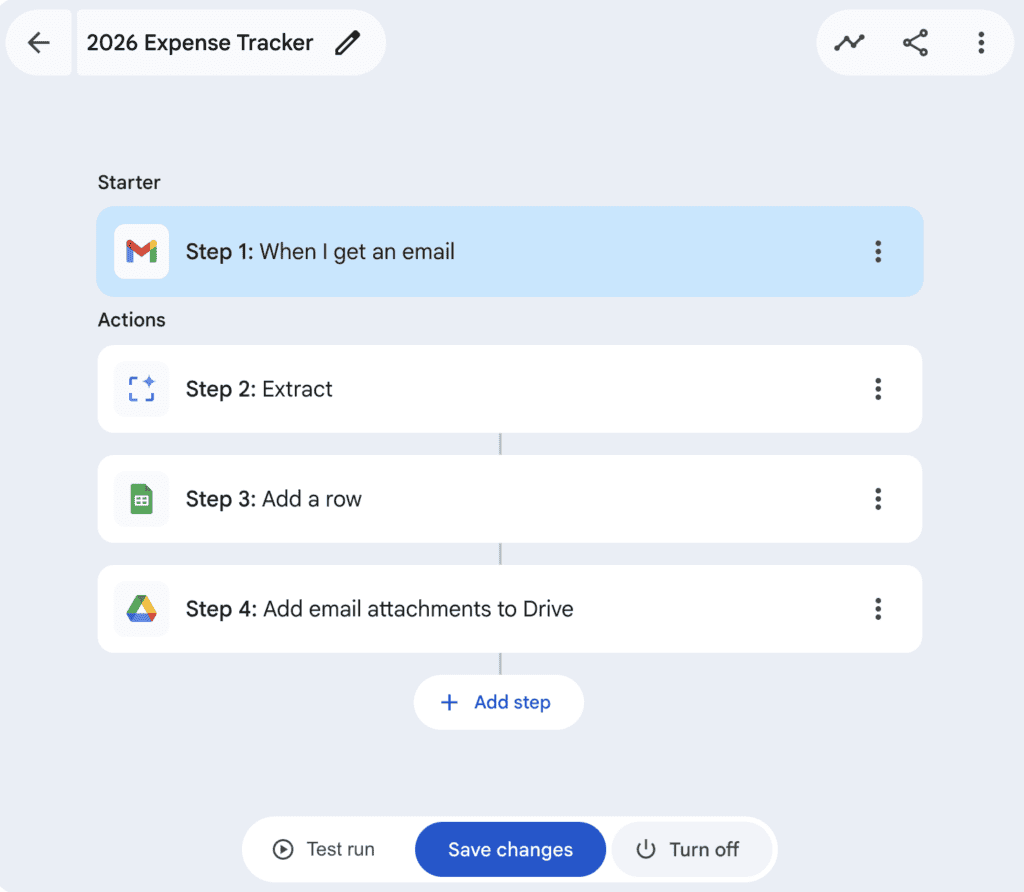
- Starter: When I get an email → Specific emails → Has the words: invoice, receipt, statement, payment, subscription → check Has attachment
- Step 2: Extract → add custom fields for Vendor name, Amount, Invoice number, Date
- Step 3: Add a row → connect your expense spreadsheet → map the variables to your columns
- Step 4: Add email attachments to Drive → select your invoices folder
Test it against a real invoice email in your inbox. Check your spreadsheet and Drive folder. If it worked — name it, turn it on, and walk away.
Name your flows like you’ll forget what they do — because… eventually you will. 😂 ‘2026 Expense Tracker’ tells you exactly what it is, what year it covers, and what it handles. When January 2027 arrives, duplicate it, update the folder and sheet references, rename it, and you’re done in five minutes.
One thing no tutorial will tell you
With automation – what’s standing in the way for most solopreneurs isn’t technical. It’s the habit of assuming that certain tasks have to be done manually.
Filing invoices feels like something you do. Logging expenses feels like something you manage. Checking email feels like something that requires your attention.
Some of it does. A lot of it doesn’t.
The question to ask yourself isn’t ‘how do I learn this tool?’ It’s ‘what am I doing every week that I shouldn’t have to do?’ Start there. Describe it to Gemini. Let IT build the flow. Then go do the work only you can do. 🫶
The goal isn’t to become an automation expert. It’s to get your time back for the parts of your business that actually need you.
One quick note before you set it and forget it:
Automation is brilliant. But it’s not always perfect. Once a month, take two minutes to scroll through your expense tracker. Think of it like checking your bank statement – you trust the system, but you still double-check. That two-minute habit might save you a surprise come tax season.
Want help building your first five flows?
That’s exactly what a Business Automation Breakthrough Session is for. In one focused call, we’ll identify your five biggest time sucks, build the flows together inside Workspace Studio, and make sure everything is running before we hang up.
You’ll leave with five working automations, the knowledge to build more on your own, and even a chance of cancelling at least one subscription you no longer need.
And while we’re on the subject – if you’re paying for Calendly, we should talk about that too. Google Workspace handles appointment booking natively – well. But that’s a post for another day, and another subscription you may not need for much longer.
Or bookmark this post and come back when you have an hour. Either way — you now know what’s possible. And it’s already sitting inside the tool you’re paying for.
Helping solopreneurs maximize their Google Workspace subscription — one step at a time.