
We had a heatwave in Nova Scotia this weekend. I spent Saturday morning – inside, testing Google Flow. I don’t have anything to show for it yet (I burned through my credits before my coffee got cold). But I learned a lot, and I’ll share what I found, below.
First things first, I built a Gemini Notebook on Gemini Omni and dug into what Google Flow on Business Standard actually gives you – beyond the highlight reel and straight into the fine print.
Here’s the skinny: you already have access to this and don’t need a separate subscription. And by the end of this post, you’ll have your own AI avatar built and know exactly what you’re trading to get it.
TL;DR
Google Flow is free for anyone with a Google Account, and your Business Standard sign-in gets you into that same free tier automatically. You get 50 credits a day. You can build a personal AI avatar there. Just know this: Flow runs under different privacy rules than the rest of your Workspace plan, so read the security section before you record your face.
Omni Is the Brain. Flow Is the Studio.
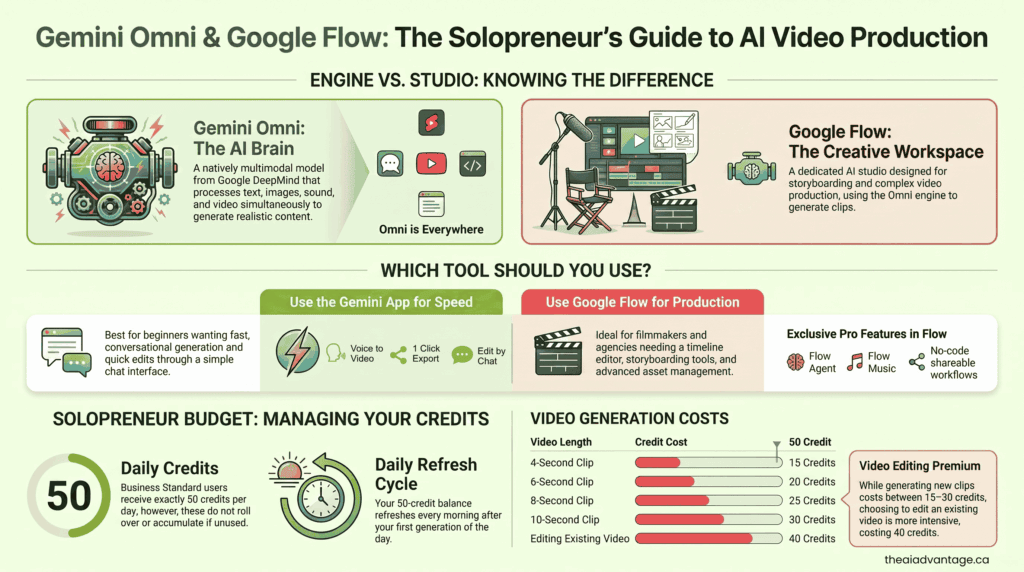
Gemini Omni is the AI model. It’s the brain. It takes a photo, a voice clip, or a few lines of text and turns it into video, remembering what you told it two prompts ago.
Google Flow is the studio. It’s where you sit down and actually use that brain, prompt by prompt, scene by scene.
You need both. Omni Flash does the thinking. Flow is where the thinking becomes a video.
What Google Flow on Business Standard Actually Gives You
Is Google Flow part of your Workspace subscription? Not exactly.
Google Flow lives in Google Labs. It’s not a core Workspace app sitting next to Gmail and Docs. But your Business Standard account gets recognized the moment you sign in, and Google drops you into the Free users tier.
You get 50 credits a day (enough to create one or two short clips a day) and, no, they don’t roll over, but reset each morning. A single clip can eat a meaningful chunk of that in one shot, and editing an existing clip costs more than starting fresh. It’s a place to learn, not a content pipeline.
The credit costs for generating short videos are based on length:
- 4-second clip: 15 credits
- 6-second clip: 20 credits
- 8-second clip: 25 credits
- 10-second clip: 30 credits
Keep in mind that if you choose to edit an existing video rather than generating a new one from scratch, it will cost 40 credits. Learn more about managing your Google Flow credits.
One more thing, before you get any ideas. Don’t bother adding Expanded Access to your plan hoping it buys you more Flow credits. As of May 2026, that add-on stopped including Google Flow entirely. If you genuinely need more than that, the only path is a personal Google AI Plus, Pro, or Ultra subscription, completely separate from your Workspace plan.
Personal Google AI Plans:
| Tier | Monthly Price | Monthly Flow Credits | Best For |
| Google AI Plus | ~$10–13 (region-dependent) | 200 | Light testing |
| Google AI Pro | $19.99 | 1,000 | Solo creators, testing |
| Google AI Ultra | $199.99–$249.99 | 10,000 or 25,000 | Studios, agencies |
That’s fine, though. You’re already paying for the Ferrari. This is one more room in the house that came with your key.
Gemini Setup Workbook
Every Gemini setting on Business Standard, in one printable guide.
Nine steps with fillable checkboxes and every screenshot. Work from paper while you're in the Admin console.
You'll also get my weekly email on Google Workspace and AI for solopreneurs. Unsubscribe anytime.
The Security Trade-Off You Need to Know Before You Record Your Face
Here’s where I want you to slow down with me and the trade-off I mentioned earlier.
When you use Gemini inside Gmail or Docs, that’s a core Workspace service. Your business data isn’t reviewed by a human or used to train outside models without your permission. That’s the room with the alarm system.
Google Flow is a different room. It’s a Labs product, not a Workspace service, and it runs under its own separate privacy notice. By default, Google keeps your prompts, uploads, projects, and generated videos until you delete them yourself. Human reviewers do sample some of that data to help improve the product. And Flow keeps your session history with its Agent and Tools features around for 18 months by default.
Business Standard handed you a key to that room. It didn’t extend your Workspace lease into it.
That matters more once you build an avatar, because an avatar isn’t a throwaway prompt. It’s your actual face and voice, recorded once and reused in every video after that, stored under Flow’s terms instead of Workspace’s.
A few practical notes before you start:
- You must be 18 or older.
- The account owner has to do the recording. You can’t record on behalf of anyone else, and minors can’t be recorded at all.
How to Create Your AI Avatar in Google Flow
You’ll start this on your computer, but you’ll need your phone or tablet nearby to finish it. The face and voice capture happens on mobile.
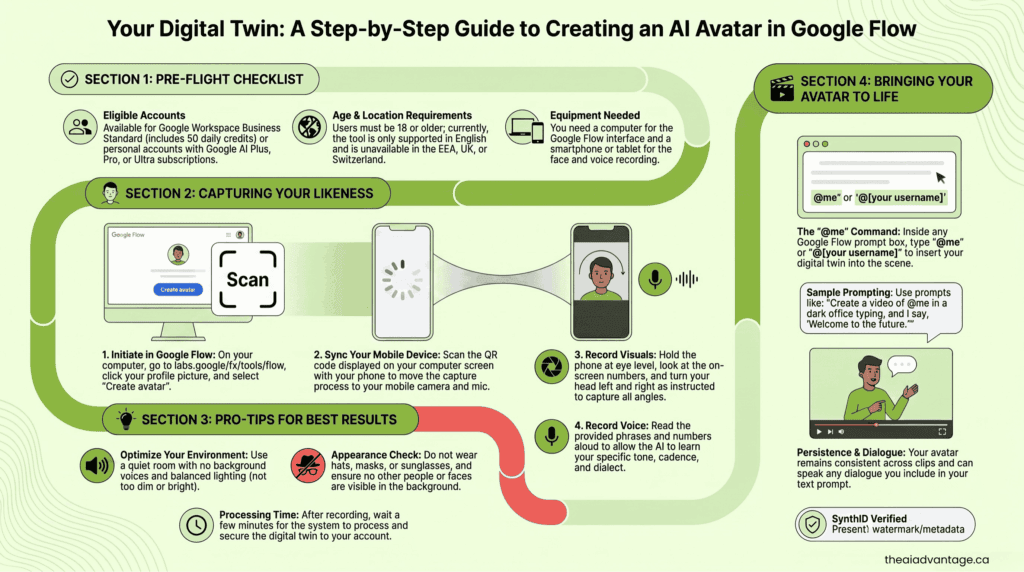
- On your computer, go to labs.google/fx/tools/flow.
- Open an existing project, or start a new one.
- Top right corner, click your profile picture. Select Create avatar, then Get started.
- A QR code will appear on your screen. Scan it with your phone.
- Follow the prompts on your phone to capture your face. You’ll hold your phone at eye level, look at a series of numbers, and turn your head left and right so it can see you from every angle.
- Next, it’ll ask you to read a few phrases and numbers out loud, so it can capture your voice, your tone, and how you actually talk.
- Give it a few minutes to process. Your avatar gets securely tied to your account once it’s done.
A couple of tips that make a real difference: sit in a quiet room with no background voices, use lighting that’s neither too dim nor too bright, and make sure there are no other people or photos of faces behind you. Glasses are fine. Sunglasses, masks, and hats are not.
How to Use Your Avatar in a Prompt
Once it’s built, your avatar lives in your toolkit. You never have to upload a selfie or a voice clip again.
- Open your project in Google Flow.
- In the prompt box, type @me (or @yourusername) to drop your avatar into the scene.
- Describe what you want. For example: “Create a video of @me sitting in a home office, typing on a keyboard.”
- Want your avatar to talk? Just say so in the prompt: “and I say, ‘Welcome to my office.'”
- Click Generate.
How This Looks Different Inside the Gemini App
Here’s the part that tripped me up. You cannot create or “call” your avatar inside the Gemini app (like the personal plans above). On the Business Standard plan, that direct Gemini App integration is locked.
However, you can completely bypass this restriction by using Google Flow. Because your Workspace account gives you free daily access to Google Flow via Labs, you can use the Flow interface to scan your face, create your digital twin, and generate videos with it by typing @me in your prompts.
In short:
- You have full access to the Omni model in your Gemini App for standard video generation.
- To use advanced tools like the Avatar feature, you just need to step out of the Gemini App and into Google Flow (via Labs), where your Business Standard plan gives you 50 free daily credits to play with.
Where I Land On This
Here’s the part you need to know before you get too far in: each clip Gemini Omni Flash generates runs 4, 6, 8, or 10 seconds long. Ten seconds is the ceiling right now, a choice Google made to manage compute demand at launch, not a hard limit on the model itself.
So anything with an actual beginning, middle, and end isn’t one clip. It’s several, stitched together, each one referencing the last so your avatar stays consistent from scene to scene. Google Flow’s built-in timeline editor is exactly for this. It’s built to assemble multiple generated scenes into one finished piece.
And every one of those clips still pulls from the same 50 credits you get for the day. Need four or five clips to finish something? You’ve just turned a quick project into a multi-day one.
That’s not a reason to skip it. It’s a reason to plan for it. Treat your first avatar project like a skill you’re building, not a deliverable you’re shipping by Friday. Write your full script first, break it into 10-second beats, and knock out one beat a day until it’s done.
If you need something client-ready by tomorrow, you’ll need to pay for a personal AI plan.
Build the avatar anyway. It’s genuinely fun, but keep it in the sandbox for now. Nothing with your business’s fingerprints on it, until you’ve made peace with where that data lives.
And when you’re ready for it to go, it goes. You can request deletion any time.
If you want help figuring out what else is sitting unused in your Workspace plan, the free setup workbook walks you through every setting, one step at a time.
FAQ’s
Do I have to pay extra to use Google Flow on Business Standard?
No. Google Flow’s free tier is open to anyone with a Google Account, not something Business Standard specifically unlocks. Your Business Standard account just gets recognized and let in, no separate Google AI plan required. Either way, you land in the same place: 50 credits a day, automatically, no extra charge.
Can I build an AI avatar without a Google AI Plus or Pro subscription?
Yes, through Google Flow. The regular Gemini app requires a paid personal plan for avatar creation. Flow doesn’t.
Will upgrading to Expanded Access give me more Flow credits?
No. As of May 2026, that add-on stopped including Google Flow entirely. You’re on the same 50-credit daily limit either way.
Is my data handled differently in Google Flow than in Gmail or Docs?
Yes. Flow is a Labs product with its own privacy notice. Google keeps your prompts, uploads, and videos until you delete them, and some data gets sampled by human reviewers. Core Workspace apps don’t work that way.
Can I delete my avatar or my Flow data later?
Yes, any time. Deletion is straightforward.
Is the avatar feature available everywhere?
No. You need to be 18 or older, it’s English-only right now, and it’s not available in the EEA, the UK, or Switzerland.
What’s the difference between Gemini Omni and Omni Flash?
Omni is the family. Flash is the first model in it, and right now the only one available to the public, which is why everyone (including me, in this post) uses the two names interchangeably. Google’s already confirmed a more capable model, Omni Pro, is coming. No release date yet, they’ve just said it arrives once it’s a real step change above Flash. Once Pro ships, Omni becomes the category, and Flash and Pro are the two you’ll actually pick between.