
You’ve got client proposals in Google Drive. Customer emails in Gmail. Notes from discovery calls scattered across documents. SOPs tucked away in folders you haven’t opened in years. Somewhere there’s a pricing sheet you know you created, but can’t find.
The information is there. Finding it is another story.
As your business grows, so does the pile of information behind it. Before long, you’re spending more time searching for things than using them.
That’s one of the reasons Gemini Notebook formerly NotebookLM has become such a valuable tool for solopreneurs in 2026.
If you’ve heard of it but never looked closely, or if you tried it when it first launched, it’s worth another look. In 2026, Gemini Notebook has become one of the most useful tools available to Google Workspace users.
Instead of digging through Drive folders, old emails, and endless documents, you can bring your business knowledge into one place and ask questions about it when you need it.
In other words, you can create a second brain for your business.
TL;DR:
Gemini Notebook is Google’s AI research tool, and in 2026 it’s grown from a document summarizer into a full knowledge workspace. Upload your business documents: proposals, SOPs, past emails, and ask it questions, get sourced answers, and generate mind maps, slide decks, or audio overviews straight from your own material. Below, you’ll learn how to set it up and build what I call a Second Brain – the exact framework I teach live in Week 2 of Workspace Elite.
Update, July 2026: Google renamed NotebookLM to Gemini Notebook on July 16. Same tool, same notebooks, nothing to relearn — just a new name. I’ve updated this post to match.
What Is Gemini Notebook for Solopreneurs? (And What Makes It Different From Other AI Tools)
Gemini Notebook is Google’s AI-powered research assistant, built on their Gemini models. But here’s what separates it from every other AI tool you’ve tried:
It only knows what you tell it.
Instead of pulling information from across the internet, Gemini Notebook uses the documents, files, and materials you’ve added to a notebook. It references your sources to answer questions, generate summaries, and cut through the noise so you can get real work done.
Think of it like having an expert on your business ready to answer questions, grounded in the specific knowledge you gave it.
Every response also includes clickable inline citations, so you can see exactly which document and which sentence the answer came from. For those of us who fact-check before we publish anything, that matters.
What’s New in 2026? Because This Isn’t the Same Tool It Was
If you tried Gemini Notebook a year ago and decided it wasn’t quite ready, it’s worth taking another look.
The basic layout is the same. Sources on the left, chat in the middle, and Studio on the right. What has changed is what Gemini Notebook can do with the information you give it.
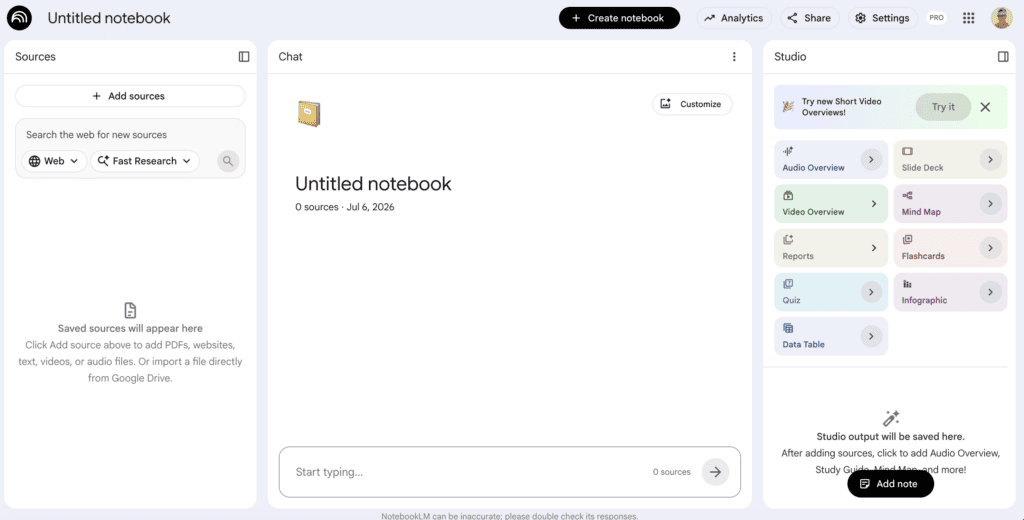
The biggest improvement is Studio.
What started as a way to summarize documents has evolved into a content creation workspace. You can now generate mind maps, data tables, infographics, slide decks, video overviews, and customize the length of your audio overviews directly from your source material.
For business owners, that means the same notebook can become the foundation for presentations, training materials, content planning, research summaries, and internal documentation.
It accepts more file types. PDFs, Google Docs, Sheets, Slides, website URLs, YouTube links, audio files, images (with OCR), and CSV files.
Another more recent update is automatic syncing. If your notebook is connected to your files in Drive, any changes you make sync to your notebook automatically. No more manually uploading updated versions. Your knowledge base stays current as your business evolves.
Gemini Notebook also works with your custom Gems. You can create specialized AI assistants that understand the information inside your notebooks. For example, you could create one Gem that knows your products and services, another that understands your content library, and another that helps with client onboarding.
But the most important change isn’t a feature at all. It’s scale.
You can now build massive knowledge systems containing hundreds of notebooks and thousands of source documents. What once felt like a research tool can now serve as your business knowledge hub.
The Three-Panel Interface — A Quick Tour
Before we get into setup, let me walk you through how the interface is laid out. Understanding this first makes everything else click faster.
The Sources Panel (Left)
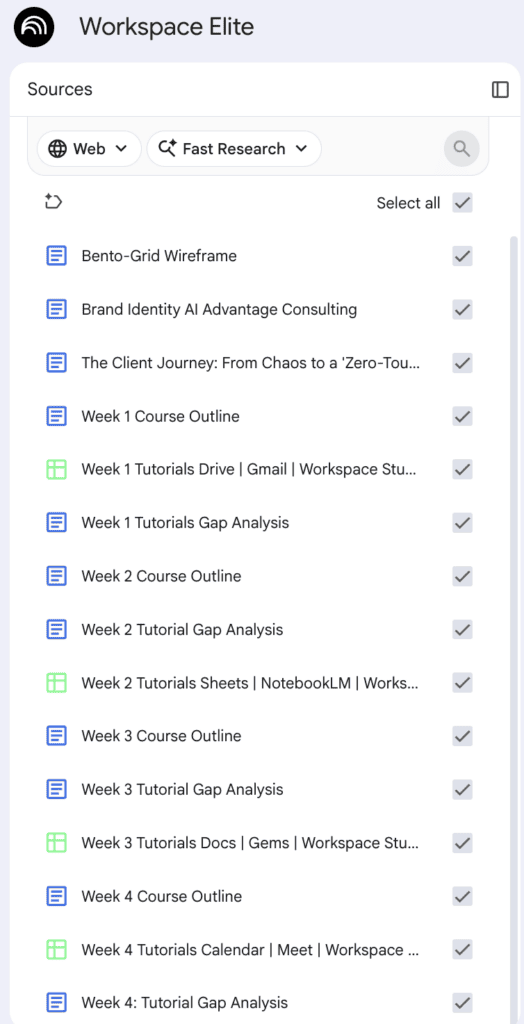
This is where your documents live. You upload everything here: PDFs, Docs, URLs, videos, audio, spreadsheets. Think of it as the library. You can also use the new search tools here:
- Web + Fast Research — searches the internet and surfaces relevant sources you can add directly
- Drive + Fast Research — searches your Google Drive without you having to dig through folders
- Web + Deep Research — goes deeper, reads sources, and synthesizes a full research report you can add as a notebook source
The Chat Panel (Middle)
This is where you talk to your documents: ask questions, request summaries, ask for formatting, drill into specifics. The AI pulls answers only from what’s in your Sources panel, nothing else. You can save any useful answer as a Note, which becomes part of your notebook’s memory and informs future answers.
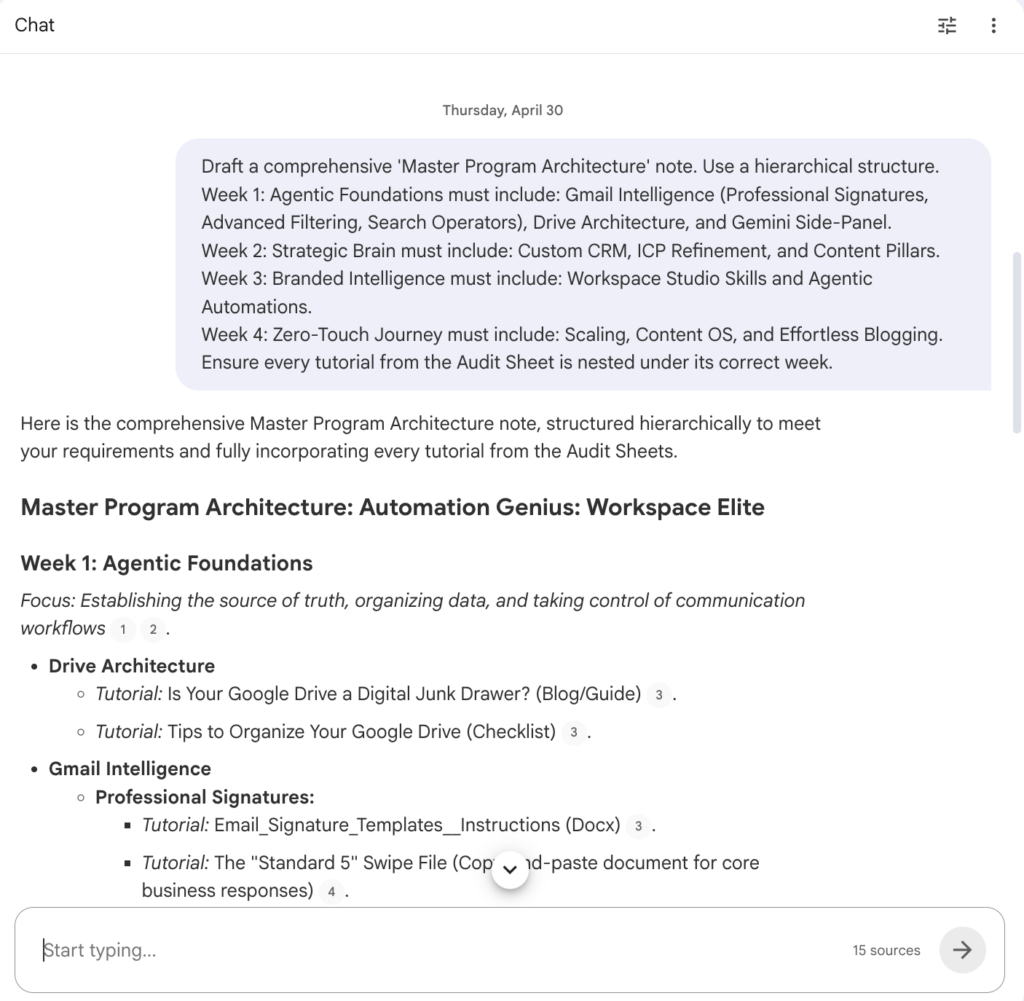
The Studio Panel (Right)
This is where your knowledge becomes something you can actually use. From here you can generate:
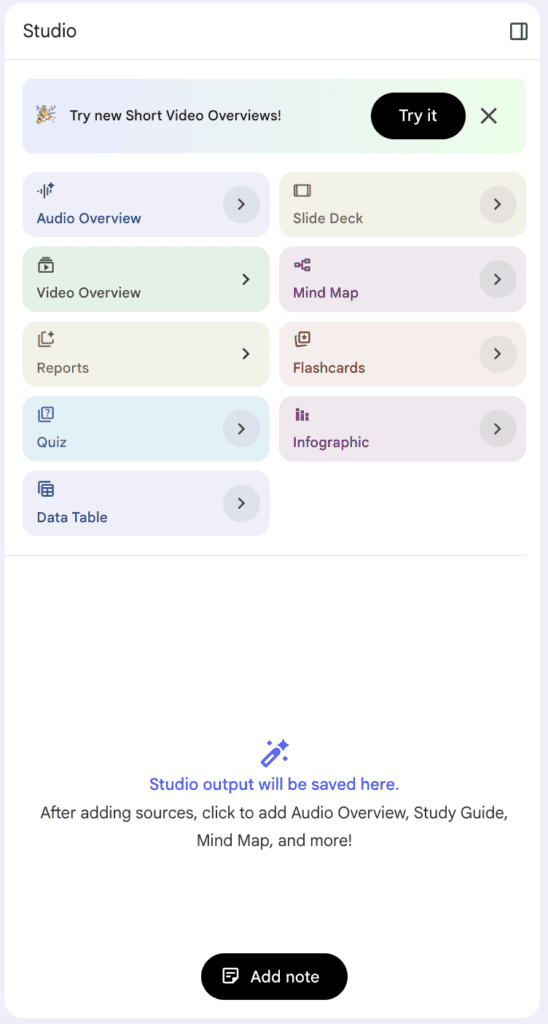
- Audio Overviews — a conversational, podcast-style discussion of your uploaded content (you can even join in real-time with Interactive mode)
- Video Overviews — a narrated explainer of your material
- Mind Maps — visual diagrams showing how your ideas connect
- Slide Decks — exportable as editable PPTX files
- Data Tables — auto-extracted from scattered information in your sources
- Infographics, Quizzes, Flashcards — useful if you’re building courses or training materials
How to Get Started — Step by Step
Step 1: Go to notebook.google.com
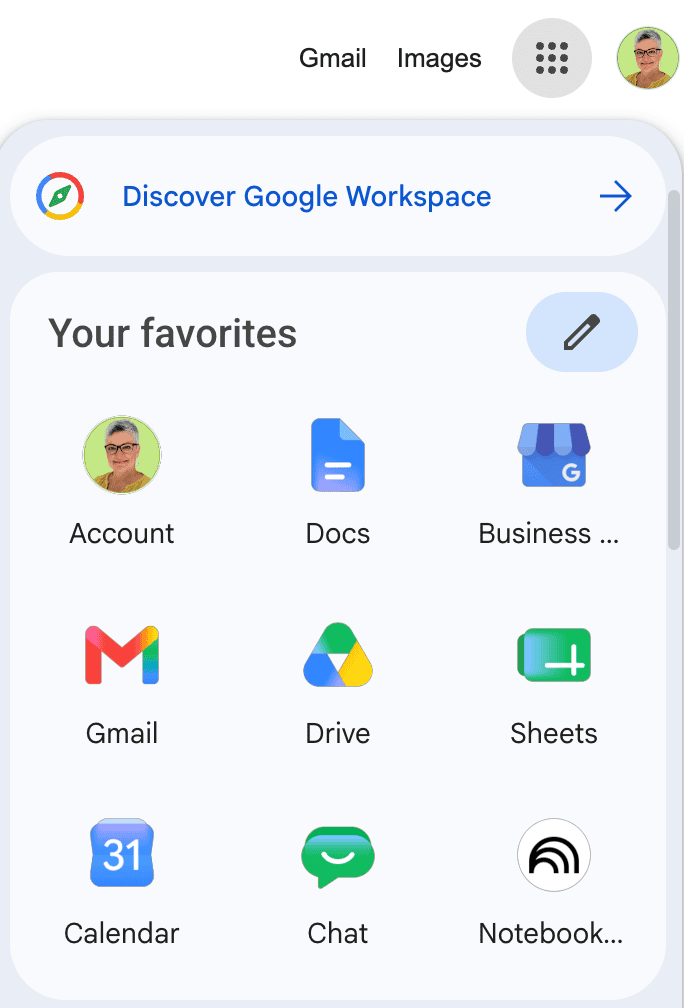
Sign in with your Google account or open your Google App Launcher (waffle menu at the top right corner on desktop) scroll down until you see Gemini Notebook- click to open it.
Good naming example: “Client Onboarding | Services & Process Docs”.
Not this: “Notebook 3”.
The name matters because you’ll likely have several notebooks eventually. Treat each one as a dedicated project folder.
Step 2: Upload Your Sources
Click Add Sources and upload whatever is relevant to that notebook. Mix formats – don’t overthink this. A PDF, a Google Doc, and a web URL can all live together in the same notebook.
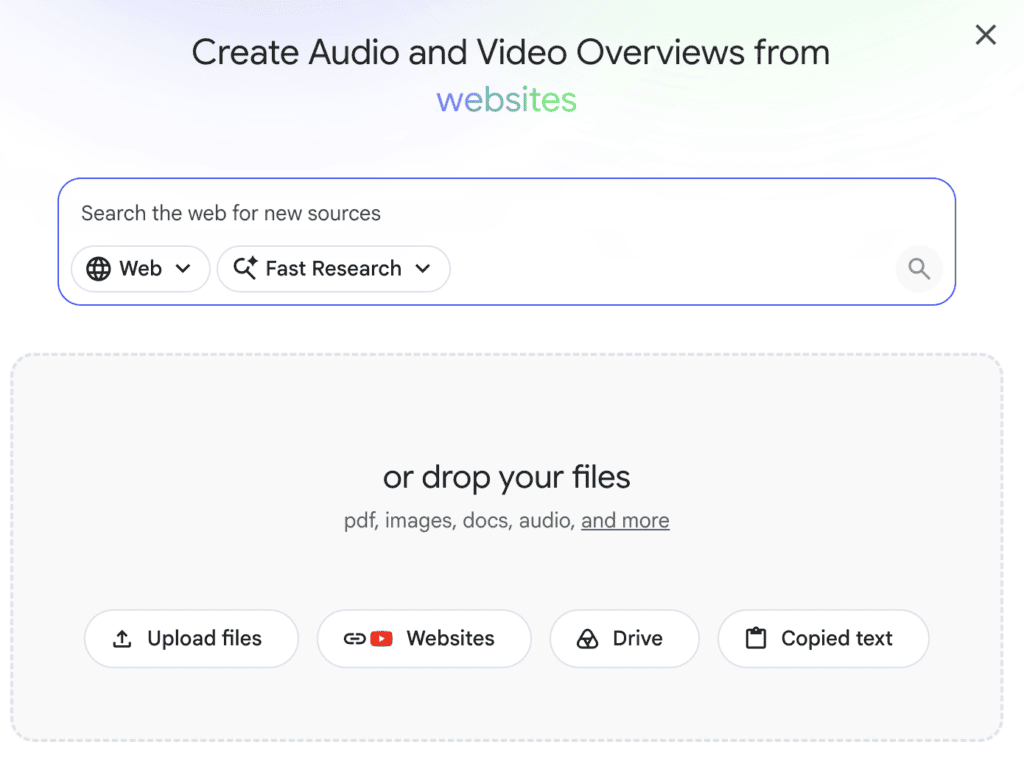
Pro tip: The tool recommends one notebook per specific project, not broad topic areas. “Q2 Marketing Research” is better than “Marketing.” The more focused the sources, the more precise the answers.
Step 3: Start Asking Questions
Once your sources are uploaded, Gemini Notebook auto-generates a summary to get you oriented. From there, start asking specific questions.
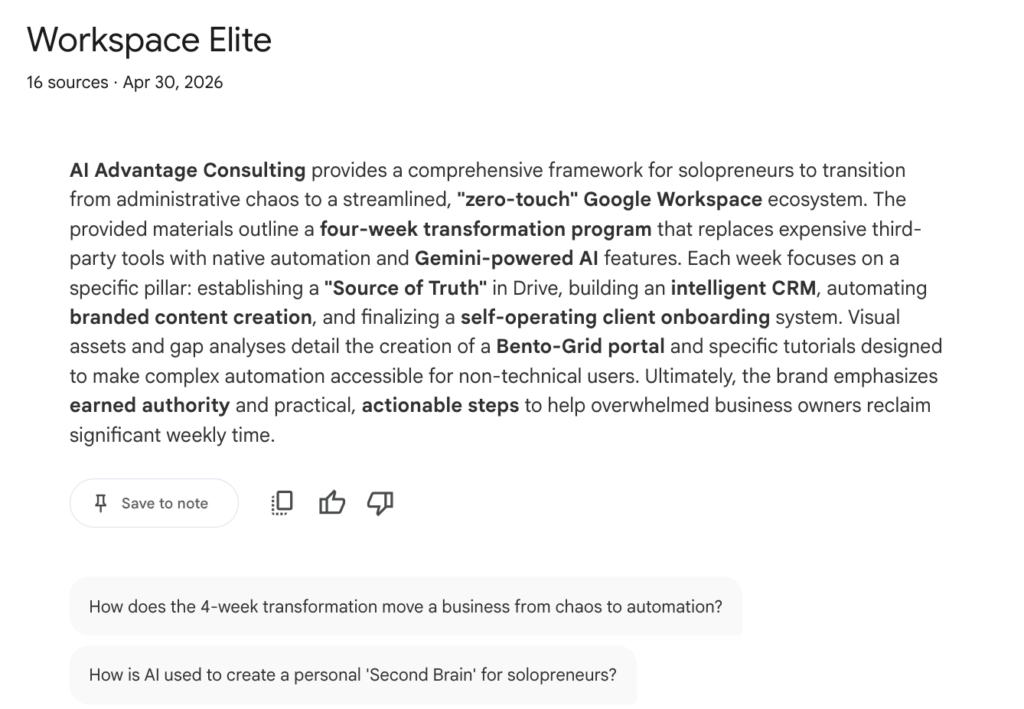
Not: “Summarize this.”
Instead: “What are the three most common objections mentioned across these client emails?” or “What does my onboarding process say about payment timing?”
Specific prompts get specific answers. When an answer is especially useful, save it as a Note – it becomes part of your notebook’s running knowledge base.

Step 4: Use the Studio Panel to Create Something
Now the fun part. Go to the Studio panel and try generating a mind map of your uploaded content. You’ll find connections you didn’t even know were there.
If you’ve uploaded research, turn it into a briefing document. If you’ve uploaded past client proposals, ask it to draft a new proposal intro based on your patterns.
Building Your Second Brain — The Part That Changes Everything
Here’s the mindset shift I want you to make. Gemini Notebook isn’t just a document reader. It’s a knowledge command centre – if you build it that way.
I’m sure you’re sitting on a goldmine of information in your Drive and inbox. Proposals you’ve written. Processes you’ve refined. Client conversations that shaped how you think about your work. It’s all there. You just can’t access it when you need it.
A Second Brain changes that.
The Three Buckets (This Is What We Build in Workspace Elite)
In Week 2 of my Workspace Elite program, this is exactly what we do together — we build your Second Brain in under an hour. The framework uses three document buckets:
Bucket 1 — Who You Are
Your bio, brand values, service descriptions and messaging guide. This is the foundation. It tells the AI who it’s working for.
Bucket 2 — What You Do
Past proposals. Service packages. Process documents. SOPs. Onboarding flows. How you actually work.
Bucket 3 — What You’ve Said
Past newsletters. Blog posts. Client emails. Meeting recaps. The things you’ve already figured out and communicated — just scattered across inboxes and folders.
Upload documents from all three buckets into one dedicated notebook. Then ask it questions about your business:
“Summarize my core services in three sentences.”
“What’s my onboarding process for new clients?”
“Draft a proposal intro based on my past work.”
Those are questions you currently answer by memory, or by digging through files for twenty minutes. With a Second Brain, you get a sourced answer in under ten seconds.
One Notebook Per Project — Not One Notebook for Everything
This is the rule that makes the whole thing work. Don’t dump everything into one notebook and expect magic. The more focused the sources, the sharper the answers.
Build separate notebooks for:
- Your core business knowledge (the Second Brain above)
- A specific marketing campaign or launch
- A client you’re working with long-term
- Competitive research or industry trends
- A course or program you’re developing
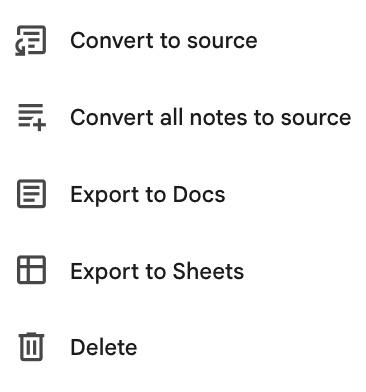
The Notes Feature — Don’t Skip This
When Gemini Notebook gives you an especially useful answer, save it as a Note.
You can even turn a Note into a Source: meaning the AI will treat that captured insight as a foundational document in every future answer it generates for that notebook.
Real Use Cases for Solopreneurs
Client Prep
Before a strategy call, create a notebook with your meeting notes, past proposals, and email history with that client. Ask it to generate an agenda, surface key talking points, or anticipate likely questions. You walk into the call knowing the full history — even if you haven’t looked at those files in months.
Financial and Admin Tasks
Upload your service rates, past invoices, and expense categories. Ask it to identify patterns or flag discrepancies. If you’re comparing vendor options, upload the brochures, pricing pages, and spec sheets side by side — and ask it to build a comparison table.
Already built the free CRM we walked through in Google Sheets? Export it and upload it here too. Now you can ask which clients are behind on payment, or which service tier actually pays your bills.
Market and Competitor Research
Upload industry reports, competitor pricing pages, and customer feedback. Ask it to identify trends, summarize gaps, or highlight what competitors aren’t offering. The Studio panel can turn that into a structured comparison table in seconds.
Course and Training Materials
If you’re building a program or onboarding documentation, upload your draft content and ask Gemini Notebook to generate quizzes, flashcards, or a briefing document. It turns raw material into structured learning content without you having to format everything by hand.
Connect your Notebook to your custom Gem
You can tag a Gemini Notebook notebook as a knowledge source inside a Gem.
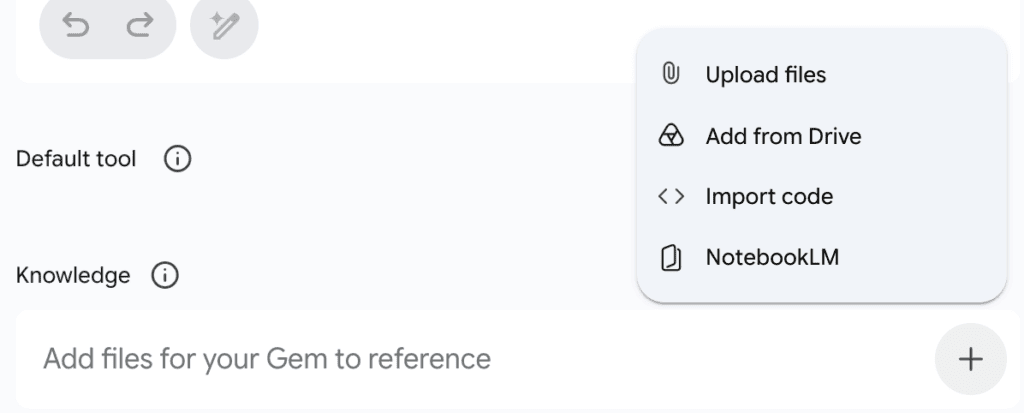
One of my favorite workflows is connecting Gemini Notebook to custom Gems as a knowledge source. Because Gemini Notebook updates automatically when you edit your docs, your Gems stay synced in real time. Here’s how you can leverage both tools in one workflow:
- Personas: Build a Financial Expert to audit your expenses or a Marketing Mastermind to map out your launch funnels.
- Brand Consistency: Gems are also where I upload my brand voice guide. This creates a powerful dual system: Gemini Notebook acts as the source of truth (holding all my raw business data, notes, and client docs), while the Gem acts as the brand filter. When I need client copy, the Gem pulls the hard facts directly from Gemini Notebook and processes them through my brand voice guide.
And because it is strictly grounded in my own data – it writes like me and reduces hallucinations. You get brand accuracy and factual precision in one shot.
Free vs. Paid — What You Actually Get
The free tier might be all you need. Any Google account gets up to 50 sources per notebook, standard chat, audio overviews, and the core Studio features.
On the Google Workspace Business Standard, you get more than that. Business Standard includes Gemini Notebook at Plus-level limits: more sources, more notebooks, higher daily caps – plus the same data protection as the rest of your Workspace account. Your notebooks aren’t used to train Google’s models.
For most solopreneurs starting out, build your Second Brain first with what you’ve already got. Then decide if you need more.
FAQ
Is Gemini Notebook actually free to use?
Yes. The free tier is genuinely useful — up to 50 sources per notebook, standard chat, audio overviews, and the core Studio tools. You don’t need a paid plan to build your first Second Brain.
What’s the difference between Gemini Notebook and ChatGPT?
ChatGPT pulls from everything it was trained on, mixed with whatever you type in. Gemini Notebook only answers from the documents you upload — nothing from the open internet unless you add it as a source yourself. That’s why every answer comes with a citation pointing back to your own files.
Will Google use my business documents to train its AI models?
No. Your notebooks stay private to you. Gemini Notebook only uses your sources to answer questions inside that notebook, and Google Workspace Business Standard’s data terms mean your content isn’t used to train Google’s public models.
Do I need to be technical to set this up?
No. There’s no coding, no Apps Script, no integrations to configure. You sign in, upload files, and start asking questions. If you can attach a file to an email, you can build a notebook.
How is this different from just searching Google Drive?
Drive search finds files. Gemini Notebook reads what’s inside them and gives you an answer built from several documents at once — synthesized, not just located. That’s the difference between finding the folder and getting the answer.
The One Thing to Do This Week
Create one notebook. Call it something specific — “My Business Second Brain” works fine.
Upload five documents. One from each bucket if you can. Your bio, one service description, one past proposal, one newsletter, one SOP or process doc.
Then ask it one real question. Something you’d normally have to dig for.
See what comes back.
That’s the moment it clicks. And once it does, you won’t go back to the old way.