
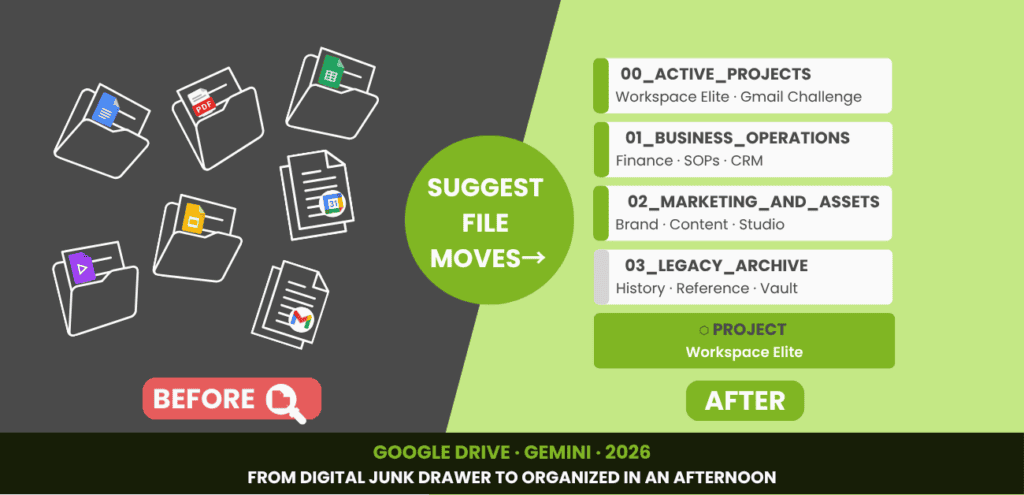
If you’re a solopreneur on Google Workspace, this is the cleanup you’ve been putting off – and it just got a whole lot easier. Gemini is now your free, personal organizer.
Confession: I Had a Root-Drive Problem
I’ve had my Google Drive for almost 20 years. And for two decades, I’ve been a “digital litterbug“. Dropping files on the front lawn of ‘My Drive’ because I promised myself I’d “file them later.”
If your Drive is a digital junk drawer, you aren’t alone. But in 2026, a messy Drive isn’t just a pain; it’s an AI tax. If your files are a mess, Gemini has to work harder to find your ‘Source of Truth.’ With Gemini in Drive, it was time to pay my debts and reach Drive Zero.
First: What’s New in Google Drive
Gemini has turned Google Drive into a searchable brain that understands your business. It doesn’t just store data; it audits it.
The most impressive part is that Gemini understands context better than a folder structure ever could. You no longer have to decide if a file belongs in “Marketing” or “2024 Projects” – Gemini knows it’s both.
The “fix” isn’t about filing anymore; it’s about prompting. Instead of learning how to sort, we’re learning how to ask.
This is a step-by-step tutorial. Screenshots and copy-paste prompts included. Here’s how I purged 20 years of clutter in 30 minutes.
Let’s go.
Step 1 — The Audit: (Scanning the Junk Drawer)
The Source of Truth Search
Before you clean, let’s see what you’re up against. In the standard search bar (the one at the very top of My Drive — not the Gemini prompt bar) run the ‘Truth Search‘: to surface what’s hiding in your root folder.
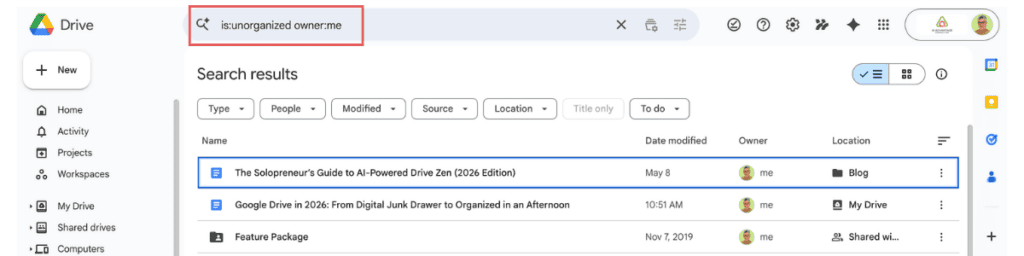
Start with this one:
is:unorganized owner:me
- Find files Drive has flagged that need a home. For me, it was thousands of Untitled Docs, random screenshots, and clones of templates I’d forgotten I owned.Tip: Use this one for your monthly maintenance too.
Then try:
- owner:me -is:starred -in:trash – Everything you own that isn’t starred and isn’t deleted. Your entire junk drawer in one view.
- older_than:1y – Files you haven’t touched in over a year
Pro tip: You can stack operators. type:pdf older_than:2y shows you exactly which old PDFs are still sitting in root.
The Lesson: Search operators are great for a ‘Quick Look,’ but they are manual. You can find the mess and right-click to rename things one by one, but it’s still a chore. To truly ‘architect’ your Drive at scale, you need the Dashboard. This is where Gemini does the thinking for you.
Step 2 — The Command Center (The Gemini Dashboard)
“Ask Gemini” (Alpha)
Click the sparkle icon in the top right of Drive and instead of a side panel, you get a full immersive dashboard. This is where the deeper work happens.
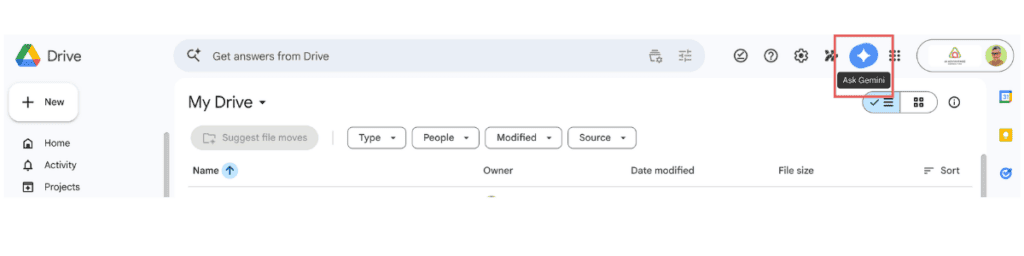
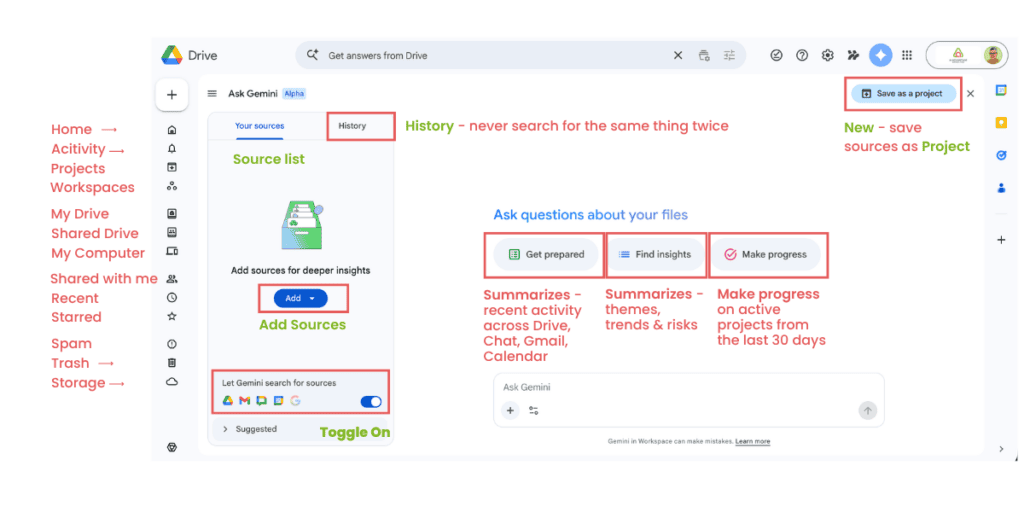
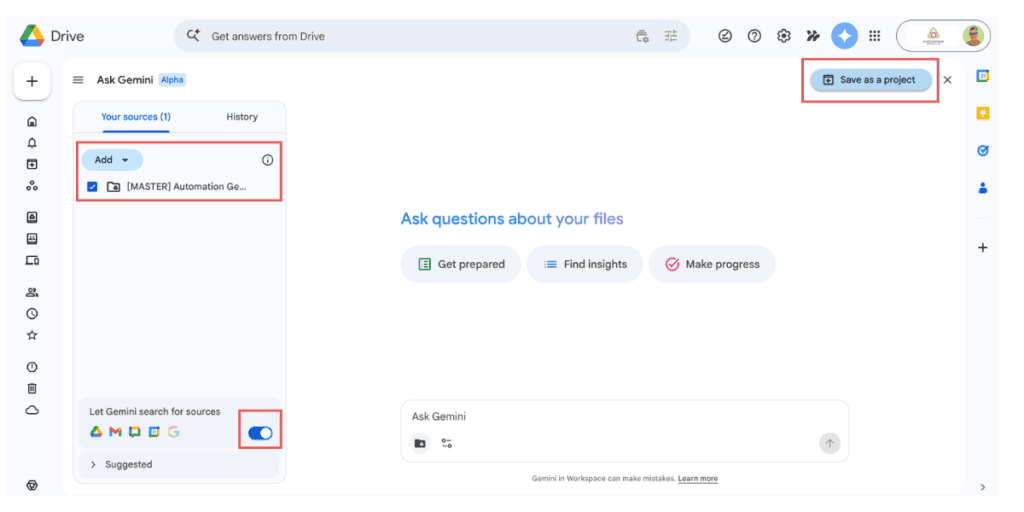
- Ensure the ‘Let Gemini search for sources’ toggle is ON. This is the secret key that gives the AI the ‘permission slip’ to read your data.
⚠️ The Ask Gemini dashboard is for natural language only. If you type a search operator like older_than:1y in here, it will take you outside the dashboard entirely. Operators belong in the standard Drive search bar at the top of the page. More on that below.
Step 3: The Automated Triage (The ‘Magic’ Button)
The “Suggest File Moves” Button
Right at the top of My Drive.
Once you toggle on the “Let Gemini search for sources” button in the Dashboard, Gemini now understands your root directory and a blue button appears in My Drive: Suggest file moves. This is where the manual labor ends.
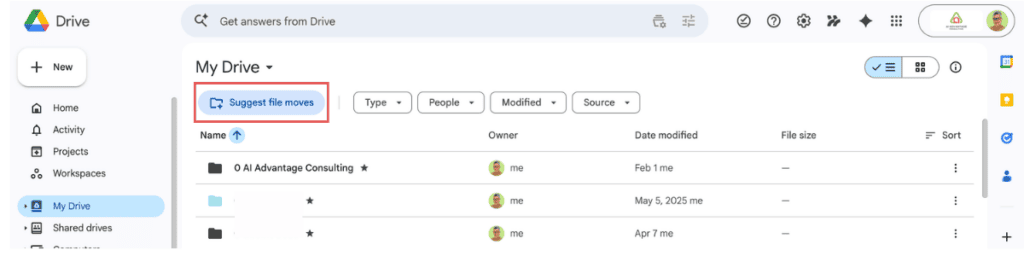
Click it and Gemini analyzes approximately 20 files at a time, returning a table showing: the file name, where it currently lives, where it should go, and my favorite part – the reason why.
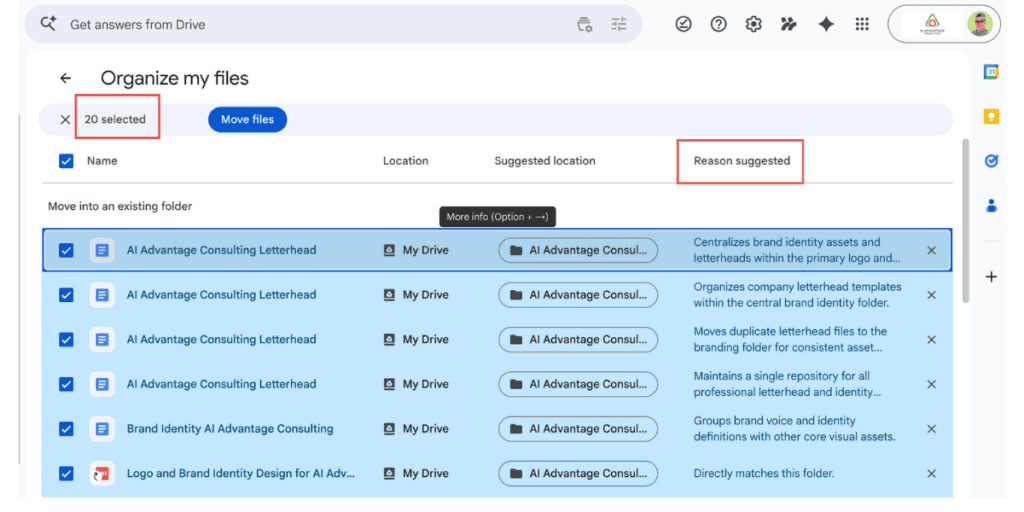
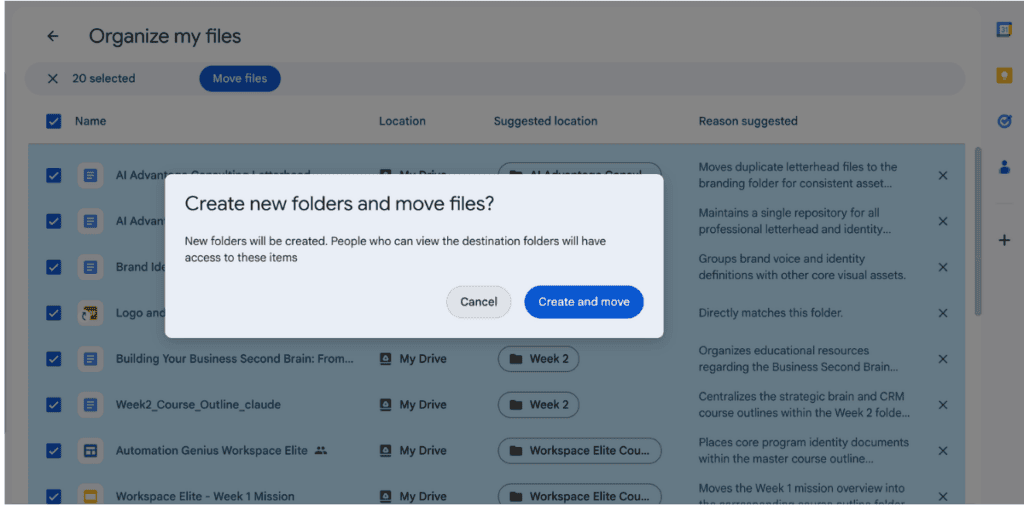
Review the suggestions. Uncheck anything you disagree with. Click Create and Move. Great job! You’ve tidied up.
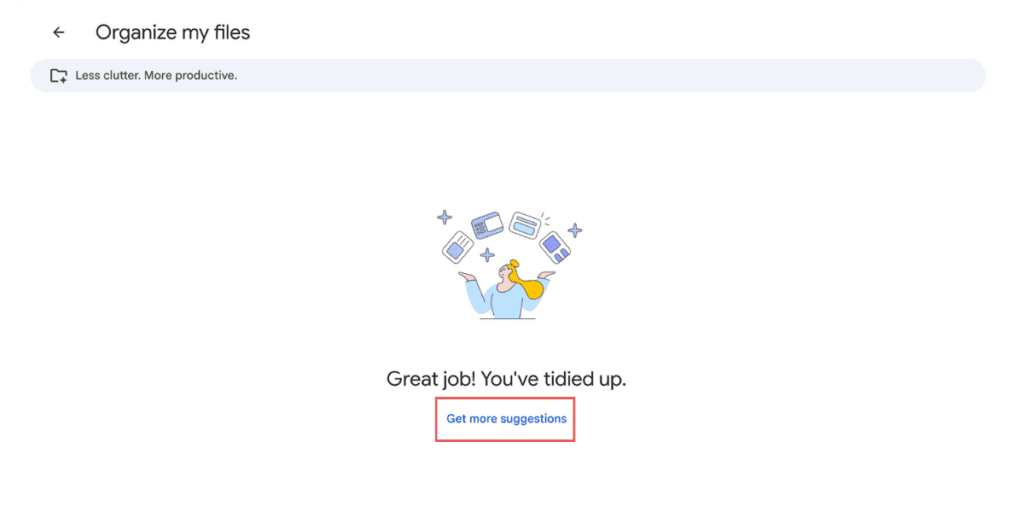
Continue to click “Get more suggestions.” Gemini will batch approx 20 files at a time.
I clicked it 15 times. Each time, Gemini grabbed a batch of files and didn’t just suggest a move – it provided a ‘Reason suggested’:
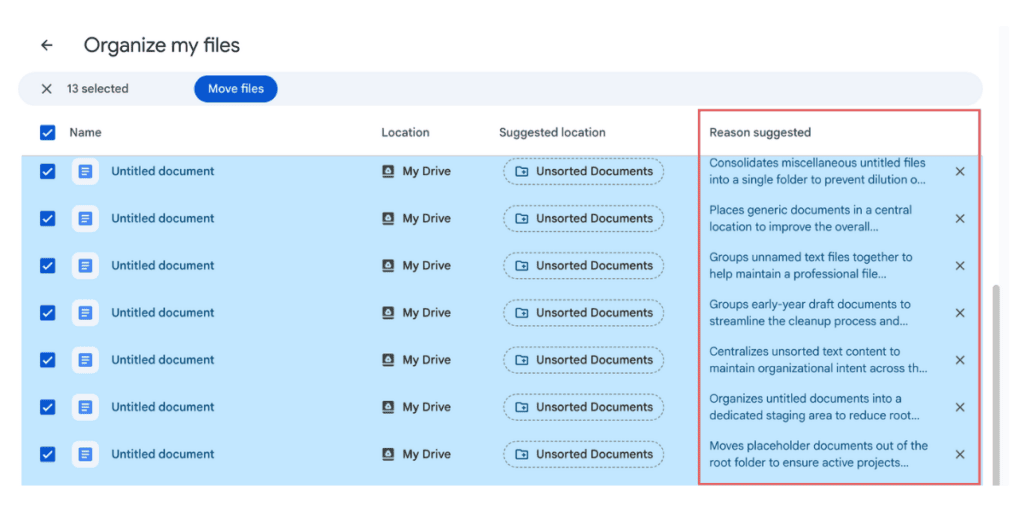
- “Consolidates miscellaneous untitled files into a single folder.”
Then I finally saw it. 🎉
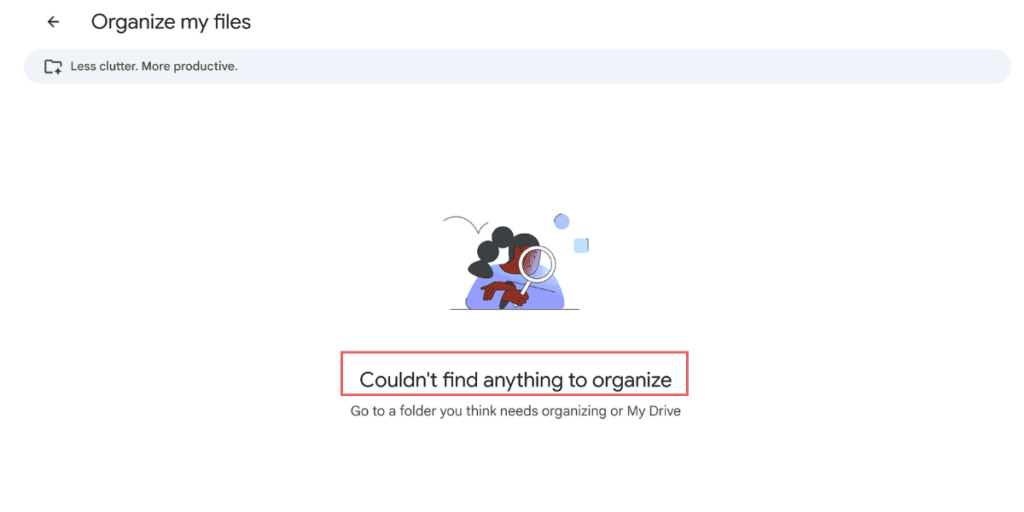
The Result: Drive Zero
Twenty-plus years of digital clutter. Gone. It even created an “Unsorted Documents” folder and moved every Untitled document into it automatically.
Step 4 — Architect Your Drive: Gemini Dashboard Prompts
Once Suggest file moves is done, open the Gemini dashboard (sparkle icon, top right). This is where you handle the things the button can’t like naming, folder structure, and analysis.
Double check “Let Gemini search sources” is toggled on. Then try these:
Get a folder structure built around your actual business
“Analyze the files in my root Drive and suggest a folder structure based on my active projects and business categories.”
Here’s what Gemini returned for me:
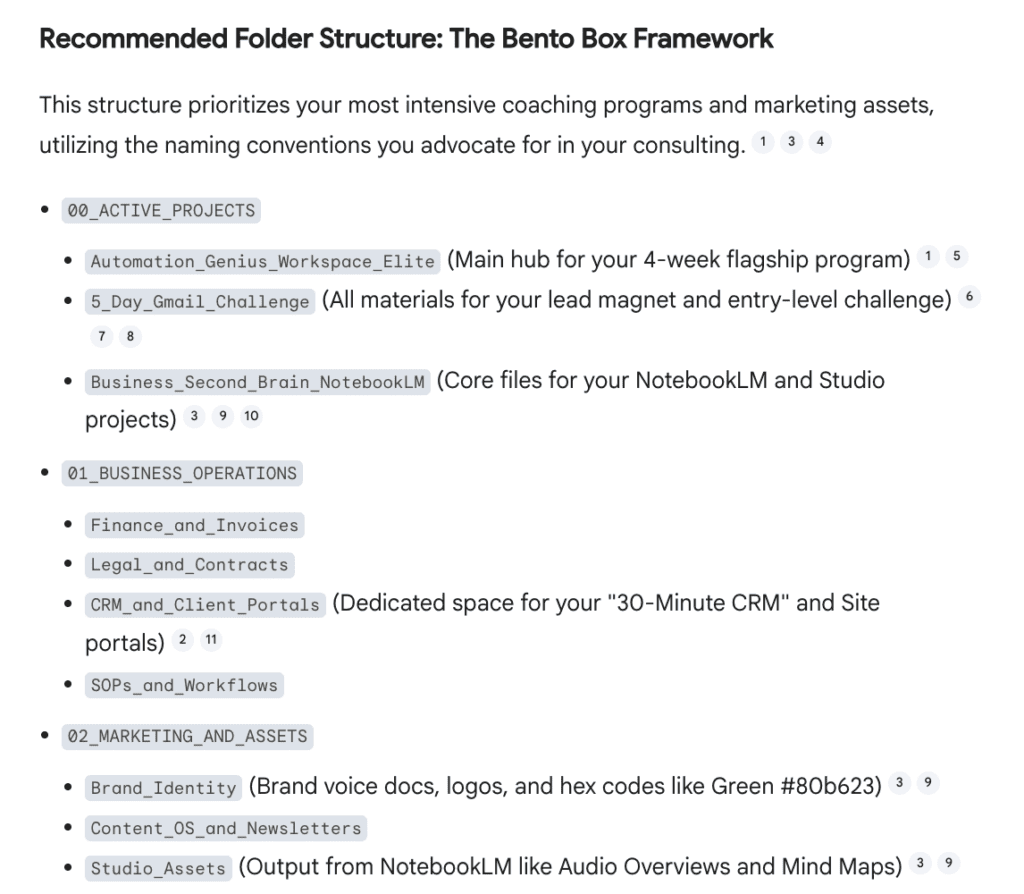
Agentic Drive: Gemini sorts the “emergency” current files from the “healthy” archives so you can focus on what matters.
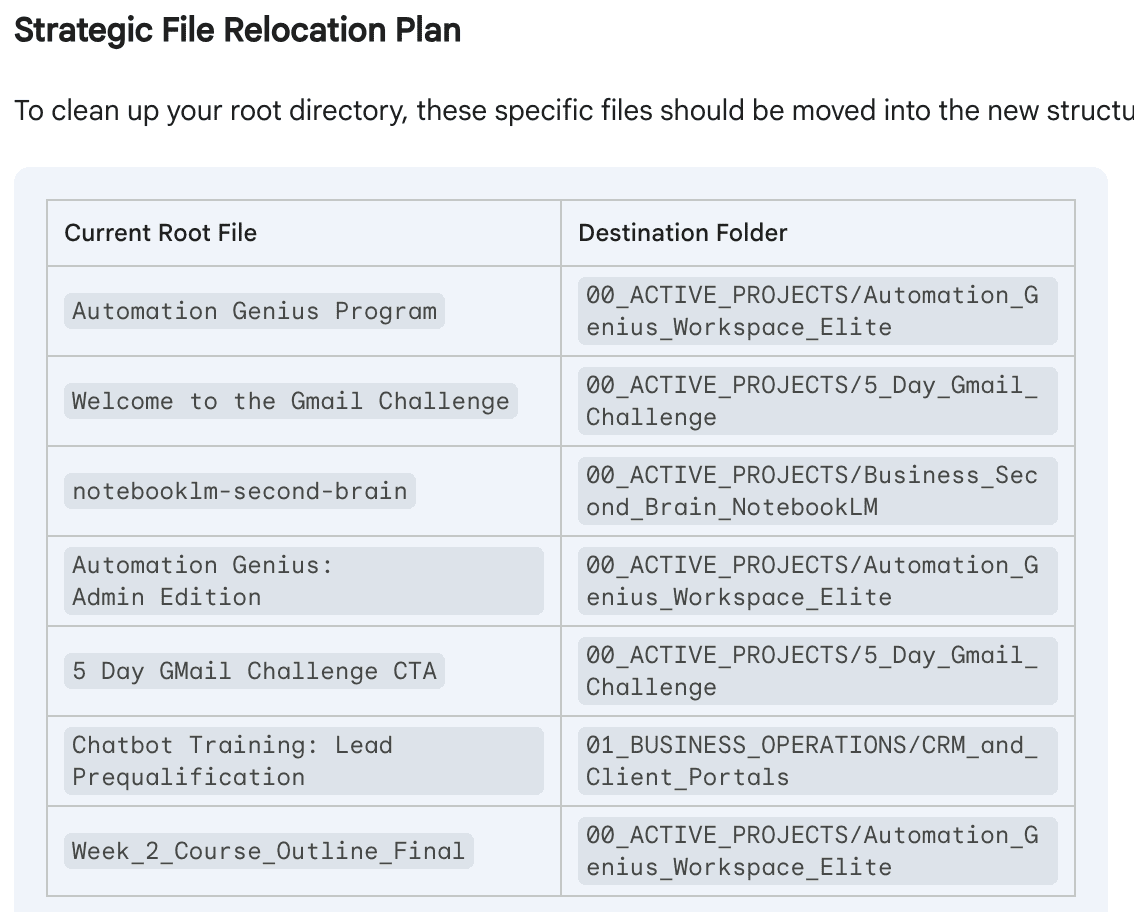
Bento Box Framework: This isn’t just “AI Search.” It’s an Agent that can take action (moving, creating, summarizing) across your whole system.
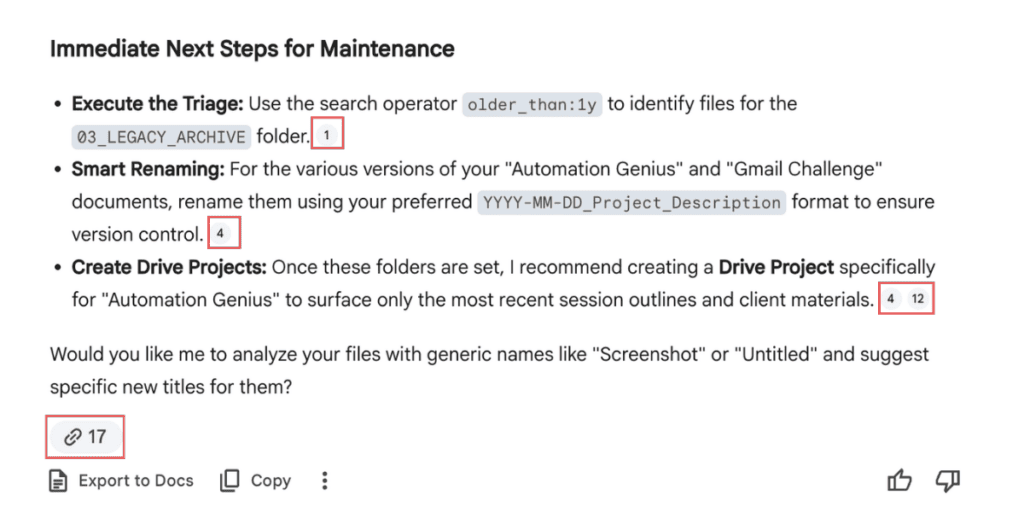
Contextual Citations: These are the little numerical “receipts” Gemini gives you. They prove the AI isn’t hallucinating; it’s literally showing you the work it did to categorize that file.
Fix the unnamed files
“Look at files with generic titles like ‘Screenshot’ or ‘Untitled.’ Suggest new names based on what’s inside them.”
Gemini reads inside the files, summarizes the content, and returns a table: current name, content summary, and suggested name. It also flags empty files and notices patterns — like “You have a lot of Admin screenshots. Want me to suggest a folder for those?”
Note: Gemini won’t rename your files. Instead, it creates a Suggested Renaming Guide.
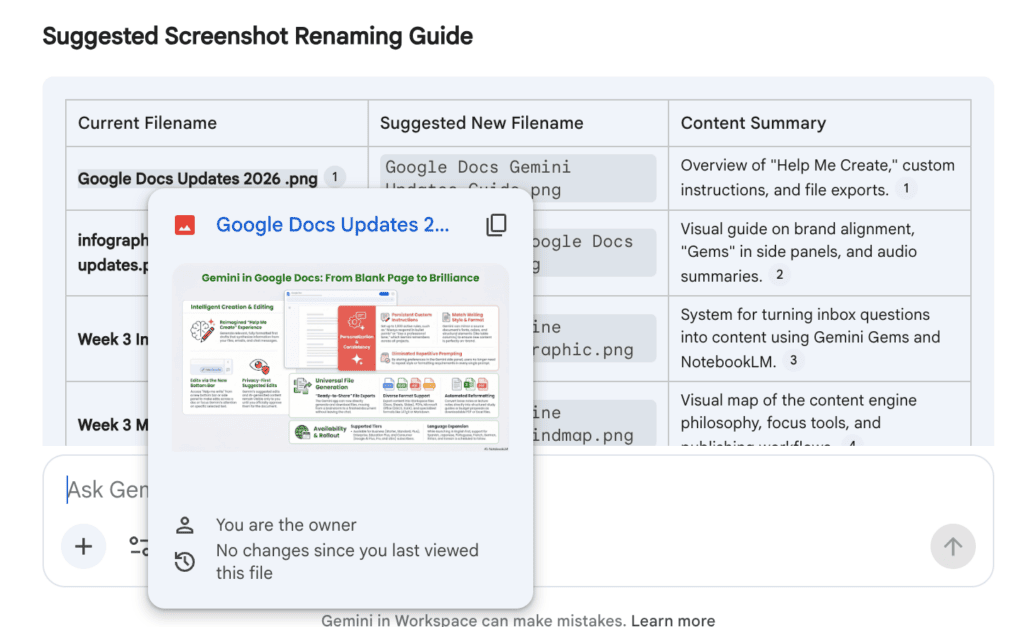
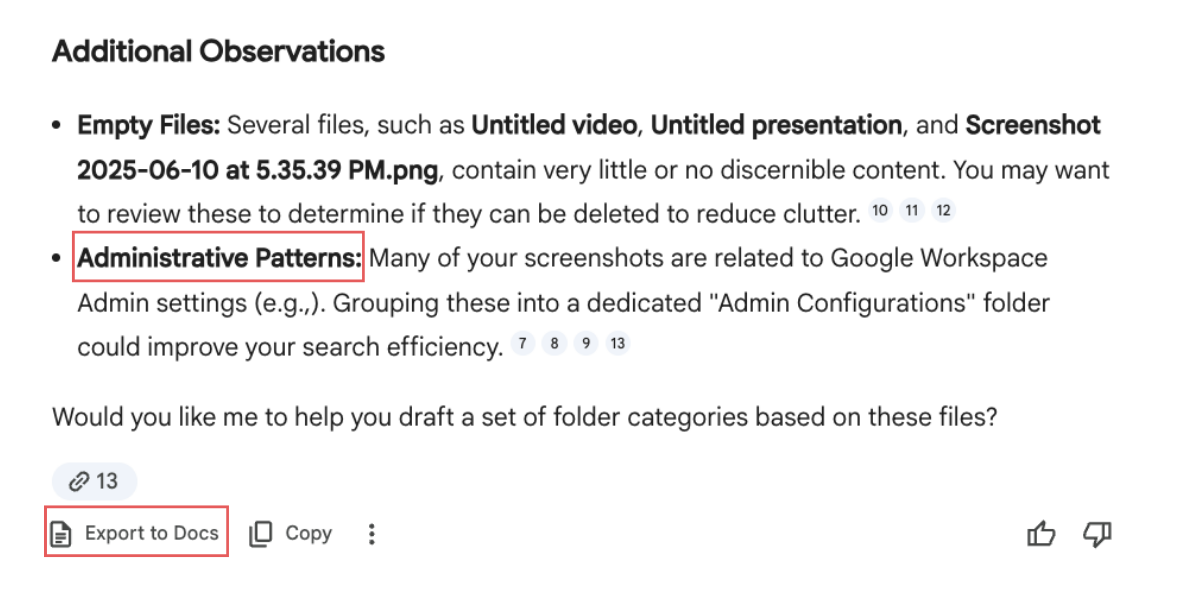
Export to Docs button at the bottom lets you save the full renaming plan as a Doc so you can easily action it.
Step 5 — Save as a Project: Shortcut to Your WIP
Here’s the distinction that changes how you work:
A folder is where you store things. A Project is where you work on things.
Same files. Zero reorganizing. You just create a Project view that surfaces only what you’re working on right now. It eliminates the “click-fatigue” of clicking through four folder levels every time you start work. Just open your Project and Gemini already knows the goal, the branding, and the context.
To create a Project:
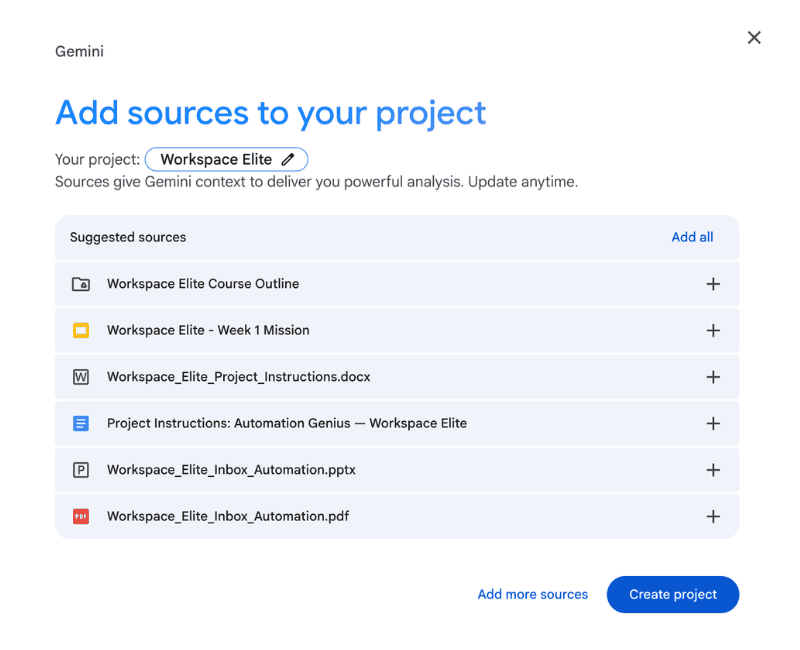
- From the Gemini dashboard: add your sources, then click Save as a project (top right). That’s it.
- From My Drive: click Projects in the left sidebar, then Create a project
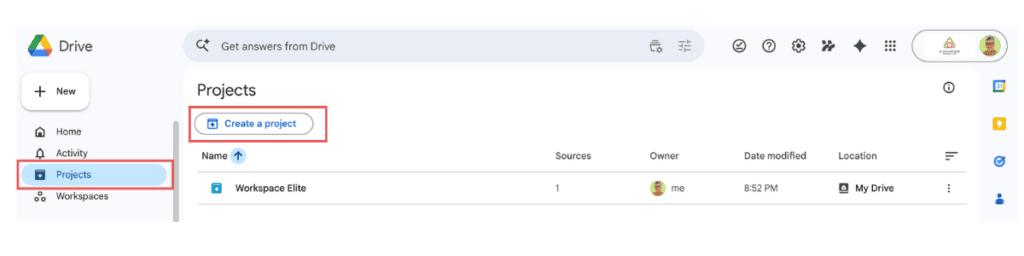
- Add files and folders from Drive, or sources from Gmail
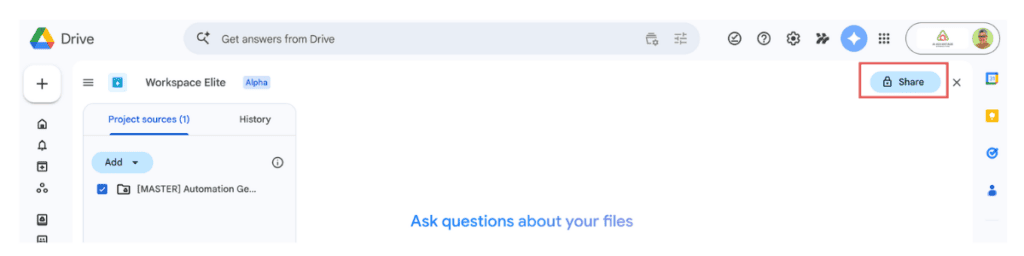
- Once created you can ask Gemini questions about your files and the button changes to Share, so you can give a VA or contractor access to exactly what they need, nothing more
Step 6 — The Maintenance Dance 💃
Here’s the part you shouldn’t skip. Most people will clean it up, feel like a million, and six months later – it’s a junk drawer again. The fix is a system.
Paste this prompt into the Gemini dashboard:
Set up your monthly Maintenance Dance
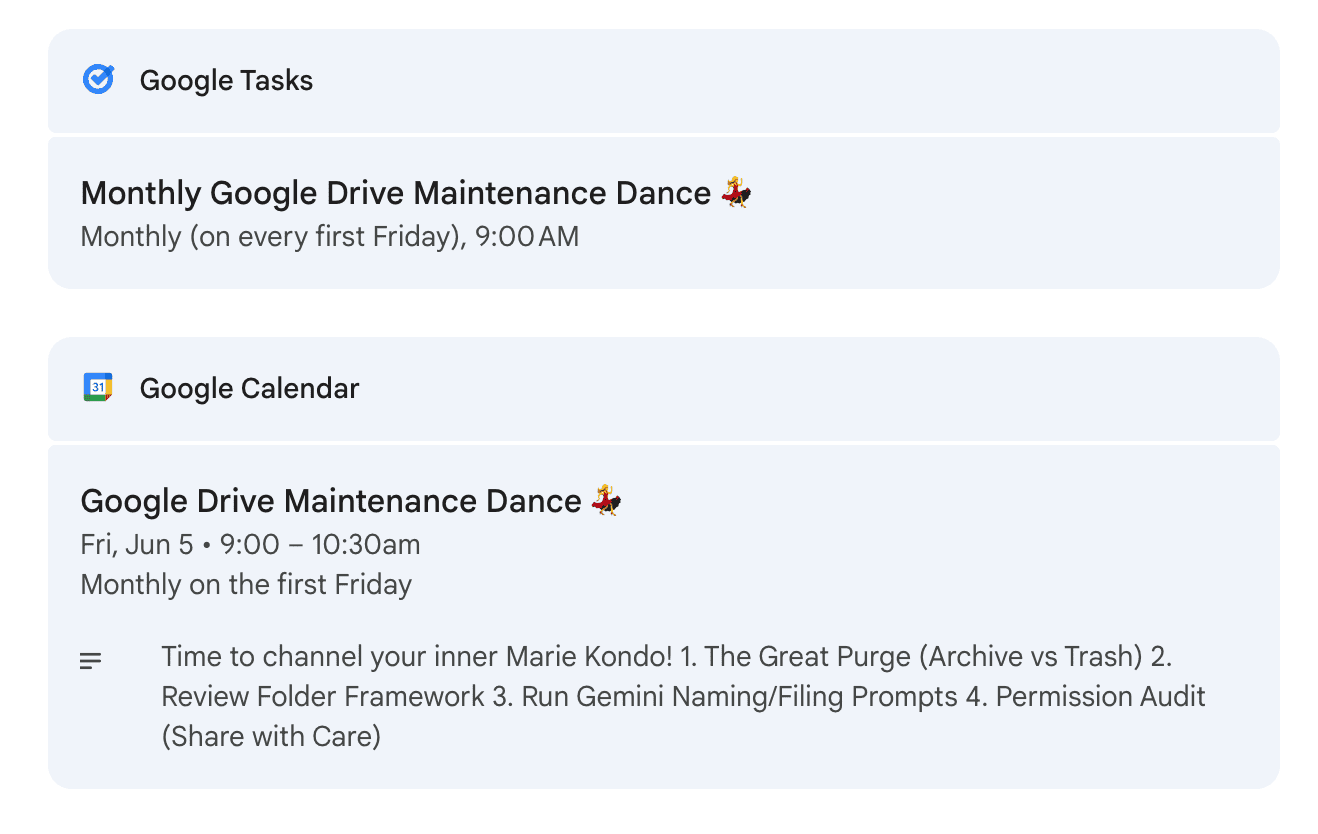
“Create a recurring Google Task and a 90-minute calendar event on the first Friday of every month called ‘Google Drive Maintenance Dance.’ Include these steps in the calendar description: 1. Run is:unorganized owner:me in the Drive search bar — see what dropped this month. 2. Hit Suggest file moves in My Drive.”
Gemini creates both the Task and the Calendar event — and embeds your checklist directly in the calendar description. You never have to look it up again.
The History tab in the Gemini dashboard saves every conversation. So next month when you come back for maintenance, you pick up exactly where you left off.
The Bottom Line
You don’t need a perfect folder structure. You don’t need to spend a Saturday on this. You need one afternoon, a blue button called Suggest file moves, and a recurring appointment with yourself.
After 20 years of accumulation, I finally reached the promised land. My root directory is empty, my templates are filed, and a Drive that now knows my business well enough to name my files better than I did.
Clean Drive. Clear head. Let’s go.
Want to build a business that runs on Google Workspace and not against it?
Workspace Elite is my 4-week intensive for solopreneurs who are done managing tools and ready to build a business that runs itself. → Automation Genius Workspace Elite.
A Note on Availability (The “Beta” Reality Check)
Still on the free version of Google? Here’s what it’s costing you.
While the future of Drive is here, it is currently arriving in stages. Many of the features I’ve demonstrated including the immersive Gemini Dashboard and Agentic Drive capabilities are currently in Alpha or Beta release.
- Who has it now: They’re rolling out first to Google Workspace accounts with active Gemini Business, Enterprise, or Education add-ons.
- What to check: If you don’t see the “Sparkle” icon in the top right of your Drive, ensure your admin has enabled Gemini extensions and that the “Let Gemini search for sources” toggle is available in your side panel.
- The Timeline: Google is famously iterative. If you don’t have the full dashboard yet, keep your standard search operators (Step 1) handy, they work for everyone, regardless of your plan.