
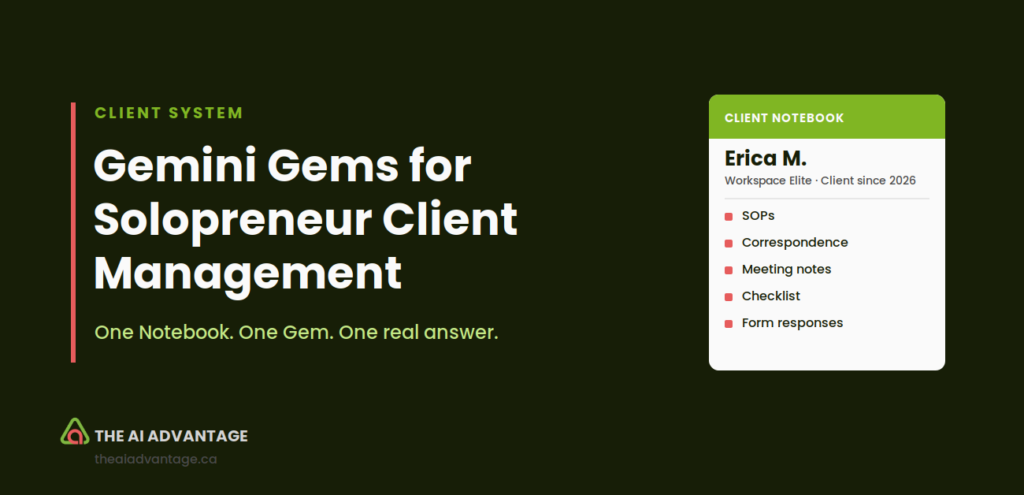
One client. Six different places their information lives, and that’s before we even talk.
SOPs in the SOP folder. Emails in Gmail. Calendar has the “when.” The CRM has the “what’s next.” Their weekly Workspace Elite checklist. Their form responses in spreadsheets and questions scattered across whatever thread they came in on.
Then we have a meeting. And Gemini hands me three more things to manage — a summary, a transcript, a recording.
Multiply that by every client. Every week.
TLDR
Build a Gemini Notebook for each client that pulls together every source about them — SOPs, correspondence, meeting artifacts, form data. Link that Notebook to a Gemini Gem. Now you can ask real questions — “Where am I at with Erica?” — and it answers from her Workspace Elite outline, your correspondence, and her checklist, at the same time. No hunting. No cross-referencing three tabs putting the pieces together.
Why It Matters
Every minute you spend hunting is a minute you’re not billing, not building, not present with the client in front of you. And it compounds. Six sources per client, times six clients, times every single meeting — that’s not an occasional annoyance. It’s a background tax you’re paying every week.
The real cost isn’t just time, either. It’s the split second before you respond to a client — the pause where you’re piecing together context instead of the answer rolling off your tongue. They feel the pause, even if they’re not sure where it’s coming from.
Step-by-Step: Building the Client Knowledge System
Step 1: Build the Notebook
Open Gemini Notebook. Create a new notebook. Name it clearly — I choose the client’s full name. This becomes the one place you go for everything about them. Your original files still live in Drive. They’re synced here. So when you update them in Drive, they automatically update in your client notebook.
Step 2: Add Your Sources
This is where you stop choosing what to leave out. Add the SOP files. Key email threads. Meeting summaries, transcripts, even the recordings. Add their form responses. The checklist they’re working through.
A Notebook holds up to 300 sources. You’re not going to hit that ceiling with one client. That’s the whole point.
Step 3: Create the Gem and Link the Notebook
Go to Gem Manager and create a new Gem. In the Knowledge section, add your client’s Notebook as a source. Give the Gem simple instructions: who this client is, what tone to use, what matters most when you’re corresponding with them.
The Gem doesn’t need to hold the files anymore. It just needs to know where to look.
Step 4: Call It From Gmail
Open the Gemini side panel in Gmail. Find your Gem in the list. Ask it what you need — a summary of where things stand, a reminder of what they asked last week, help drafting a reply in their tone. It already knows. You didn’t have to go looking.
Step 5: Call Live Data With “@” Commands
Your Gem isn’t limited to what’s in the Notebook. Inside Gmail, Docs, or Chat, you can call on other Workspace apps directly with the “@” symbol — pulling today’s information, not just what’s archived.
@Calendar show me my upcoming meetings with Erica
@Gmail summarize the latest thread with Erica about the project proposal
@Docs create a summary of the key points from Erica's project brief
@Tasks add a reminder to follow up with Erica about the revised contract
The Notebook holds her history. The “@” command gives you what’s happening right now — an email from this morning, a meeting sitting on tomorrow’s calendar. Give the Gem simple instructions up front — “Act as a client manager for Erica,” “Summarize project updates from the linked Notebook,” “Draft emails in a warm, direct tone” — and it knows how to use both at once.
Common Mistakes
The biggest one: assuming everything syncs the same way. It doesn’t.
If a source is linked from Google Drive — a Doc, a Sheet — it updates automatically every time you edit it. Nothing to redo.
But if you uploaded a file directly — a PDF, an exported transcript, a downloaded form — that version is frozen the moment you added it. Change the original, and your Gem is now working from an old copy. You have to re-upload it yourself.
Know which sources are which. It’s the difference between a system you trust and one that goes stale.
FAQ
Do I need both a Notebook and a Gem, or can I just pick one?
You need both, and they do different jobs. The Notebook holds the information. The Gem is what you talk to. Without the Notebook, you hit the file limit fast. Without the Gem, you don’t get the natural, conversational access from inside Gmail.
Should I organize by client, or by service?
Depends on your business. If you work closely with a small number of clients, like I do, a Notebook per client makes sense. Everything about them, one place. But if you run one service across many clients, a Notebook per service works better — one Notebook holds your program structure and SOPs, reused across everyone in it.
What happens when I hit the 10-file limit in a Gem?
You won’t, not with this setup. The Notebook is what holds the volume. The Gem just links to it as a single knowledge source.
Is this safe to do with real client information?
Business Standard comes with enterprise-grade data protection, meaning your client data isn’t used to train Google’s models. Always confirm with a client before storing anything sensitive, and never upload something you wouldn’t want searchable inside your own workspace.
What if I already built client Gems the old way, with files uploaded directly?
Start your next client this way instead. For existing ones, move the files into a Notebook when you have a spare afternoon, then swap the Gem’s knowledge source over. No need to rebuild the Gem itself.
Quick Win Summary
One client shouldn’t mean six tabs open before you can answer one email. Build the Notebook first, let it hold everything. Link it to a Gem, and now you have one place you go to ask. The information was never the hard part. Finding it was.