
GOOGLE WORKSPACE · BOOKING PAGES · APPOINTMENT SCHEDULING
If you’re still doing the “what time works for you?” email ping-pong, stop. Manual scheduling through email averages 8 emails per meeting booked. It’s exhausting, it’s inefficient, and it’s costing you more than just time—it’s costing you focus.
You’re already paying for the solution in your Google Workspace subscription. It’s a built-in scheduling tool that lets anyone book time with you without the back-and-forth. Let’s get you set up.
It’s called Booking Pages. And it’s one of those underutilized tool sitting in your account right now.
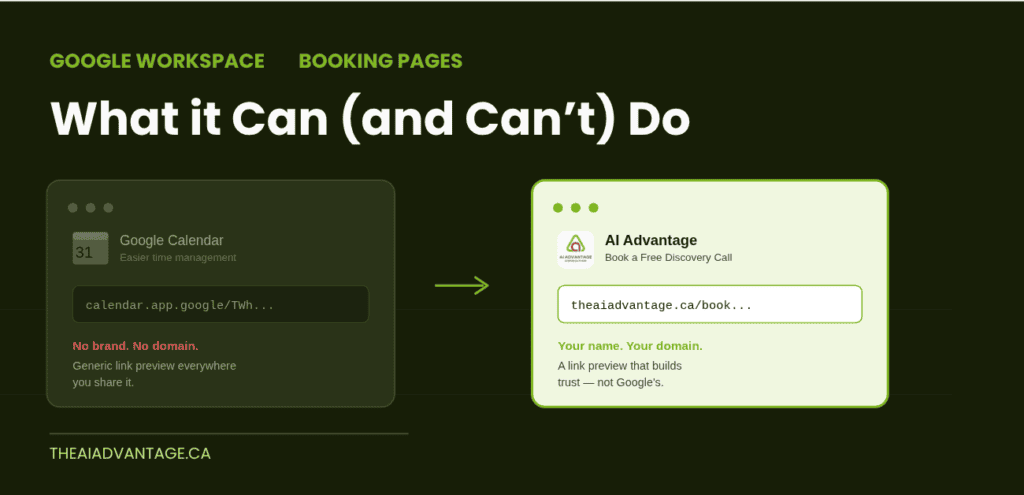
Before I show you everything it can do, there’s one thing it can’t do that was a deal breaker for me. I’ll get to that.
TL;DR — Is Google Booking Pages Right for You?
Best for: Internal scheduling, simple setups, anyone without a website yet.
Not ideal for: Public-facing links, premium branding, post-booking funnels.
Replaces a paid scheduling tool? Sometimes — but not yet for everyone.
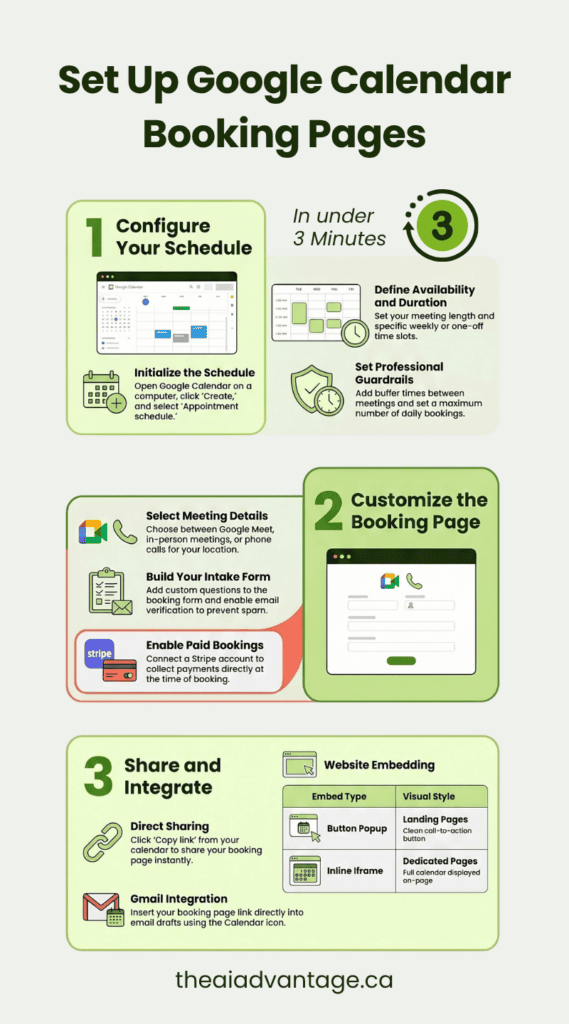
Set Up Google Calendar Booking Pages in Under 3 Minutes
Forget juggling more apps or new passwords. You’ve already got a scheduling tool waiting inside your Google Calendar—you just need to open it.
- Open Google Calendar
- Find the Booking pages section in the left sidebar
- Click the + button
- Set your appointment duration and availability hours
- Add Google Meet conferencing — one click, auto-generates a Meet link for every booking
- Hit Save. Copy your link.
That’s it. You have a working booking page. Now let’s look at what you can actually do with it.
Where to Find Google Calendar Booking Pages
Open Google Calendar. Look at the left sidebar. Scroll down past your calendar list.
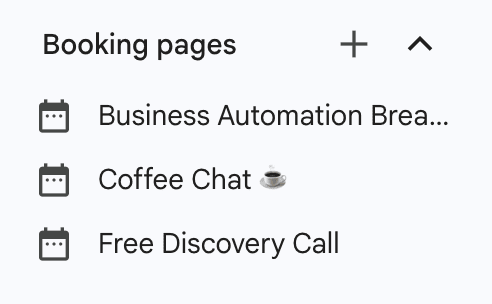
You’ll see a section called Booking pages with a + button beside it.
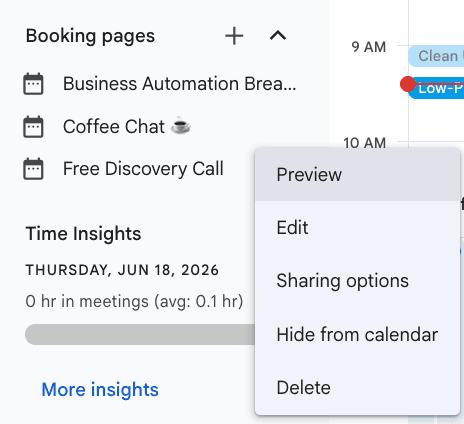
Right-click any existing booking page and you get five options: Preview, Edit, Sharing options, Hide from calendar, Delete. Everything lives inside Calendar. Nothing to install.
What Google Booking Pages Can Actually Do
When you create or edit a Booking Page, you’re working through six sections. Here’s what each one does.
1. Your Identity on the Page
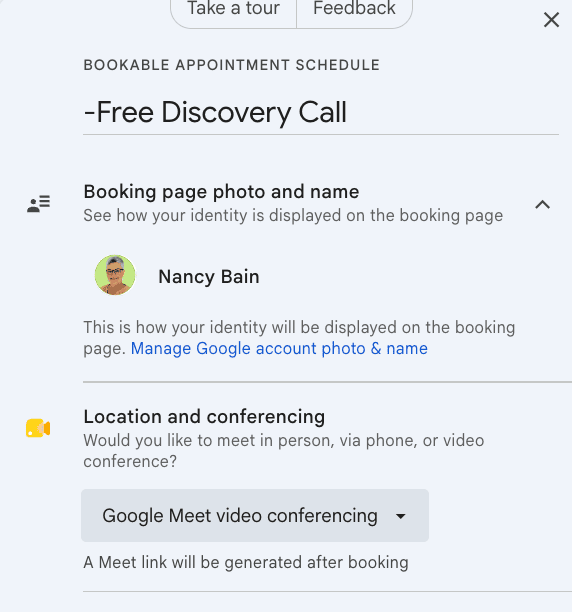
Your Google account photo and name appear automatically. Google Meet is one click to enable — and a unique Meet link gets generated for every booking automatically.
No manual link creation. No copy-paste into confirmation emails. It just happens.
2. Description
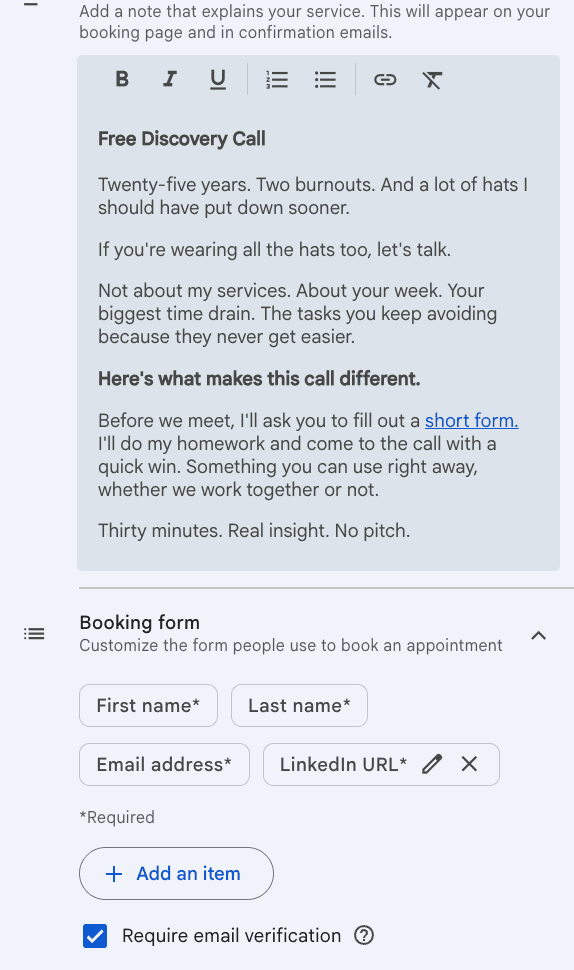
More capable than it looks. You get a rich text editor — bold, italics, underline, bullets, numbered lists, hyperlinks. You can write real copy here. Link to a form. Set expectations. Tell people exactly what the call is about.
That description appears on your booking page and in confirmation emails. Use it.
3. Booking Form
Every booking page collects first name, last name, and email by default. Add custom fields on top of that.
I’ve added LinkedIn URL as a required field on my discovery call page. Before someone lands on my calendar — I already know who they are.
You can also require email verification before a booking is confirmed. That one filter alone removes a surprising amount of noise.
4. Payments and Cancellation Policy
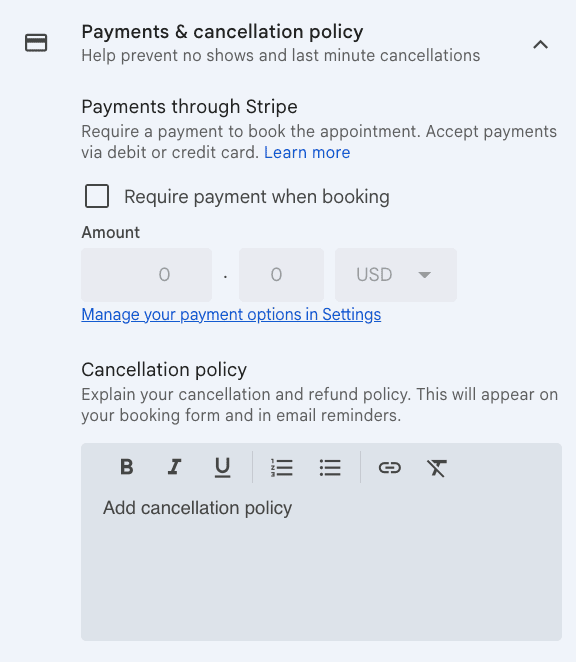
Stripe is built in. Check a box, set your amount, connect your Stripe account — payment required before the booking confirms.
There’s also a cancellation policy field. Write it once. It shows on the booking form and in every reminder email automatically.
For paid sessions, this is a legitimate built-in checkout flow. No third-party payment tool required.
5. Confirmations and Reminders
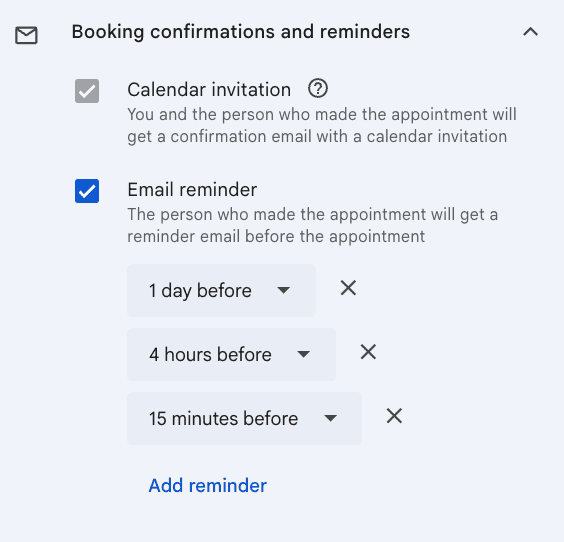
A calendar invitation goes to both you and the booker automatically. That’s built in and non-negotiable — which is exactly right.
For reminders, you get multiple slots. I run mine at 1 day before, 4 hours before, and 15 minutes before.
One thing to know about reminders.
You can set when they send — but you cannot customize the copy. Google writes the reminder email. If your client experience depends on what those emails say, that’s a real limitation. More on this below.
6. Scheduling Options
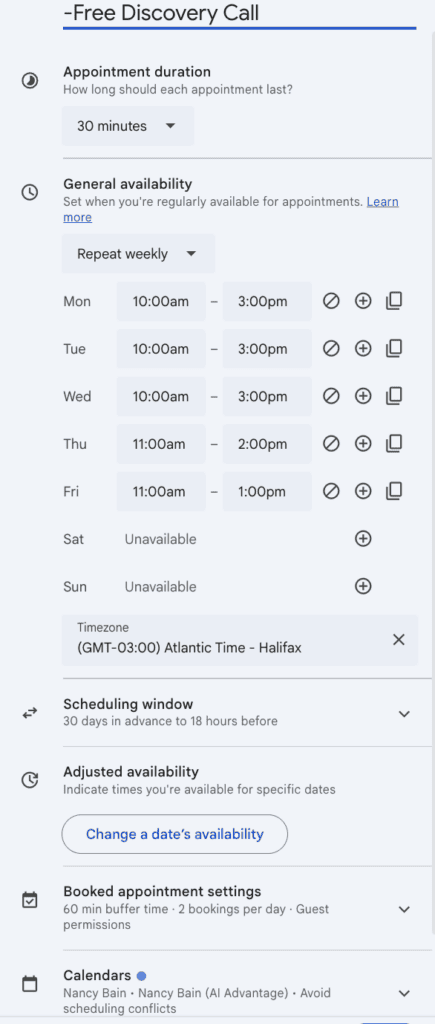
This is where Google Booking Pages earns its keep.
- Appointment duration: Set it once.
- General availability: Different hours for different days. Block weekends entirely.
- Scheduling window: Control how far in advance someone can book and how much notice you need. Mine is 30 days out, minimum 18 hours notice.
- Adjusted availability: Override your regular hours for specific dates. One change covers a vacation, a conference, or a week that just looks different.
- Buffer time: I have 60 minutes of buffer between bookings. No back-to-back calls.
- Max bookings per day: Set a hard limit. Two discovery calls a day is my ceiling.
- Multi-calendar conflict check: This is the one that matters most. Booking Pages checks across every calendar you select — personal and business — before showing available times. No double bookings. No manual sync setup.
That last one is genuinely powerful. Most third-party Google appointment scheduling tools require manual calendar sync to achieve the same thing. This just works.
How to Share Your Google Booking Page
Two options when you’re ready to share.
Option 1: Direct Link
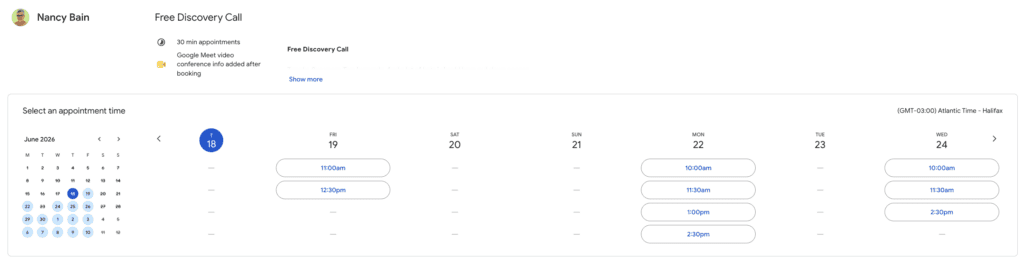
Google generates a link automatically. Share it anywhere — email signature, a client email, a bio link.
You can share a single booking page or a combined page that shows all your booking types at once. To share a single page, you can click the appointment schedule block on your calendar grid and select “Copy link”. To share all of your schedules, you can open the share options (or click the three dots on the booking page entry) to get a link that displays all of your active booking pages.
Option 2: Website Embed
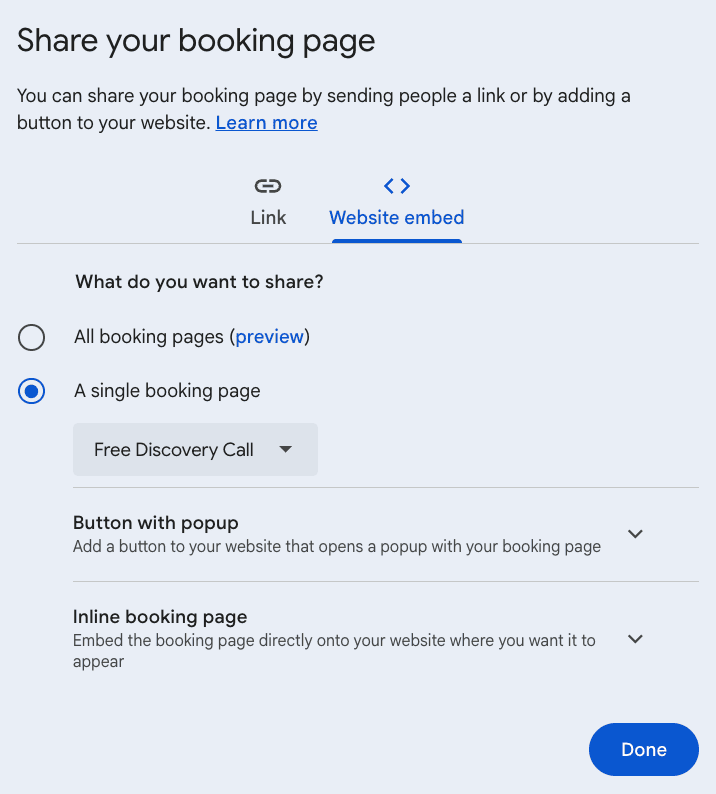
Two embed options: a button that opens a popup, or the calendar embedded inline directly on your page. Both generate HTML you paste into your site.
The inline embed is what I use on my own booking page. The calendar lives right there — no redirect, no extra click.
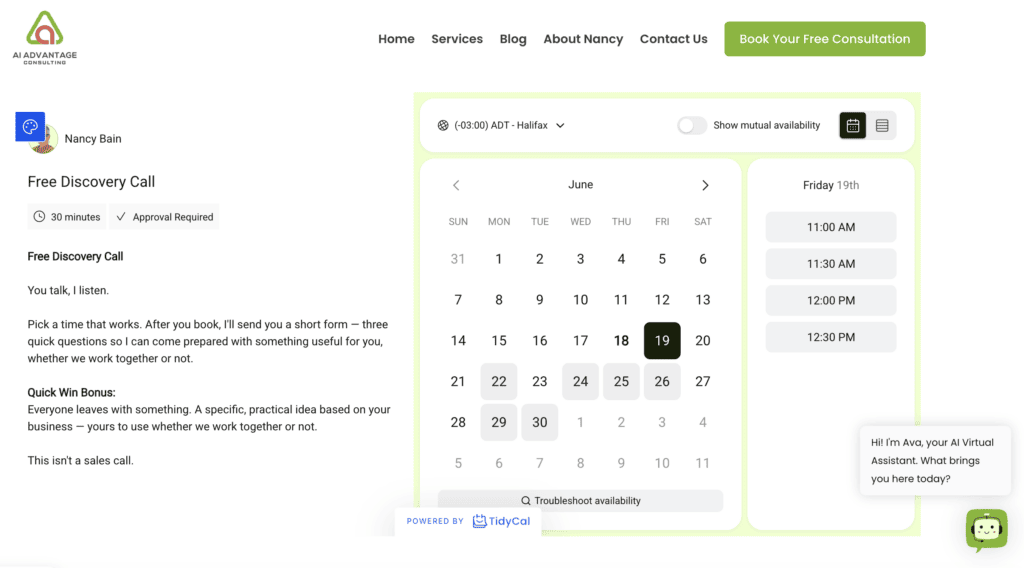
What the Booking Experience Looks Like
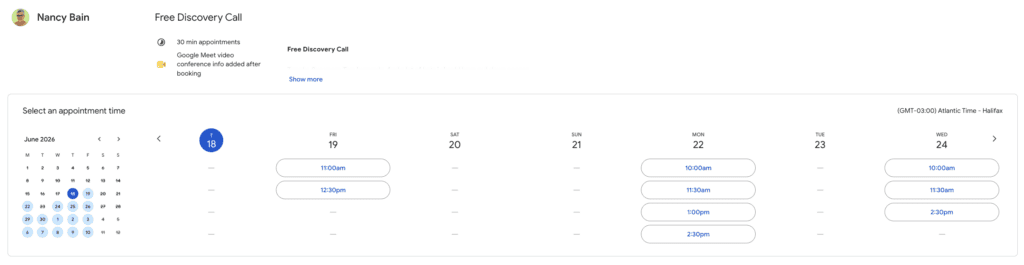
Clean. Professional. Timezone-aware — it detects the booker’s local timezone automatically and shows your availability accordingly.
The week view is easy to navigate. Available slots are clearly marked. The experience is solid.
Limitations of Google Booking Pages
I’ve put this tool through the wringer, and I’m going to be real with you. There are four limitations that actually matter—but one of them hits harder than all the rest combined.
1. Minimal Branding
Your name and profile photo. That’s it. No logo. No brand colours. No header image. The page is clean — but it’s Google’s clean, not yours.
For a solopreneur just getting started without a website, this is fine. For someone building a recognizable premium brand, it’s noticeable.
2. An Unbranded URL

Every Google appointment scheduling link gets a randomly generated URL. No customization.
You can hide it with hyperlinked text in an email signature — and in most contexts that works fine. But it’s not a link you’d want to paste raw into a DM.
3. The LinkedIn Link Preview Problem
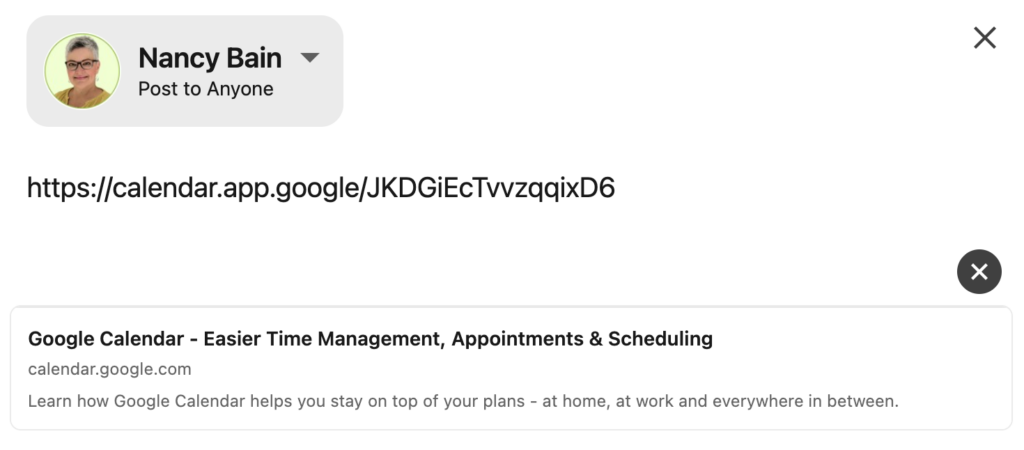
This is the one that ended it for me.
Paste your Google booking page link into a LinkedIn DM or post. Here’s what the other person sees: a generic Google Calendar preview. Google’s branding. Google’s tagline. Nothing that says your name, your business, or what the call is about.
In a world where every touchpoint is a trust signal — that preview is working against you. I wanted to love this tool. This is the one reason I couldn’t.
4. No Post-Booking Redirect
When someone books, they see a confirmation screen. That’s it. No option to send them to a page you control.
A custom thank-you page is where your social proof lives. Where you invite people to subscribe to your newsletter. Where you set the tone for what comes next. With Google Booking Pages, that moment doesn’t exist.
5. Reminder Emails You Can’t Touch
You set the timing. Google writes the copy. If the words in that email matter to your client experience — and they do — this is worth knowing before you commit.
So — Should You Use Google Booking Pages?
Depends on where you are. Here’s how I think about it.
Use Google Booking Pages for internal scheduling.
Team check-ins, client calls where the link lives inside an email, any scheduling where the link isn’t being shared publicly. The multi-calendar conflict check alone is worth setting it up. I have three Booking Pages running. I’m not deleting them.
No website yet? Try Koalendar.
Koalendar is a free app in the Google Workspace Marketplace that sits on top of Google Calendar and solves the limitations that matter most — custom branding (logo, colours, header), reminder emails you actually write yourself, and a readable URL like koalendar.com/u/your-name. It also embeds on a website if you have one, and can take payments through Stripe. I tested it. The UI will feel familiar if you’ve used Calendly. Free plan, no credit card required — but note it starts you on a 7-day pro trial, so don’t activate premium features you don’t plan to pay for.
Have a website and want to own the experience completely? TidyCal.
I dropped my Calendly subscription ($12/month plus tax) and bought a TidyCal lifetime licence for $29. Easy setup, embeds cleanly on WordPress, and the booking link I share is theaiadvantage.ca/book-discovery-call — my domain, my brand, no third-party name in the URL. When someone clicks that link, they’re on my site. That matters. Honestly? If I’d dug a little deeper before buying, Koalendar might have been enough. I have zero regrets about TidyCal — but I want you to have the full picture before you spend anything.
That LinkedIn preview was the dealbreaker for me. When you’re playing in the premium space, you don’t get a pass on the small stuff. Sending a link that defaults to Google’s generic branding? Feels unpolished. It tells your prospective client you took the easy route. That wasn’t a risk I was willing to take.
Watch This Space
Google updates Workspace constantly. And if I had to guess what’s coming for Business Standard accounts — it’s branded URLs tied to your verified domain.
You already have a domain attached to your Google Workspace account. A booking link that lives at yourdomain.com instead of calendar.app.google is the obvious next step. The infrastructure is already there.
When that happens — and I think it will — Google Booking Pages becomes a serious contender for public-facing use too. I’ll update this post as soon as it does.
That’s the great thing about Google. Every roadblock I’ve hit has eventually been solved. It’s like they’re reading my mind. This one will be too.
Want to See What Else You’re Already Paying For?
Booking Pages is one feature. There are dozens more inside your Google Workspace subscription that most solopreneurs have never touched.
I’ve spent 25 years in the trenches, and the biggest lesson I’ve learned is that we’re all working way too hard on the wrong things. Every week, I break down one hidden tool inside your Business Standard account that’s meant to save you time, not add to your to-do list.